---
title: How to Add the Back Button to a WordPress Menu
description: Add a back button to a WordPress navigation menu as the last item of any menu location. A Pro feature of the Back Button Widget.
url: "https://wpfactory.com/docs/add-back-button-to-wordpress-menu/"
updated: "2026-09-27"
category: Pro Features
---
# How to Add the Back Button to a WordPress Menu
To place a back button inside your navigation menu, use the Menu Options section in [Back Button Anywhere Widget for WordPress](https://wpfactory.com/item/back-button-widget-wordpress-plugin/). This is a Pro feature: it appends the button as the last item of any menu location or menu you choose, so visitors get a "Back" control right in the navigation.
### Before you start
- [Back Button Anywhere Widget for WordPress](https://wpfactory.com/item/back-button-widget-wordpress-plugin/) Pro, activated.
- At least one menu created at **Appearance > Menus**, or a theme that registers menu locations.
### Step-by-step setup
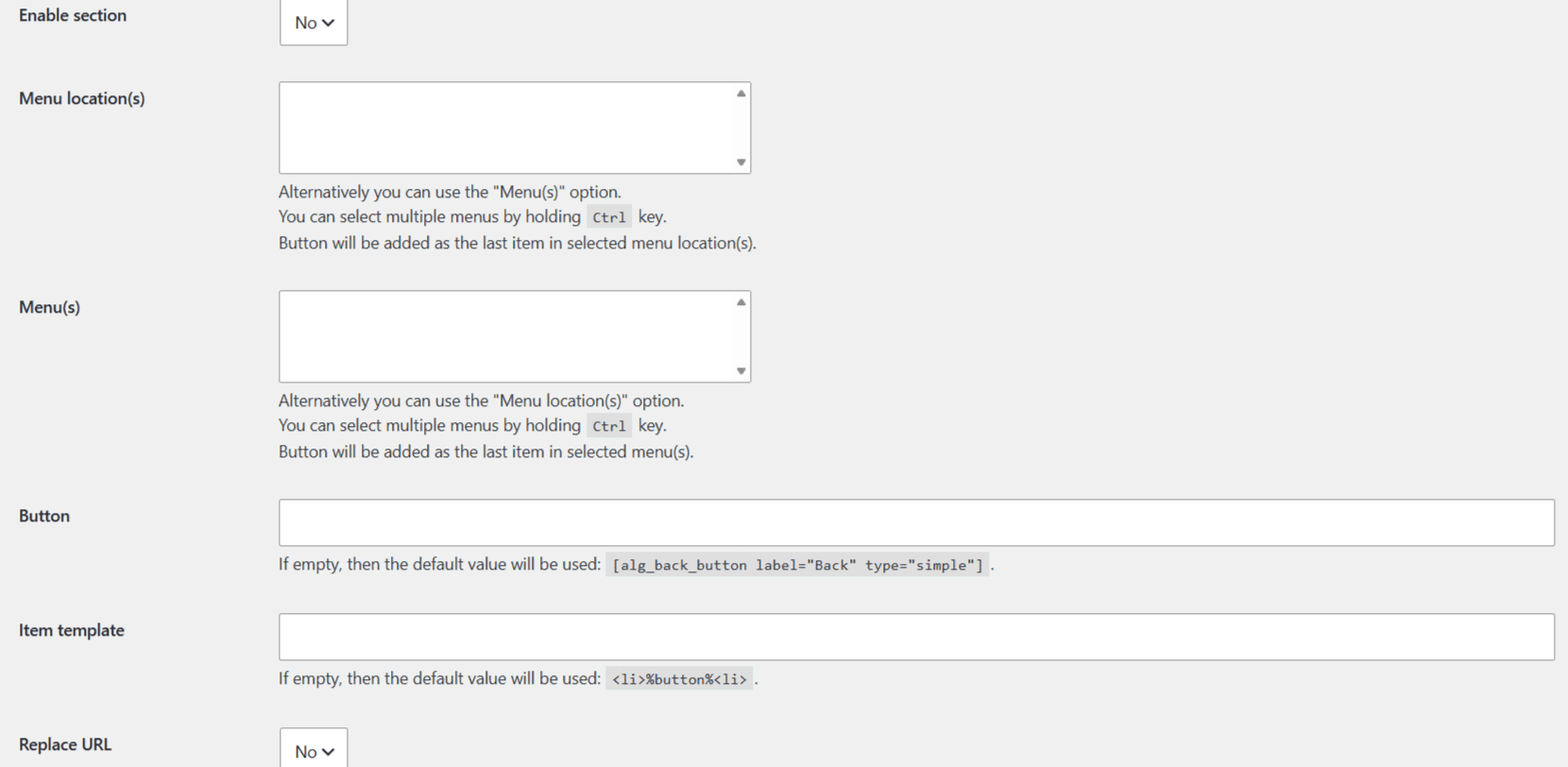
1. Go to **WPFactory > Back Button** and find the **Menu Options** section.
2. Set **Enable section** to **Yes**.
3. Choose where the button goes, using either field (or both):
- **Menu location(s):** theme-registered locations such as Primary or Footer.
- **Menu(s):** specific menus you built. Hold `Ctrl` to select more than one.
4. Optionally set the **Button** markup and the **Item template** (see below).
5. Save changes and view your site. The button appears as the last item in each selected menu.
### Options reference
| Label | Option ID | Default | Free/Pro |
| --- | --- | --- | --- |
| Enable section | `menu_enabled` | No | Pro |
| Menu location(s) | `menu_theme_locations` | None | Pro |
| Menu(s) | `menu_ids` | None | Pro |
| Button | `menu_button` | `[alg_back_button label="Back" type="simple"]` | Pro |
| Item template | `menu_item_template` | `%button%` | Pro |
| Replace URL | `menu_replace_url_enabled` | No | Pro |
### Button and item template
The **Button** field holds the shortcode that produces the menu button. Leave it empty to use the default, `[alg_back_button label="Back" type="simple"]`, or change the label, add an icon, or swap the type. The **Item template** wraps that button in the list markup: `%button%` is replaced by the rendered button. The default wraps it in an `` so it sits correctly among your menu items.
### Second method: the Replace URL token
If you would rather add the button by hand as a menu item, use the **Replace URL** method:
1. In Menu Options, set **Enable section** to **Yes** and **Replace URL** to **Yes**.
2. Go to **Appearance > Menus** and add a **Custom Link**.
3. Set its URL to `[ALG_BACK_BUTTON]` and give it any link text.
4. Save. The plugin replaces that token with `javascript:history.back()` so the item acts as a back button.
**Note:** Replace URL only runs when **Enable section** is set to **Yes**. If you use the Custom Link token, keep the section enabled even though you are not selecting a menu location.
### Troubleshooting
- **No button in the menu:** confirm Enable section is Yes and that you selected the correct menu location or menu.
- **Custom Link shows literal text:** Replace URL must be Yes and the section enabled; the URL must be exactly `[ALG_BACK_BUTTON]`.
- **Button in the wrong spot:** it is always added as the last item; reorder your other menu items around it.
### Ready to set this up?
Menu placement is a Pro feature of [Back Button Widget](https://wpfactory.com/item/back-button-widget-wordpress-plugin/). If you are on the free version, upgrading takes a couple of minutes and unlocks menu buttons along with the floating button and hide/show rules. [Get Back Button Widget Pro](https://wpfactory.com/item/back-button-widget-wordpress-plugin/).
Related articles
- [How to Add a Floating Back Button](https://wpfactory.com/docs/add-floating-back-button/)
- [How to Add a Font Awesome Icon to the Back Button](https://wpfactory.com/docs/add-font-awesome-icon-to-back-button/)
- [How to Hide or Show the Back Button by Page or URL](https://wpfactory.com/docs/hide-or-show-back-button-by-url-or-page/)
- [Back Button Widget: Free vs Pro Versions Compared](https://wpfactory.com/docs/pro-vs-free-versions-back/)
- [Back Button Widget Pro for WordPress](https://wpfactory.com/docs/back-button-widget-pro/)