---
title: Showing Custom Fields on the Order Received and View Order Pages
description: Show custom checkout field values on the WooCommerce Order Received and View Order pages, with formatting options.
url: "https://wpfactory.com/docs/email-custom-fields/"
updated: "2026-09-27"
category: How to
tags:
- Custom Checkout Fields Editor for WooCommerce
---
# Showing Custom Fields on the Order Received and View Order Pages
To show custom checkout field values on the WooCommerce Order Received (Thank You) and View Order pages, use [Custom Checkout Fields for WooCommerce](https://wpfactory.com/item/custom-checkout-fields-for-woocommerce/). Go to **WPFactory > Custom Checkout Fields**, and under **General Options** keep **Add all fields to "Order Received" and "View Order" pages** ticked. It is on by default.
Besides emails, Custom Checkout Fields can display your custom field values on these customer-facing pages. This guide covers those settings and their formatting templates.
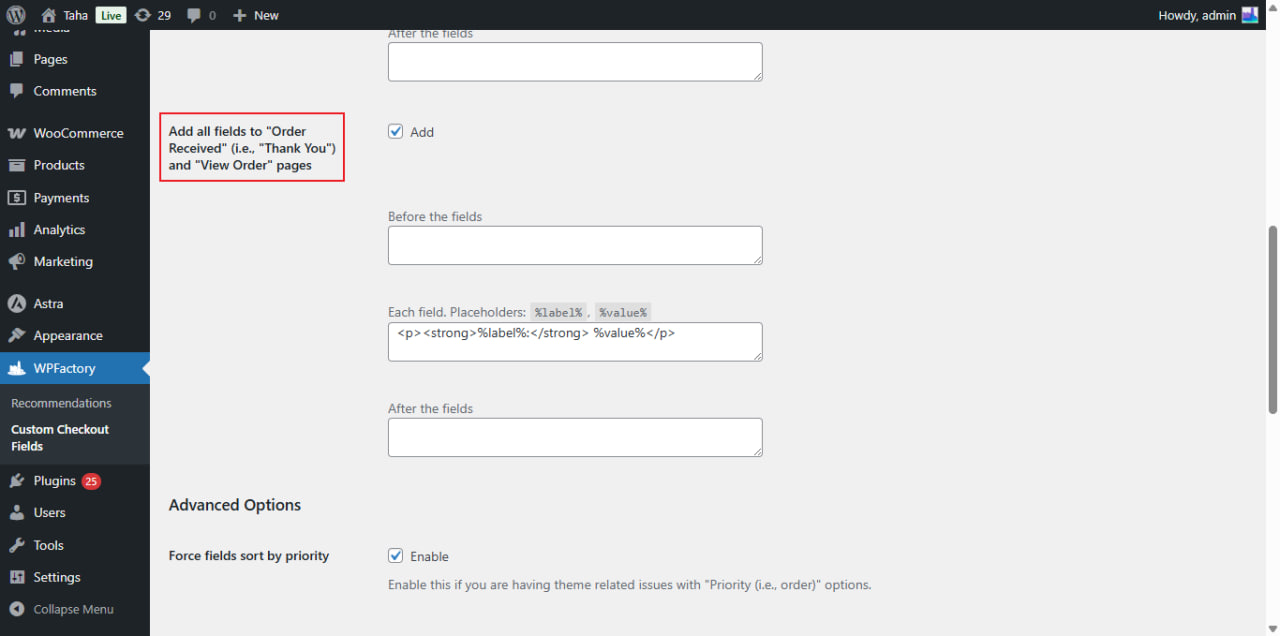
## Open the settings
Go to **WPFactory > Custom Checkout Fields** (also reachable at **WooCommerce > Settings > Custom Checkout Fields**) and find these options in the **General Options** group on the General tab.
## Step by step
1. Open the settings as above.
2. In **General Options**, tick **Add all fields to "Order Received" (i.e., "Thank You") and "View Order" pages**.
3. Optionally change the **Before the fields**, **Each field** and **After the fields** templates under it.
4. Click **Save changes**.
5. Place a test order that fills in your custom field, then check the Thank You page and **My Account > Orders > View**.
## Options reference
| Label | Option ID | Default |
| --- | --- | --- |
| Add all fields to "Order Received" and "View Order" pages | `alg_wc_ccf_add_to_order_received` | Yes |
| Before the fields | `alg_wc_ccf_order_received_template_before` | Empty |
| Each field | `alg_wc_ccf_order_received_template_field` | `%label%: %value%
` |
| After the fields | `alg_wc_ccf_order_received_template_after` | Empty |
All four options are free.
## Formatting the output
The **Each field** template is rendered once per field and accepts the same two placeholders as the email templates:
- `%label%` - the field's label.
- `%value%` - the value the customer entered. Multiselect values are joined with commas.
Use **Before the fields** and **After the fields** to wrap the whole block. For example, put `Additional information
` in **Before the fields** to give the block a heading. The wrapper is only printed when at least one field has output. Turn off **Add all fields to "Order Received" and "View Order" pages** if you want the values in emails and the admin order screen but not on these customer-facing pages.
## What the customer sees
The block appears below the order details table on the Thank You page and on the View Order page in My Account. Each field with a label or a value is listed using your template.
## Adding the fields to order emails
If you came here to add a custom field to WooCommerce order emails, the same **General Options** group has **Add all fields to admin emails** and **Add all fields to customers emails**, both on by default, with their own **Before the fields**, **Each field** and **After the fields** templates. The fields are added after the order table in the email. Full guide: [showing custom field data in WooCommerce emails](https://wpfactory.com/docs/email-settings-checkout/).
## Where else the data appears
Field values are always saved on the order and shown on the admin order edit screen, regardless of these settings. See [where custom field data is stored on the order](https://wpfactory.com/docs/woocommerce-checkout-field-order-meta/).
## If the fields do not show
- The order was placed before the field existed, or the field was disabled at the time. Values are saved with the order at checkout, so older orders have nothing to show.
- The field has no label and the customer left it empty, so there is nothing to print.
- The setting is off, or the **Each field** template was cleared, so each field prints nothing.
- Your theme replaced the WooCommerce order details template and dropped the `woocommerce_order_details_after_order_table` hook the plugin uses.
## FAQ
### Can I show only some fields on the Thank You page?
No. This setting adds all custom fields that have a label or value. It is one switch for all fields.
### Can I use HTML in the templates?
Yes. The templates accept standard post HTML, such as headings, paragraphs, lists and ``.
### Is this a Pro feature?
No. The order page and email display options are free. Pro only raises the number of custom fields you can create from one to up to 100.
For every template option in one place, see [email and order page templates and placeholders](https://wpfactory.com/docs/woocommerce-checkout-fields-email-templates/).
### Get more control
This feature is free. [Custom Checkout Fields for WooCommerce](https://wpfactory.com/item/custom-checkout-fields-for-woocommerce/) Pro lets you add up to 100 custom fields instead of one, each shown on these pages and in emails. [See what Pro unlocks](https://wpfactory.com/item/custom-checkout-fields-for-woocommerce/).
Need a hand? Our team answers every ticket on the [Custom Checkout Fields support forum](https://wpfactory.com/support/item/custom-checkout-fields-for-woocommerce/).
Related articles
- [Adding a Checkout Fee Based on a Custom Field](https://wpfactory.com/docs/custom-field-charges/)
- [Configuring Timepicker Fields in Custom Checkout Fields](https://wpfactory.com/docs/timepicker-checkout-fields/)
- [Where to Position Your Custom Fields in WooCommerce Checkout](https://wpfactory.com/docs/custom-fields-placement/)
- [Configuring a Custom Checkout Field’s General Options](https://wpfactory.com/docs/individual-checkout-fields/)
- [Exploring the Advanced Settings in Custom Checkout Fields](https://wpfactory.com/docs/custom-fields-settings/)
[](https://wpfactory.com/item/custom-checkout-fields-for-woocommerce/)