---
title: Frontend Info Placeholders and Templates Reference
description: Reference for the placeholders and templates that show the conversion rate and converted amounts on the WooCommerce frontend.
url: "https://wpfactory.com/docs/frontend-info-placeholders-and-templates-reference/"
updated: "2026-09-27"
category: References
---
# Frontend Info Placeholders and Templates Reference
When **Frontend info** is enabled, [Payment Gateway Currency for WooCommerce](https://wpfactory.com/item/payment-gateways-by-currency-for-woocommerce/) shows the used conversion rate and converted amounts in the cart, at checkout, on order details, and in emails. Each place it appears is a **position**, and each position renders a small **template** built from placeholders. This reference lists the positions, the placeholders available in each, and the default templates.
## Where to configure it
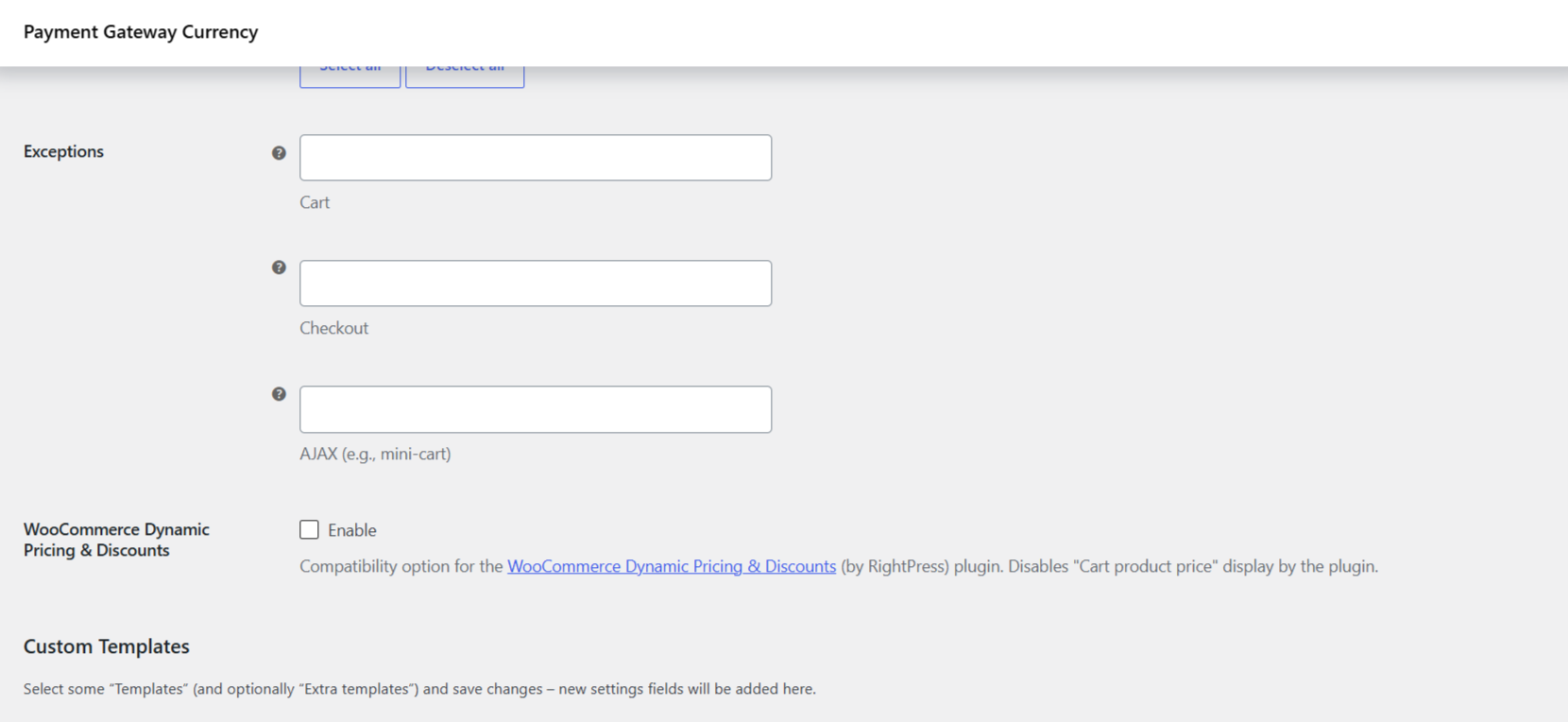
Go to **WPFactory > Payment Gateway Currency** (also reachable at **WooCommerce > Settings > Payment Gateway Currency**), open the **Convert Currency** sub-tab, then the **Info** section.
| Label | Option ID | Default | What it does |
| --- | --- | --- | --- |
| Frontend info | `alg_wc_pgbc_convert_currency_show_info` | No | Master switch for all frontend info display and for the price table shortcode. |
| Positions | `alg_wc_pgbc_convert_currency_info_hooks` | All positions | Which positions display the info. Affected by **General > Convert on**. |
| Templates | `alg_wc_pgbc_convert_currency_info_hooks_custom_templates` | (none) | Pick positions you want to give a custom template. Save to reveal a text box for each under **Custom Templates**. |
| Extra templates | `alg_wc_pgbc_convert_currency_info_hooks_extra_template[{scope}]` | (none) | Set a different template for the same position on the Cart page or on AJAX (mini-cart). |
| Exceptions | `alg_wc_pgbc_convert_currency_info_hooks_exceptions[{scope}]` | (none) | Exclude selected positions from the Cart, Checkout, or AJAX (mini-cart) contexts. |
| Custom template text | `alg_wc_pgbc_convert_currency_info_template[{position}]` | Position default | The actual template for a position you selected under **Templates**. |
## Placeholders
Every position can use these three placeholders:
| Placeholder | Value |
| --- | --- |
| `%convert_rate%` | The conversion rate used for this order or session. |
| `%convert_currency%` | The target currency code the amount was converted to. |
| `%shop_currency%` | The store's base currency code. |
Price positions (the ones that render a specific amount, such as cart product price, cart total, order totals, shipping, fees, taxes, and coupons) additionally provide:
| Placeholder | Value |
| --- | --- |
| `%price%` | The converted amount, formatted in the target currency. |
| `%unconverted_price%` | The original amount, formatted in the shop currency. |
## Positions and their default templates
The positions fall into three groups by default template. Price positions show the converted price with the original in brackets; the email position prints a rate line; the single product summary outputs the price table shortcode.
| Position | Default template |
| --- | --- |
| Cart product price, Cart product subtotal, Cart subtotal, Cart total, Cart totals (Coupons, Shipping, Fees, Taxes), Order product subtotal, Order subtotal, Order totals (Discount, Shipping, Fees, Taxes), Order total | `%price% (%unconverted_price%)` |
| Email: After order details | `%shop_currency%%convert_currency%: %convert_rate%
` |
| Single product summary | `[alg_wc_pgbc_product_price_table]` |
| Cart totals: After order total, Checkout: After order total, Order: Before subtotal (and any other rate-only position) | `| %shop_currency%%convert_currency% | %convert_rate% |
|---|
` |
## Editing a template
1. Under **Positions**, make sure the position you want is selected.
2. Add it to the **Templates** option and click **Save changes**.
3. A text box for that position appears in the **Custom Templates** section, pre-filled with the default template and a note of the placeholders it supports.
4. Edit the template and save again.
The default template for a rate-only position uses a table row (``), which suits positions that print inside a totals table. If you place the info somewhere that is not a table, switch the template to your own markup.
## Get more from Payment Gateway Currency
Frontend info keeps shoppers informed about the currency and rate at checkout. To convert on every payment method, unlock all gateways with [Payment Gateway Currency for WooCommerce](https://wpfactory.com/item/payment-gateways-by-currency-for-woocommerce/) Pro. [See what Pro unlocks](https://wpfactory.com/item/payment-gateways-by-currency-for-woocommerce/).
Related articles
- [Full Options Reference](https://wpfactory.com/docs/options-reference/)
- [Payment Gateway Currency: Developer Hooks and Filters Reference](https://wpfactory.com/docs/payment-gateways-by-currency-developer-hooks-filters/)
- [Info and Admin Sections of Payment Gateway Currency](https://wpfactory.com/docs/info-admin-sections-of-payment-gateway-currency/)
- [Displaying Conversion Rates on the Frontend](https://wpfactory.com/docs/displaying-conversion-rates/)