---
title: How to Show Product Notes in WooCommerce Orders and Emails
description: Show product notes on admin orders, save them in order items, and add them to admin emails, customer emails and PDF invoices (Pro).
url: "https://wpfactory.com/docs/product-notes-orders-emails/"
updated: "2026-09-27"
category: How to
---
# How to Show Product Notes in WooCommerce Orders and Emails
To show product notes in WooCommerce orders and emails, enable **Admin orders**, **Admin emails** or **Customer emails** at **WPFactory > Product Notes > Private notes** or **Public notes > Backend Options** in [Product Notes Tab & Private Admin Notes for WooCommerce](https://wpfactory.com/item/product-notes-for-woocommerce/) Pro. Notes then appear under each order item for your team or your customers.
## Before you start
- [Product Notes](https://wpfactory.com/item/product-notes-for-woocommerce/) Pro, installed and active. In the free version these options are visible but greyed out.
- Notes added to your products (see [private notes](https://wpfactory.com/docs/product-notes-private-admin-notes/) and [public notes](https://wpfactory.com/docs/product-notes-public-notes-tab/)).
## Show notes on the admin order screen
1. Go to **WPFactory > Product Notes** (also reachable at **WooCommerce > Settings > Product Notes**) and open **Private notes** or **Public notes**.
2. Under **Backend Options**, tick **Admin orders**.
3. Optional: tick **Save in order items meta** as well (see below).
4. Click **Save changes**.
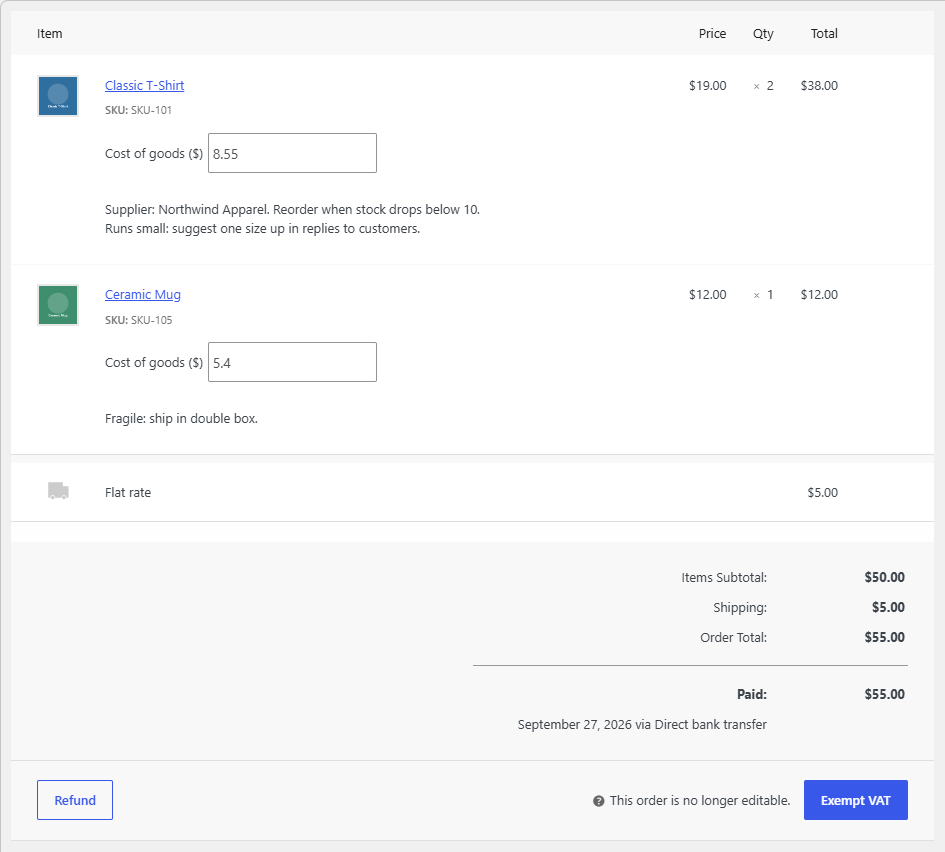
Open any order in **WooCommerce > Orders**. Each line item now shows the product's notes, plus the variation's notes when **Note per variation** is on. This is ideal for private picking, packing or supplier notes.
### Keep a copy of the notes in each order
Without **Save in order items meta**, the order screen always shows the product's current notes, so editing a product note also changes what you see on old orders. With it enabled:
- The notes are saved into each new order item when the order is placed, and when you add a product to an order from the admin.
- Several notes are joined with a semicolon. They are shown under the item labeled **Private note** or **Note**, and you can edit them on the admin order page like other item meta.
- The saved copy stays the same when you later change the product's notes.
Orders placed before you enabled this have no saved copy. To add one, go to **Tools** in the same section, tick **Orders > Add** and click **Save changes**. It processes all orders and shows how many notes were added. **Orders > Delete** removes the saved notes from all order items. Neither tool can be undone.
## Add notes to order emails
1. In **Private notes** or **Public notes > Backend Options**, tick **Admin emails** to add notes to emails sent to the store (such as New order).
2. In **Public notes > Backend Options**, tick **Customer emails** to add public notes to emails sent to customers (such as Processing order and Completed order).
3. Click **Save changes**.
Notes appear under each item in the order table. In HTML emails they are shown as a list; in plain text emails each note starts with a dash. **Customer emails** only exists for public notes, so private notes never reach customers.
## Add notes to PDF invoices and packing slips
If you use the free WooCommerce PDF Invoices & Packing Slips plugin (by WP Overnight):
1. In **Private notes** or **Public notes**, go to **Compatibility Options**.
2. Tick **WooCommerce PDF Invoices & Packing Slips**.
3. To limit the documents, enter a comma-separated list of template types, for example `invoice,packing-slip`. Leave it empty to show notes in all document types.
4. Click **Save changes**.
A private note on packing slips only is a common setup: warehouse staff see handling instructions, while customers' invoices stay clean. The PDF output uses the parent product's notes.
## Change how notes look in orders and emails
Go to **WPFactory > Product Notes > Advanced > Formatting Options**. Once a position is enabled, it gets its own row for each formatting option. For example, emails wrap notes in `` by default, and PDF documents in `%product_notes%`.
## FAQ
### Will customers see private notes in their emails?
No. **Customer emails** is only available in the Public notes section. **Admin emails** only affects emails sent to the store.
### If I change a product note, do old orders change?
Only if **Save in order items meta** is off. With it on, each order keeps the notes as they were when the order was created (or when you ran the **Orders > Add** tool).
### Why are notes missing on older orders?
With **Save in order items meta** on, only new orders get a saved copy. Run **Tools > Orders > Add** once to fill in existing orders.
### Do variation notes appear in orders and emails?
Yes, when **Note per variation** is enabled in the same section. The product's notes come first, followed by the variation's notes.
### Ready to set this up?
This is a Pro feature of [Product Notes](https://wpfactory.com/item/product-notes-for-woocommerce/). If you are still on the free version, upgrading takes a couple of minutes and unlocks orders, emails, PDF documents, search, export and bulk editing. [Get Product Notes Pro](https://wpfactory.com/item/product-notes-for-woocommerce/).
Need a hand? Our team answers every ticket on the [Product Notes support forum](https://wpfactory.com/support/item/product-notes-for-woocommerce/).
Related articles
- [How to Search, Export and Bulk Edit WooCommerce Product Notes](https://wpfactory.com/docs/product-notes-search-export-bulk-edit/)
- [How to Add Notes to WooCommerce Product Variations](https://wpfactory.com/docs/product-notes-variation-notes/)
- [Product Notes Developer Reference: Shortcode, Functions and Hooks](https://wpfactory.com/docs/product-notes-developer-reference/)
- [Product Notes Troubleshooting](https://wpfactory.com/docs/product-notes-troubleshooting/)
- [Product Notes Free vs Pro](https://wpfactory.com/docs/product-notes-free-vs-pro/)