WooCommerce PDF Invoices: Auto-Generate, Customise & Send with Every Order

Quick Answer: How to Auto-Generate PDF Invoices in WooCommerce
WooCommerce does not generate PDF invoices by default. To auto-attach a PDF invoice to every order email, you need a dedicated plugin. Here is the fastest path:
- Install the plugin → PDF Invoices & Packing Slips Generator for WooCommerce by WPFactory
- Configure your template → Add your logo, business address, and VAT number
- Set the trigger → Choose which order status generates the invoice (e.g. “On payment complete”)
- Attach to emails → Select which WooCommerce emails receive the PDF attachment
- Set numbering format → Define your invoice number sequence (e.g. INV-2025-0001)
- Enable packing slips → Activate a second document type for warehouse use
Keep reading for a full step-by-step setup guide, country-specific legal requirements, and a compliance checklist for UK and EU stores.
Setup guide: PDF Invoices & Packing Slips documentation walks through the settings step by step.
You have just processed 30 orders today. Thirty customers are waiting for their invoices. Your warehouse team needs packing slips. Your accountant wants everything archived. And WooCommerce – by default – has sent exactly zero PDF invoices.
This is the gap that catches most WooCommerce store owners off guard. WooCommerce sends order confirmation emails, but it does not attach a professionally formatted PDF invoice to any of them.
For stores selling to businesses, VAT-registered buyers, or customers in the EU and UK, this is not just inconvenient.. it can be a legal compliance issue.
This guide shows you exactly how to fix that using PDF Invoices & Packing Slips Generator for WooCommerce by WPFactory.
You will get a complete setup walkthrough, learn what your invoices legally need to include depending on your market, and understand how to configure packing slips as a separate document type.
If you’re looking for the right solution for your store, check out our guide to the best WooCommerce PDF invoicing plugins to compare your options.
How to Set Up WooCommerce PDF Invoices: Step-by-Step
The following six steps take you from a fresh plugin install to a fully automated invoicing system that attaches PDFs to your WooCommerce order emails without any manual work.
Step 1: Install the PDF Invoice Plugin
Go to your WPFactory account, download the PDF Invoices & Packing Slips Generator for WooCommerce plugin, and upload it via WordPress Dashboard → Plugins → Add New → Upload Plugin. Activate it once installed.

Step 2: Configure Your Invoice Template (Logo, Address, VAT Number)
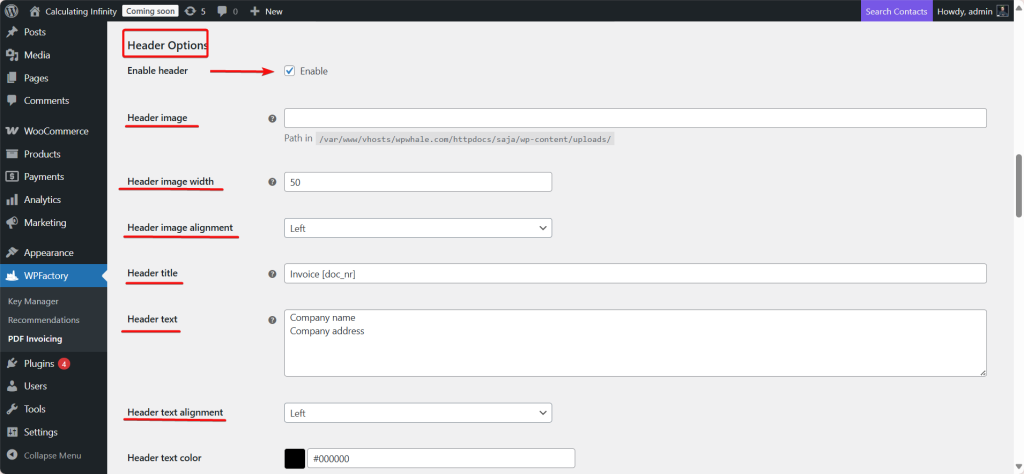
Navigate to WordPress Dashboard → WPFactory → PDF Invoicing → Doc: Invoice → Header Options.
- Header image: Upload your company logo. Set the width and alignment (left is standard for most invoice layouts).
- Header title: Use a shortcode such as
Invoice [doc_nr]to auto-insert the invoice number. - Header text: Enter your full business name, registered address, VAT registration number, and contact details. This information is mandatory for legal compliance in most EU and UK jurisdictions.
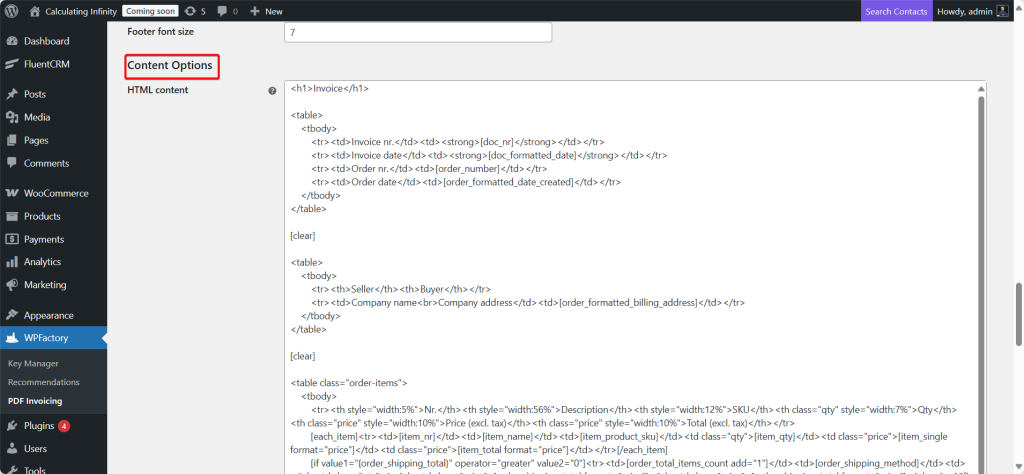
Under Content Options, you can customise the body of the invoice.. fonts, colours, and the HTML layout of the order table. The plugin supports full CSS styling so your invoice can match your brand identity precisely.
Step 3: Set the Auto-Generation Trigger
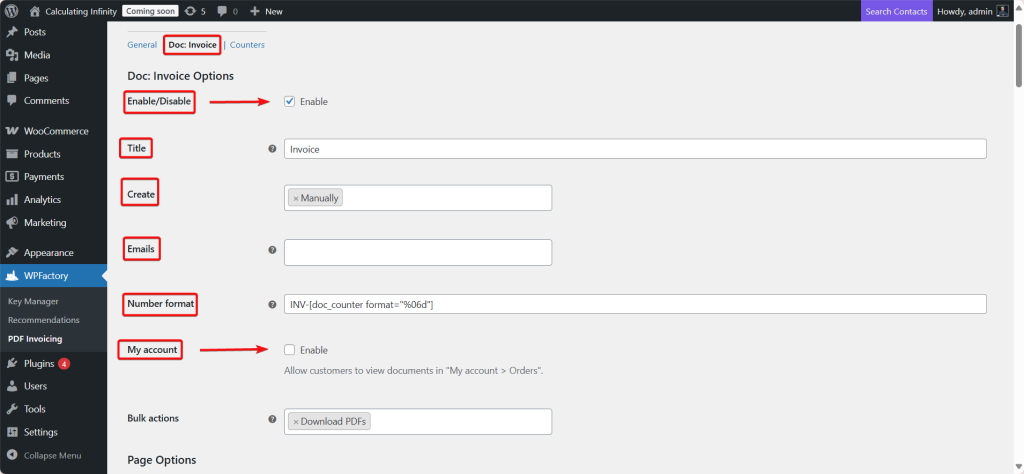
Go to Doc: Invoice → Enable/Disable & Create. Under the Create dropdown, select when the invoice should be generated:
- On payment complete — recommended for most stores. The invoice is created the moment payment is confirmed.
- On order status: Processing — useful if you want to generate the invoice when you begin fulfilling the order.
- Manually — if you prefer to review orders before issuing invoices (common for B2B stores with custom pricing).
For most WooCommerce stores, “On payment complete” is the correct choice. It ensures every paid order gets an invoice immediately, without any manual intervention.
Step 4: Attach the PDF to WooCommerce Order Emails
Still in Doc: Invoice, scroll to the Emails setting. Here you select which WooCommerce transactional emails will carry the PDF invoice as an attachment. The most common selections are:
- Customer Invoice / Order Details – the email sent when you manually send an invoice to a customer
- Customer Processing Order – sent when payment is received and the order moves to “Processing”
- Customer Completed Order – sent when you mark an order as complete
Select all that apply to your fulfilment workflow. The plugin attaches the PDF automatically.. no extra steps needed per order.
Step 5: Configure Your Invoice Numbering Format
Go to Doc: Invoice → Number Format. The default format is:
INV-[doc_counter format="%06d"]
This produces invoice numbers like INV-000001, INV-000002, and so on. You can customise this to include the year:
INV-[Y]-[doc_counter format="%04d"] → produces INV-2025-0001
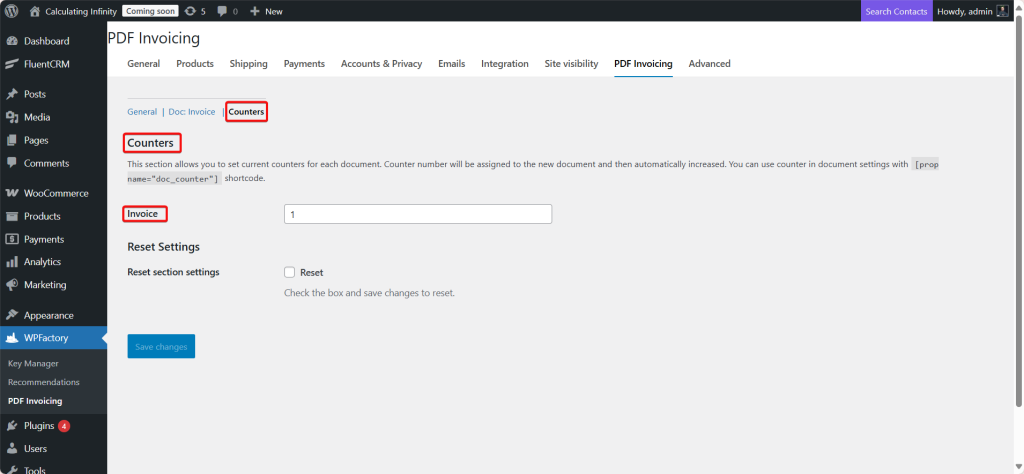
Under Counters, you can set the starting number. If you are migrating from another system and your last invoice was number 847, set the counter to 848 so your sequence continues without a gap. Sequential, uninterrupted invoice numbering is a legal requirement in most EU countries.
Step 6: Enable Packing Slips and Test with a Sample Order
Go to General Settings → Total Documents and increase the document count to 2. A second document tab will appear.. configure it as your packing slip (covered in detail in the packing slips section below).
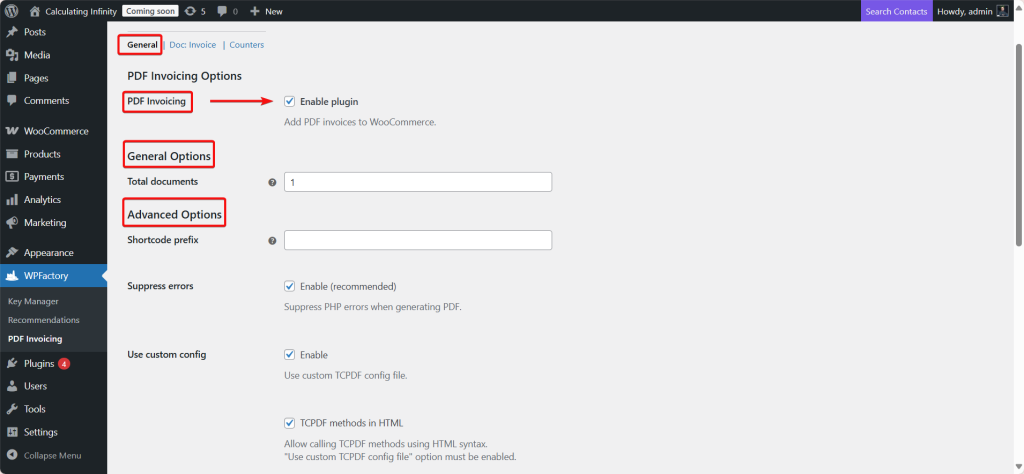
Once everything is configured, place a test order in your store using WooCommerce’s built-in order simulation, or process a real £0.00 order.
Check the confirmation email.. the PDF invoice should be attached. Open it and verify that your logo, address, VAT number, invoice number, and order details all display correctly.
Ready to automate your WooCommerce invoices?
The PDF Invoices & Packing Slips Generator for WooCommerce handles invoice generation, email attachment, branding, VAT compliance, and packing slips.. all from one plugin. Used by thousands of WooCommerce stores across the EU and UK.
WooCommerce Packing Slips: What They Are and How to Set Them Up
A packing slip is not an invoice. The distinction matters.. and confusing the two can create problems for your warehouse team, your customers, and potentially your accountants.
Invoice vs Packing Slip vs Credit Note: What Is the Difference?
| Document | Purpose | Who Receives It | Legal Requirement? | Includes Prices? |
|---|---|---|---|---|
| Invoice | Requests or confirms payment; used for accounting and VAT reclaim | Customer (and their accountant) | Yes – for B2B and VAT-registered transactions | Yes |
| Packing Slip | Lists items in a shipment for picking, packing, and delivery verification | Warehouse team; sometimes included in the parcel | No – operational document only | Optional (often omitted) |
| Credit Note | Cancels or partially reverses a previous invoice (refunds, returns) | Customer – mirrors the original invoice | Yes – required when reversing a VAT invoice | Yes (negative amounts) |
When Should You Include a Packing Slip?
Include a packing slip in every physical shipment. It serves three practical purposes:
- Warehouse accuracy: Your team uses it to verify the correct items and quantities are packed before dispatch.
- Customer verification: The customer can check their delivery against the slip without needing to refer to a priced invoice.
- Returns processing: Customers returning items include the packing slip, making it easier to match the return to the original order.
Packing slips are especially useful if your store sells to businesses that have separate purchasing and receiving departments.. the receiving team can verify the delivery without seeing the pricing.
How to Configure Packing Slips in WooCommerce?
With the PDF Invoices & Packing Slips Generator plugin active, go to General Settings → Total Documents and set the value to 2 (or higher if you need more document types such as credit notes).
A second document tab will appear in the plugin settings. Configure it as follows:
- Title: “Packing Slip” or “Delivery Note”
- Create: Set to “On order status: Processing”.. generate the packing slip when you begin fulfilling the order, not when payment is taken
- Emails: Attach to the internal new order notification if your warehouse team receives it, or leave unattached and download in bulk from the WooCommerce orders screen
- Content: Include product names, SKUs, quantities, and shipping address.. omit pricing if your packing slips go inside parcels
The plugin’s Bulk Actions feature lets you select multiple orders from the WooCommerce orders screen and download all packing slips as a batch.. useful for end-of-day fulfilment runs.
Invoice Requirements by Country: What Your WooCommerce PDF Invoice Must Include
A WooCommerce PDF invoice that looks professional is not the same as one that is legally compliant.
If your store sells to business customers.. or to consumers in certain jurisdictions, your invoice must contain specific mandatory fields.
Missing any of these can invalidate the invoice for VAT reclaim purposes, which directly affects your B2B customers.
Below are the requirements for the three largest EU/UK markets. Use this as a reference when configuring your invoice template.
-
United Kingdom (Post-Brexit)
HMRC requires a VAT invoice to include:
- A unique, sequential invoice number
- Your business name and address
- Your UK VAT registration number (format: GB followed by 9 digits)
- The invoice date
- The tax point (time of supply) if different from the invoice date
- The customer’s name and address
- A description of the goods or services supplied
- The quantity and unit price of each item (excluding VAT)
- The VAT rate applied to each item
- The total amount excluding VAT
- The total VAT charged
- The total amount payable including VAT
For sales under £250 (inclusive of VAT), a simplified VAT invoice is permitted.. it does not need to include the customer’s details or the net and VAT breakdown separately.
However, many accountants recommend always issuing full invoices to avoid complications.
-
Germany (Pflichtangaben)
German tax law (§14 UStG) sets out mandatory invoice fields known as Pflichtangaben. These are among the strictest in the EU:
- Full name and address of the supplier
- Full name and address of the recipient
- Your German tax number (Steuernummer) or VAT ID (Umsatzsteuer-Identifikationsnummer)
- Sequential invoice number (fortlaufende Rechnungsnummer)
- Invoice date and delivery date (or delivery period)
- Itemised description of goods or services
- Quantity and unit price
- Net amount per line item
- Applicable VAT rate and the resulting VAT amount
- Gross total (net + VAT)
- For small businesses using the Kleinunternehmerregelung: a note stating VAT exemption under §19 UStG
German law also requires invoices to be stored for 10 years.. make sure your WooCommerce store has an archiving solution in place.
-
France
French invoicing obligations (Article 242 nonies A of the CGI) require:
- Sequential invoice number (numéro de facture)
- Invoice date
- Name, address, and SIRET number of the seller
- Name and address of the buyer
- VAT number (numéro de TVA intracommunautaire) for B2B transactions
- Description, quantity, and unit price of goods or services
- Any applicable discounts
- VAT rate and amount per line
- Total net amount, total VAT, and total payable
- Payment terms and late payment penalties (mandatory for B2B)
From 2026, France is rolling out mandatory B2B e-invoicing (facturation électronique).
While PDF invoices sent by email currently comply, French stores should monitor this regulation if they have significant B2B volume.
Summary Compliance Table
| Required Field | UK | Germany | France |
|---|---|---|---|
| Sequential invoice number | ✅ | ✅ | ✅ |
| Seller name & address | ✅ | ✅ | ✅ |
| Buyer name & address | ✅ | ✅ | ✅ |
| VAT number (seller) | ✅ | ✅ | ✅ (B2B) |
| Invoice date | ✅ | ✅ | ✅ |
| Delivery date (separate from invoice date) | ⚠️ If different | ✅ Required | ⚠️ Recommended |
| Unit price (excl. VAT) | ✅ | ✅ | ✅ |
| VAT rate & VAT amount | ✅ | ✅ | ✅ |
| Payment terms | ⚠️ Recommended | ⚠️ Recommended | ✅ (B2B) |
| Archiving period | 6 years | 10 years | 10 years |
Note: This table is for general reference only. Always consult a local tax adviser for guidance specific to your business situation.
WooCommerce Invoice Compliance Checklist by Country
Select your store’s primary market below to see the mandatory fields your WooCommerce PDF invoice must include. Check off each item as you configure your invoice template.
Common Mistakes When Setting Up WooCommerce PDF Invoices
Most configuration errors with WooCommerce PDF invoices fall into a predictable set of patterns. Here are the most common ones and how to avoid them.
1. Forgetting to Add Your VAT Number to the Invoice Template
This is the single most common mistake. Store owners configure the logo and address but leave the VAT number out of the header.
For any B2B customer who needs to reclaim VAT, an invoice without a valid VAT number is useless.. they cannot submit it to their tax authority.
Add your VAT number to the Header Text field and double-check it in the test invoice before going live.
2. Not Setting a Sequential Numbering Format from Day One
The default numbering format (INV-000001) is fine, but some stores start issuing invoices before they configure the counter.. resulting in multiple invoices with the number 1, or gaps in the sequence.
Tax authorities in Germany and France specifically require uninterrupted sequential numbering. Set your counter before processing your first live order.
3. Attaching Invoices to the Wrong Emails
A common error is attaching invoices only to the “Customer Processing Order” email, then discovering that orders paid by bank transfer never reach “Processing” until you manually update the status.. meaning those customers never receive their invoice.
Map your email attachments to match your actual fulfilment workflow, and test each payment method separately.
4. Not Testing the PDF Before Going Live
The invoice might look correct in the plugin settings but render poorly in the actual PDF.. truncated text, a misaligned logo, or missing order line items.
Always place a test order and open the actual PDF attachment before enabling the plugin for live orders.
5. Ignoring the Archiving Requirement
In Germany, invoices must be kept for 10 years. In the UK and France, the requirement is 6 and 10 years respectively.
Storing PDFs only in email inboxes is not a reliable archive. Use a plugin or cloud storage integration to maintain a retrievable copy of every invoice your store issues.
6. Confusing Packing Slips with Invoices
Some stores configure a single document and use it as both an invoice and a packing slip.. attaching it to customer emails and printing it for the warehouse.
This creates problems: customers receive a document showing internal SKUs or warehouse notes, and the warehouse team handles a document with pricing information that does not need to be visible.
Configure these as two separate document types within the plugin.
Related Resources
- PDF Invoices & Packing Slips Generator for WooCommerce – Plugin Page
- Cost of Goods for WooCommerce – Track Profit Per Order
- EU/UK VAT Manager for WooCommerce – Validate and Display VAT Numbers
- WPFactory Blog – WooCommerce Guides and Plugin Tutorials
Frequently Asked Questions: WooCommerce PDF Invoices
Does WooCommerce automatically generate PDF invoices?
No. WooCommerce sends order confirmation emails by default, but it does not attach a PDF invoice to any of them.
To auto-generate and attach PDF invoices to your WooCommerce order emails, you need a dedicated plugin such as PDF Invoices & Packing Slips Generator for WooCommerce.
Is a WooCommerce PDF invoice legally valid in the EU?
Yes, a PDF invoice sent by email is legally valid across the EU, provided it contains all mandatory fields required by the relevant member state’s tax law.
The key requirements.. sequential numbering, VAT number, itemised amounts, and seller/buyer details.. are common across most EU jurisdictions.
See the country-specific sections above for the full field requirements for Germany, France, and the UK.
How do I add my VAT number to WooCommerce invoices?
In the PDF Invoices plugin, go to Doc: Invoice → Header Options → Header Text.
Enter your VAT number as part of your business details in this field. It will appear on every invoice generated by the plugin.
If you need to display the customer’s VAT number as well (required for intra-EU B2B invoices), you can use the plugin’s shortcode system to pull this from the order data.
Can I send different invoice formats to B2B and B2C customers?
Yes. You can configure conditional logic within the plugin’s document settings, or use WooCommerce’s customer roles to differentiate B2B and B2C customers.
A common setup is to generate a full VAT invoice (with all mandatory fields) for business customers and a simplified receipt for individual consumers.
What is the difference between a WooCommerce invoice and a packing slip?
An invoice is a financial document that requests or confirms payment and is used for accounting and VAT reclaim. A packing slip lists the items included in a shipment and is used operationally by your warehouse team.
Invoices must include pricing and tax information; packing slips typically do not. Both can be generated from the same plugin as separate document types.
How do I set up sequential invoice numbering in WooCommerce?
In the PDF Invoices plugin, go to Doc: Invoice → Number Format and enter your preferred format using the available shortcodes. For example, INV-[Y]-[doc_counter format="%04d"] produces INV-2025-0001.
The counter is managed under the Counters tab, where you can set the starting number and reset it if needed.
Can customers download their WooCommerce invoices from their account?
Yes. In the plugin’s invoice settings, enable the My Account option. This adds a download link to the customer’s order history page on your store.
Customers can retrieve any of their invoices at any time without needing to contact you.. which also reduces your support overhead.
How do I bulk download WooCommerce packing slips?
From the WooCommerce Orders screen, select the orders you want, then use the Bulk Actions dropdown to select “Download PDFs” for packing slips.
The plugin generates a batch download of all selected packing slips, which is useful for end-of-day picking and packing runs.
Automate your WooCommerce invoicing today
Stop creating invoices manually. PDF Invoices & Packing Slips Generator for WooCommerce auto-generates professional PDF invoices, attaches them to order emails, supports packing slips and credit notes, and includes full template customisation.. logo, VAT number, numbering format, and more.
Built for WooCommerce stores that sell to businesses and consumers across the EU and UK.