WooCommerce Cart Fees with PHP: woocommerce_cart_calculate_fees Hook + Examples


Quick answer: Hook a function to woocommerce_cart_calculate_fees and call $cart->add_fee( 'Label', $amount, $taxable ) inside it. WooCommerce runs the hook every time it recalculates cart totals, so the fee shows as its own line in the cart and at checkout. The seven snippets below add fees based on a custom field, category, payment gateway, cart total, weight, quantity and country.
One of the reasons why WooCommerce is the most popular eCommerce platform is the great flexibility it offers. There is always a solution for whatever you are trying to achieve. There seems to be an API for almost anything that you want to do with WooCommerce. Have you ever wanted to add a custom fee in the cart total?
Sometimes this is if a certain condition is met, for example, when customer selects a certain payment gateway. Sometimes payment gateways can be convenient for customers but inconvenient for store owners with their high fees. In such a situation you may decide to pass the payment gateway fees to the customer.
You can also add custom fees to the cart based on the shipping location or based on the cart total. There are many other situations in which you might need to add custom cart fees.
WooCommerce has an integrated function for adding cart fees. You will need to use the correct hooks to get the right action. You will use the cart object to call a function to add a fee based on your condition. The fee will be added to a new row in the cart total and checkout page. You can specify any name you wish for the fee.
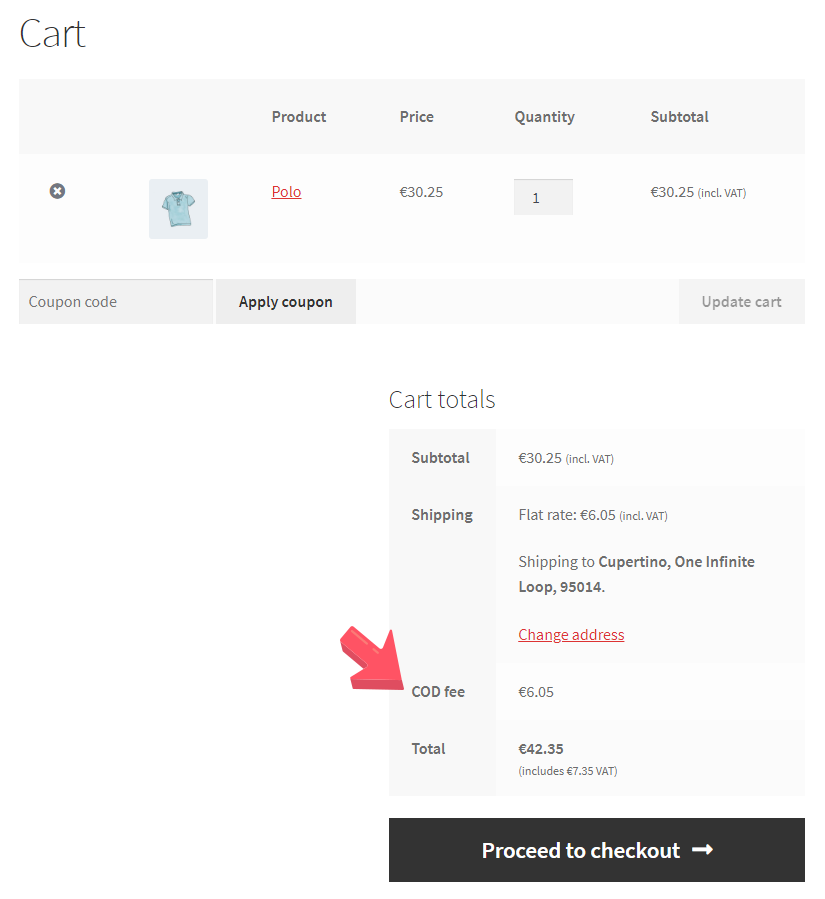
In this article, we will look at a few situations in which you will need to add specific fees to a user’s cart. You will need to add code to your functions.php file for these functionalities to work. If you are unsure about how to add code to the functions.php file, refer to our step by step guide.
If you need to add fee(s) to the cart in WooCommerce, you need woocommerce_cart_calculate_fees action. Action is called in calculate_fees() function of WC_Cart class, and has only one parameter – $cart.
To add the fee, you need to call add_fee() function. Function has four parameters: fee’s name, amount, is fee taxable and if so – which tax class:
* @param string$name Unique name for the fee. Multiple fees of the same name cannot be added.
* @param float$amount Fee amount (do not enter negative amounts).
* @param bool$taxable Is the fee taxable? (default: false).
* @param string $tax_class The tax class for the fee if taxable. A blank string is standard tax class. (default: '').
In this article, we will review how to add cart fees based on:
- Product’s custom field value
- Product’s category
- Chosen payment gateway
- Cart min/max amount
- Cart total weight
- Cart total quantity
- Customer’s country
- User’s role
1. Adding cart fees based on a product’s custom field value
Custom product fields can help improve customer retention and sales by providing vital product information. Here are some examples of situations in which custom fields can be added to products.
- Restaurants can use custom fields for custom menu items, for example, build your own pizza
- Custom-made greeting cards
- Custom gift wrapping
- Extended warranties
These are only a few examples of situations in which you might need to add custom fields to a product. It may also be that you want to charge customers based on these custom fields that a product has. In such a situation you can use the following code to add custom cart fees based on a product’s custom field value.
So let’s say, you want to add cart fee depending on some product custom field (i.e. meta) value:
add_action( 'woocommerce_cart_calculate_fees', 'wpf_wc_add_cart_fees_by_product_meta' );
if ( ! function_exists( 'wpf_wc_add_cart_fees_by_product_meta' ) ) {
    /**
     * wpf_wc_add_cart_fees_by_product_meta.
     */
    function wpf_wc_add_cart_fees_by_product_meta( $cart ) {
        foreach ( $cart->get_cart() as $cart_item_key => $values ) {
            if ( 0 != ( $setup_fee = get_post_meta( $values['product_id'], 'setup_fee', true ) ) ) {
                $name      = 'Setup fee: ' . get_the_title( $values['product_id'] );
                $amount    = $setup_fee;
                $taxable   = true;
                $tax_class = '';
                $cart->add_fee( $name, $amount, $taxable, $tax_class );
            }
        }
    }
}
2. Adding cart fees based on the product’s category
Certain product categories can have additional costs for you as a store owner. You can pass such costs to the customers and cover your costs. For example, if you are selling delicate items such as glassware, you may have additional packaging or handling charges imposed by your shipping provider. In such a case, you can pass these additional charges to the customer. You can add such products to a new category and set up your store to charge a handling fee if the product purchased falls in that category. Here is the code you would need to add to add a cart fee based on the product category.
add_action( 'woocommerce_cart_calculate_fees', 'wpf_wc_add_cart_fees_by_product_category' );
if ( ! function_exists( 'wpf_wc_add_cart_fees_by_product_category' ) ) {
    /**
     * wpf_wc_add_cart_fees_by_product_category.
     */
    function wpf_wc_add_cart_fees_by_product_category( $cart ) {
        // You need to enter your fees here, in `category slug` => `fee amount` format
        $fees = array(
            'hats'    => 5,
            'hoodies' => 10,
            'tshirts' => 15,
        );
        foreach ( $cart->get_cart() as $cart_item_key => $values ) {
            $product_categories = get_the_terms( $values['product_id'], 'product_cat' );
            if ( $product_categories && ! is_wp_error( $product_categories ) ) {
                $product_categories = wp_list_pluck( $product_categories, 'slug' );
                foreach ( $product_categories as $product_category ) {
                    if ( ! empty( $fees[ $product_category ] ) ) {
                        $name      = 'Category fee: ' . get_the_title( $values['product_id'] );
                        $amount    = $fees[ $product_category ];
                        $taxable   = true;
                        $tax_class = '';
                        $cart->add_fee( $name, $amount, $taxable, $tax_class );
                    }
                }
            }
        }
    }
}
3. Adding cart fees depending on the chosen payment gateway
Specific payment gateway fees are an excellent way of encouraging or discouraging users from using a certain payment method. Payment gateway fees can also ensure you are not being hit by unnecessary fees from the payment processor.
Consider PayPal, for example, they sometimes charges up to 3.4% of transactions as fees. This can be a big chunk of your profits. The average net profit ratio for most industries is about 10%, so if you are paying about 3% in transaction fees, that is going to dent your profits.
Here are some reasons to charge customers based on the payment gateway they use
-
- Credit card processors will usually charge a percentage of all your sales revenue as processing fees. If you wish, you could pass this on to the customer by using the code below. This can help reduce your transaction fees, thereby increasing overall profitability.
- If you are using a bank transfer as a payment gateway, banks often charge a fee per transaction. You can add a fixed fee to the cart to cover these transaction costs.
- You can offer incentives for customers to choose your preferred payment method. A discount will go a long way in encouraging customers to use a specific payment gateway.
- PayPal charges a percentage fee for every transaction. You can add this fee to the customer’s cart to recover this cost from the customer.
Here is the code you need to add to your functions.php file to add a custom cart fee based on the payment gateway a user selects.
add_action( 'woocommerce_cart_calculate_fees', 'wpf_wc_add_cart_fees_by_payment_gateway' );
if ( ! function_exists( 'wpf_wc_add_cart_fees_by_payment_gateway' ) ) {
    /**
     * wpf_wc_add_cart_fees_by_payment_gateway.
     */
    function wpf_wc_add_cart_fees_by_payment_gateway( $cart ) {
        // You need to enter your fees here, in `payment gateway` => `fee amount` format
        $fees = array(
            'cod'    => 20,
            'cheque' => 15,
            'bacs'   => 10,
        );
        // Getting current chosen payment gateway
        $chosen_payment_method = false;
        $available_gateways    = WC()->payment_gateways->get_available_payment_gateways();
        if ( isset( WC()->session->chosen_payment_method ) ) {
            $chosen_payment_method = WC()->session->chosen_payment_method;
        } elseif ( ! empty( $_REQUEST['payment_method'] ) ) {
            $chosen_payment_method = sanitize_key( $_REQUEST['payment_method'] );
        } elseif ( '' != ( $default_gateway = get_option( 'woocommerce_default_gateway' ) ) ) {
            $chosen_payment_method = $default_gateway;
        } elseif ( ! empty( $available_gateways ) ) {
            $chosen_payment_method = current( array_keys( $available_gateways ) );
        }
        if ( ! isset( $available_gateways[ $chosen_payment_method ] ) ) {
            $chosen_payment_method = false;
        }
        // Applying fee (maybe)
        if ( $chosen_payment_method && ! empty( $fees[ $chosen_payment_method ] ) ) {
            $name      = 'Payment gateway fee (' . $chosen_payment_method . ')';
            $amount    = $fees[ $chosen_payment_method ];
            $taxable   = true;
            $tax_class = '';
            $cart->add_fee( $name, $amount, $taxable, $tax_class );
        }
    }
}
However, there is an additional problem that we need to solve here. When a user chooses a different payment gateway in the front-end, the page is not reloaded, hence the fees are not updated. To make sure the page is reloaded when a customer selects a different payment gateway, we need to trigger the update_checkout JavaScript event. There are several ways in which you can add JavaScript code to WordPress. You can use a plugin, or create .js file and load it with wp_enqueue_script() function, or use wp_footer action to add JavaScript code directly in your functions.php file:
add_action( 'wp_footer', 'wpf_wc_add_cart_fees_by_payment_gateway_script' );
if ( ! function_exists( 'wpf_wc_add_cart_fees_by_payment_gateway_script' ) ) {
    /**
     * wpf_wc_add_cart_fees_by_payment_gateway_script.
     */
    function wpf_wc_add_cart_fees_by_payment_gateway_script() {
        ?>
        <script>
        jQuery( function() {
            jQuery( 'body' ).on( 'change', 'input[name="payment_method"]', function() {
                jQuery( 'body' ).trigger( 'update_checkout' );
            } );
        } );
        </script>
        <?php
    }
}
4. Adding cart fees based on cart min/max amount
To encourage customers to spend a certain minimum amount you can add a cart fee. For example, orders under $100 can attract a $10 fee for processing. This way products priced over $100 will not attract additional fees. However, smaller items that may cost $50 or $60 for example, will attract additional fees. You can charge customers a fee based on the minimum cart amount to encourage customers to spend more. For example, if a customer orders a $90 item and they see a fee for $10 they may spend an additional $10 to waive the fee, chances are they may end up spending more on the second item they buy just to avoid the additional fee. This will help boost your sales and average order value.
Here is the code to add cart fees based on the minimum cart amount.
add_action( 'woocommerce_cart_calculate_fees', 'wpf_wc_add_cart_fees_by_cart_min_max_amount' );
if ( ! function_exists( 'wpf_wc_add_cart_fees_by_cart_min_max_amount' ) ) {
    /**
     * wpf_wc_add_cart_fees_by_cart_min_max_amount.
    */
    function wpf_wc_add_cart_fees_by_cart_min_max_amount( $cart ) {
        $cart_contents_total = $cart->get_cart_contents_total();
        if ( $cart_contents_total < 100 ) {
            $name = 'Min cart amount fee';
            $amount = 10; $taxable = true;
            $tax_class = '';
            $cart->add_fee( $name, $amount, $taxable, $tax_class );
        }
    }
}
You can also add an additional fee to a customer’s cart based on the maximum cart amount. This can be useful in situations where you incur additional costs for processing large orders. Sometimes even payment processors will charge a higher fee for processing a higher amount. In such a case you can pass these additional costs to customers by adding an additional fee to their cart based on the maximum cart amount.
5. Adding extra fees based on total cart weight
Ideally, this can be set up using weight-based shipping methods. However, an alternative is to add an additional cart fee based on the total cart weight. If you would like to add an additional fee to a user’s cart based on their total cart weight, here is the code you would need to use.
add_action( 'woocommerce_cart_calculate_fees', 'wpf_wc_add_cart_fees_by_cart_total_weight' );
if ( ! function_exists( 'wpf_wc_add_cart_fees_by_cart_total_weight' ) ) {
    /**
     * wpf_wc_add_cart_fees_by_cart_total_weight.
     */
    function wpf_wc_add_cart_fees_by_cart_total_weight( $cart ) {
        $weight = $cart->get_cart_contents_weight();
        if ( $weight > 100 ) {
            $name      = 'Weight fee';
            $amount    = 10;
            $taxable   = true;
            $tax_class = '';
            $cart->add_fee( $name, $amount, $taxable, $tax_class );
        }
    }
}
6. Adding extra fees based on total cart quantity
You may want to add fees to a customer’s cart based on the cart quantity.
For example, if you are selling event tickets and can print one ticket for 10 or 1 ticket for 1 person. On the ticket, you can print admit one or admit 10. This will save you printing costs of the ticket. To discourage customers from purchasing individual tickets you can use a cart fee. For example, an additional printing cost for a ticket that says admit one, but no additional costs for a ticket that says admit 10. Therefore, if a customer has one ticket in their cart, they will incur the fee. But if they have 10 tickets in their cart, they will not incur fees.
In such a situation you can add additional cart fees based on the cart quantity.
Here is the code that you would need to use to add additional cart fees based on a customer’s cart quantity.
add_action( 'woocommerce_cart_calculate_fees', 'wpf_wc_add_cart_fees_by_cart_qty' );
if ( ! function_exists( 'wpf_wc_add_cart_fees_by_cart_qty' ) ) {
    /**
     * wpf_wc_add_cart_fees_by_cart_qty.
     */
    function wpf_wc_add_cart_fees_by_cart_qty( $cart ) {
        $qty = $cart->get_cart_contents_count();
        if ( $qty > 1 ) {
            $name      = 'Quantity fee';
            $amount    = 5;
            $taxable   = true;
            $tax_class = '';
            $cart->add_fee( $name, $amount, $taxable, $tax_class );
        }
    }
}
7. Adding cart fees based on a customer’s country
This can be useful in situations where you have to pay an export fee or a customs fee. Often governments will try to discourage exports of items that are in demand locally, by imposing levies, duties, and customs fees.
If you are shipping outside your country and there are additional customs fees, duties, or levies that you have to pay for shipping items out of your country, you can pass such charges to customers.
Here is another example of a situation in which you may want to add additional cart fees based on a customer’s country. It may be that shipping regulations in the customer’s country require all items shipped to that country to be insured. The additional cost you incur for shipping insurance can be passed to the customer.
These are just a few examples of situations in which you may want to add additional cart fees based on a customer’s country. There can be several other situations in which you may want to charge additional fees for shipping to certain countries. Whatever the scenario, if you wish to add additional fees to a customer’s cart based on the customer’s country, here is the code you would need to add.
add_action( 'woocommerce_cart_calculate_fees', 'wpf_wc_add_cart_fees_by_customer_country' );
if ( ! function_exists( 'wpf_wc_add_cart_fees_by_customer_country' ) ) {
    /**
     * wpf_wc_add_cart_fees_by_customer_country.
     */
    function wpf_wc_add_cart_fees_by_customer_country( $cart ) {
        // You need to enter your fees here, in `country code` => `fee amount` format
        $fees = array(
            'US' => 10,
            'FR' => 15,
        );
        // Getting customer's country by IP
        $location = ( class_exists( 'WC_Geolocation' ) ? WC_Geolocation::geolocate_ip() : array( 'country' => '' ) );
        if ( empty( $location['country'] ) ) {
            // Base fallback
            $location = wc_format_country_state_string( apply_filters( 'woocommerce_customer_default_location', get_option( 'woocommerce_default_country' ) ) );
        }
        $customer_country = ( isset( $location['country'] ) ? $location['country'] : '' );
        // Applying fee (maybe)
        if ( ! empty( $fees[ $customer_country ] ) ) {
            $name      = 'Country fee (' . $customer_country . ')';
            $amount    = $fees[ $customer_country ];
            $taxable   = true;
            $tax_class = '';
            $cart->add_fee( $name, $amount, $taxable, $tax_class );
        }
    }
}
Conclusion
Adding a custom fee to a user’s cart can be a great way to recover costs and increase profitability. Lower-priced products are always attractive to customers. However, adding a cart fee and surprising customers can have an effect on your conversions. It is critical to monitor your cart abandonment rate when you add such fees and if you feel your conversions are taking a toll you should remove it. It is important to be upfront with customers about any additional charges and fees and avoid surprising them.
If your products are in demand though and needed by the customer your conversions may not be affected by adding a cart fee. It is therefore important to use cart fees carefully.
We have given various examples of situations in which you may need to add a specific extra fee. You need to be able to automate the whole process. Else, you will end up in a tiresome manual price review task. You may end up focusing on managing the extra fees rather than your core business.


