Getting started with bulk price editing in WooCommerce #
To install the Price Update: Bulk Pricing Editor for WooCommerce, go to Plugins > Add New and either search for Bulk Price Converter for WooCommerce or upload the plugin zip, then activate it. Its settings are at WPFactory > Bulk Price Converter, and the tool that changes prices is at WooCommerce > Bulk Price Converter.
Requirements #
- WooCommerce, installed and active.
- WordPress 4.4 or newer.
- The free or Pro version of Bulk Price Editor. The free version handles fixed price, percentage, multiply, add, price type, and category filtering. Divide, subtract, tag and attribute filtering, and the rounding and pretty-price tools are Pro.
Install from the WordPress plugin directory #
- In your WordPress dashboard, go to Plugins > Add New.
- Search for Bulk Price Converter for WooCommerce (the WordPress.org listing) by WPFactory.
- Click Install Now, then Activate.
Install by uploading the zip #
Use this method for the Pro version, or whenever you have the plugin zip file.
- Download the plugin zip from your WPFactory account (for Pro) or from WordPress.org (for free).
- Go to Plugins > Add New > Upload Plugin.
- Select the zip file, click Install Now, then Activate.
Both the free and Pro versions can be installed either way. Uploading a zip is not a Pro-only step.
Where to find it after activation #
Bulk Price Editor adds two screens:
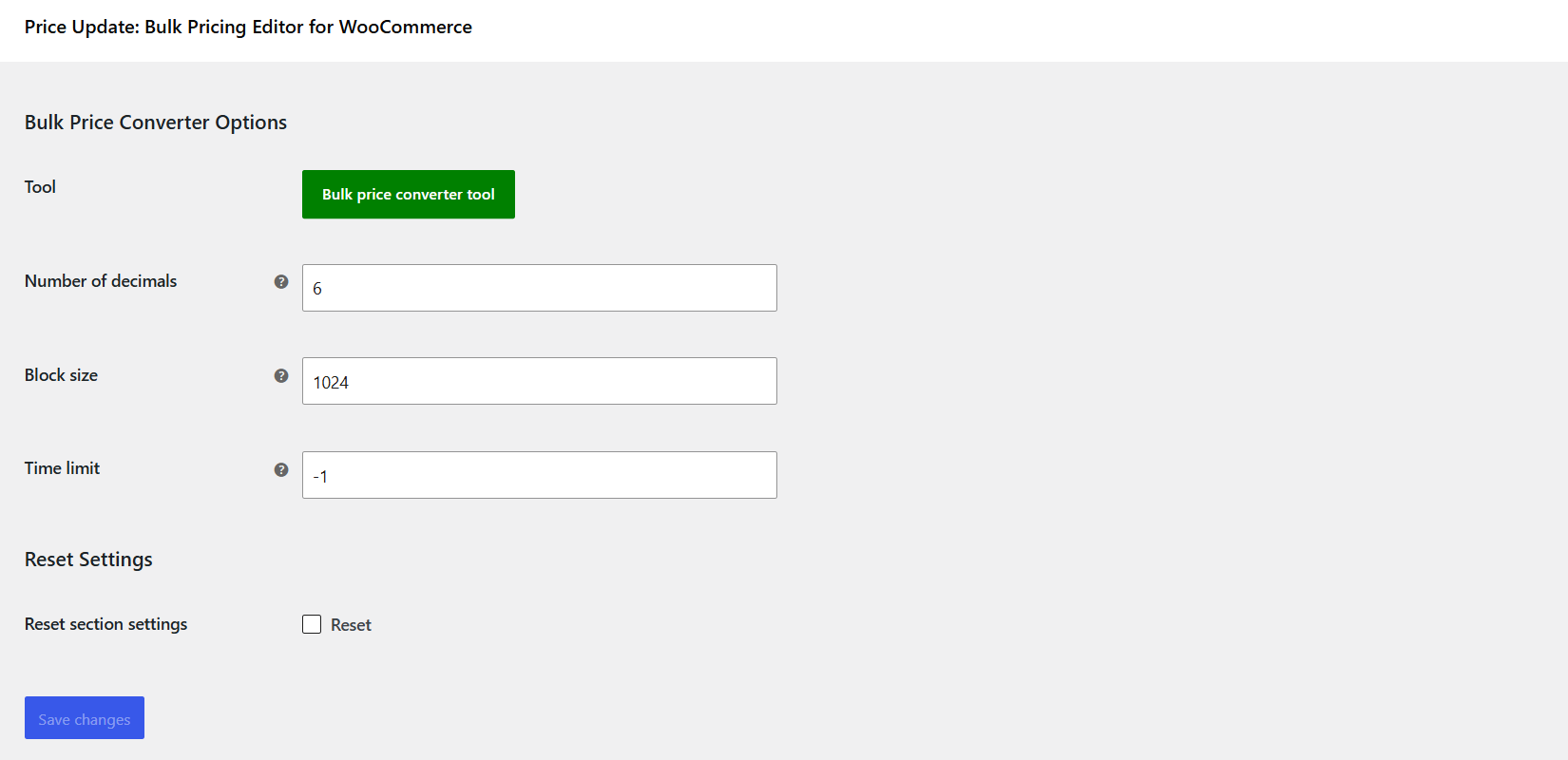
- Settings: go to WPFactory > Bulk Price Converter (also reachable at WooCommerce > Settings > Bulk Price Converter). This page holds Number of decimals, Block size, and Time limit.
- The tool: go to WooCommerce > Bulk Price Converter, or click the green Bulk price converter tool button on the settings page. This is where you actually change prices.
The admin menu labels these screens “Bulk Price Converter” even though the product is titled “Price Update: Bulk Pricing Editor for WooCommerce”. They are the same plugin.
Next steps #
- To reduce or raise every price by a percentage, see the guide on running a store-wide percentage discount or increase.
- To set every product to the same price, see the guide on setting all products to a fixed price.
- Always click Preview prices before Change prices: there is no undo.
Get more control #
The core tool is free. Price Update: Bulk Pricing Editor for WooCommerce Pro adds divide and subtract, filtering by tag and attribute, and the rounding and pretty-price tools. See what Pro unlocks.