The Complete Guide to WooCommerce Shortcodes

Quick answer: WooCommerce shortcodes are short codes in square brackets that display store elements anywhere, such as
for a category, and ,























































WooCommerce shortcodes are powerful snippets of code that let you display shop elements anywhere on your WordPress site.
Whether you’re building custom landing pages, creating promotional sections, or designing unique store layouts, shortcodes give you the flexibility to place products, cart functions, and account features exactly where you need them.
This comprehensive guide covers every official WooCommerce shortcode, organized by function to help you find exactly what you need.
Let’s get started!
What Are WooCommerce Shortcodes?
Shortcodes in WordPress and WooCommerce are small, bracketed snippets of text like [products] or [woocommerce_cart]
that act as placeholders for dynamic content. When WordPress processes a page or post, it detects these snippets and replaces them with more complex functionality, layouts, or interactive elements.
Instead of having to write PHP or embed complex HTML structures, a shortcode allows you to insert features with a simple, readable command. WooCommerce extends this concept by providing its own library of shortcodes, allowing store owners to display products, categories, carts, checkout pages, account information, or custom product grids anywhere on the site.
Understanding Shortcode Syntax
The syntax of a shortcode is straightforward. Every shortcode consists of two main components:
The Body – This is the main part enclosed in square brackets that tells WooCommerce what feature or content to display. For example: [products]
Parameters (Attributes) – These are optional settings that modify the shortcode’s output. Parameters come after the shortcode name within the same square brackets, using an attribute=”value” format.
Here’s a complete example:
[products limit="8" columns="4" orderby="popularity"]
In this example:
[products]- limit=”8″ sets how many products to show
- columns=”4″ arranges them in 4 columns
- orderby=”popularity” sorts by number of sales
The square brackets signal to WordPress that a shortcode is being used. Everything inside tells WordPress specific information about what to display and how to display it.
Benefits of Using Shortcodes
Shortcodes offer several significant advantages:
- Beginner-Friendly: Non-technical users can embed complex functionality with minimal effort, no coding knowledge required.
- Speed Up Content Creation: You don’t need to build layouts manually or work with theme templates, saving significant development time.
- Maximum Flexibility: Features like product displays or forms can be placed virtually anywhere content is allowed, including posts, pages, and widgets.
- Structured Functionality: Developers can expose plugin functionality to editors without granting access to PHP templates, maintaining site security.
Drawbacks of Using Shortcodes
However, shortcodes do come with some limitations:
- No Visual Preview: In the block editor, you won’t see the shortcode rendered until you preview the page, making it harder to visualize the final result.
- Plugin Dependency: Content becomes dependent on the plugin that provides the shortcode. If the plugin is deactivated, pages may display raw shortcode text instead of content.
- Limited Discoverability: Users must know the shortcode’s name and parameters, which can be challenging for beginners.
- Can Become Cluttered: When many parameters are included, shortcodes can become hard to read and manage.
Despite these limitations, shortcodes remain one of the easiest ways to add complex WooCommerce content without knowing any code. Shipping logic is another area you can handle without code, using WooCommerce conditional shipping rules.
How to Use WooCommerce Shortcodes
WooCommerce shortcodes can be added in several places throughout your site. Let’s explore the most common methods.
How to Add Shortcodes in the Block Editor (Gutenberg)
The WordPress block editor provides a dedicated Shortcode block for inserting shortcodes:
- Open the page or post where you want to add the shortcode
- Click the + (Toggle block inserter) button
- Search for “Shortcode” and select the Shortcode block
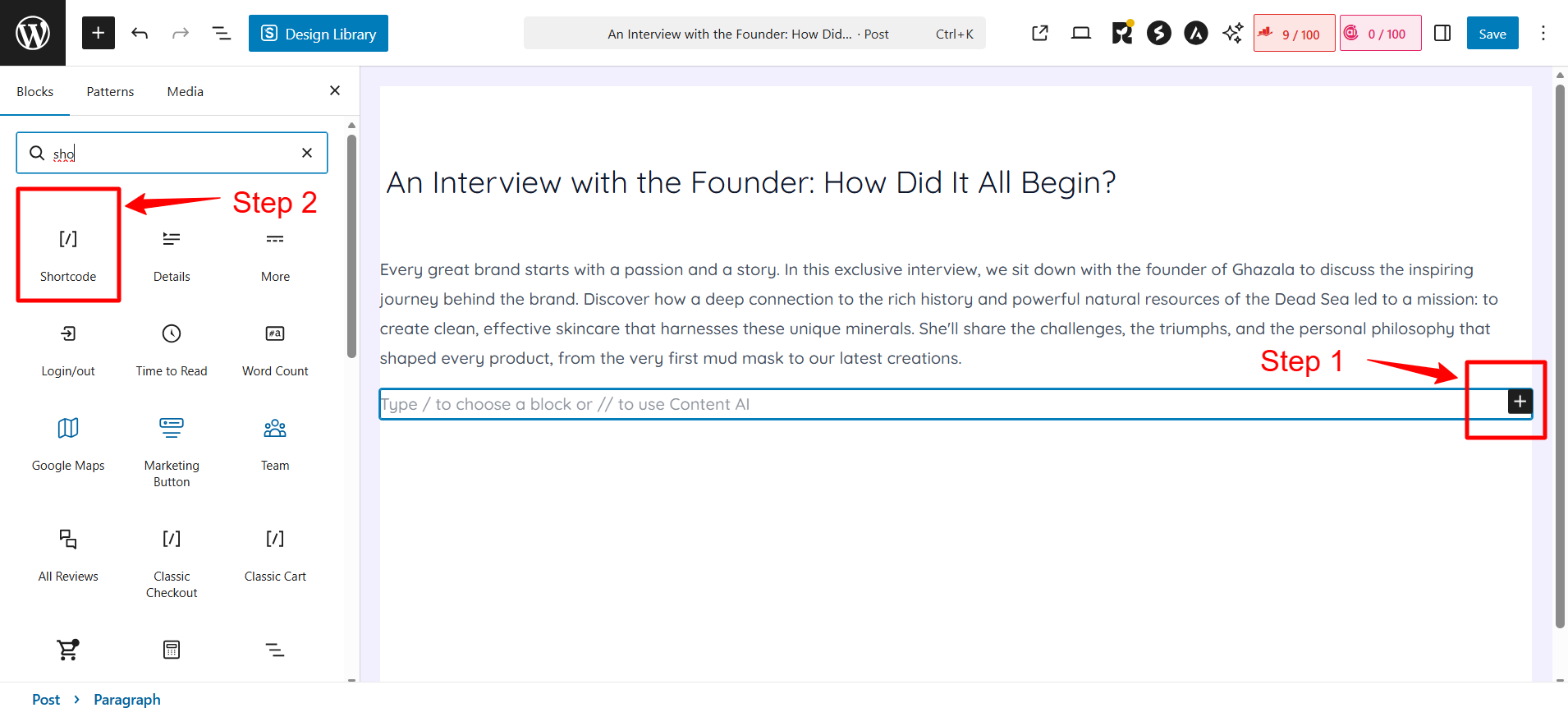
4. Paste your shortcode into the block (for example: [products limit="4" columns="4"]
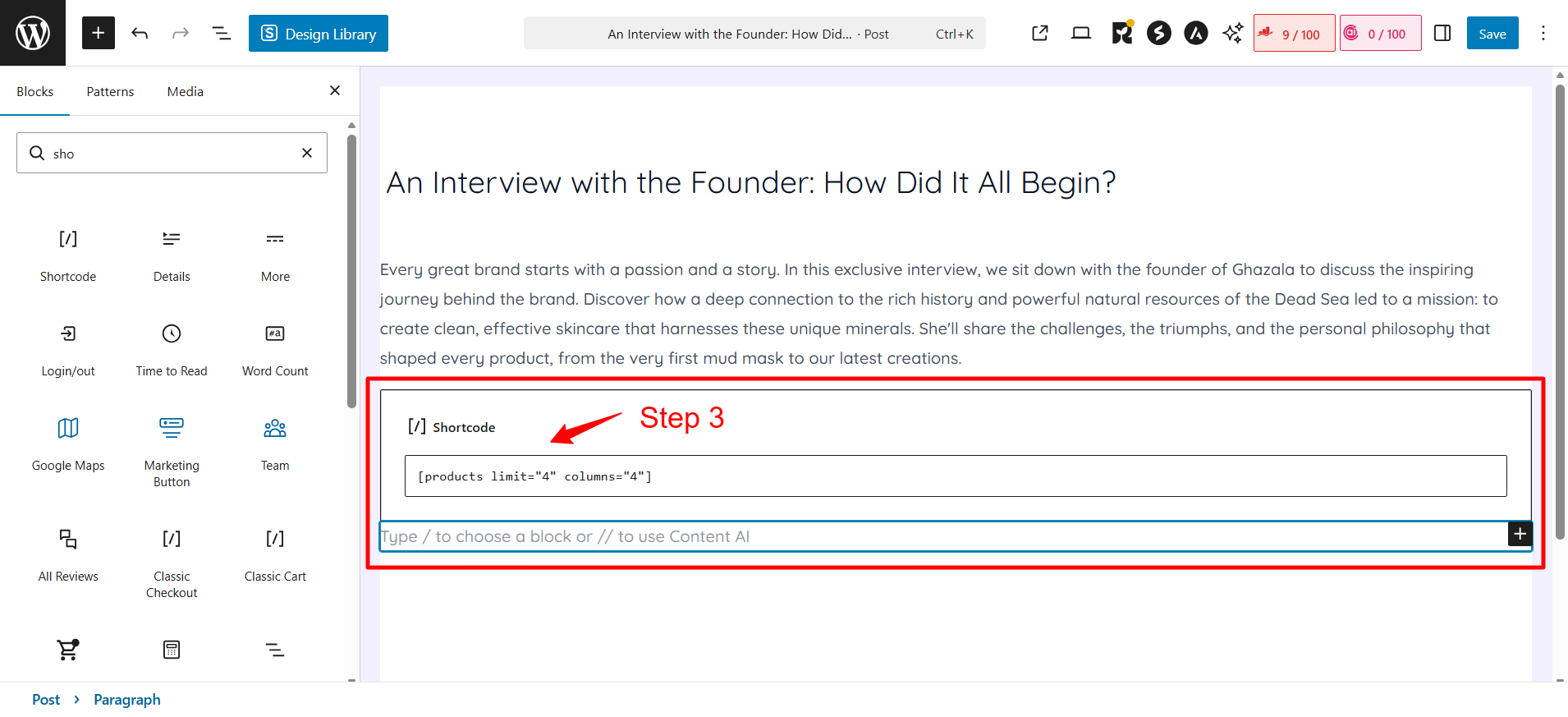
5. Click Update or Publish
The shortcode won’t render visually in the editor, but it will display correctly on the front end of your site.
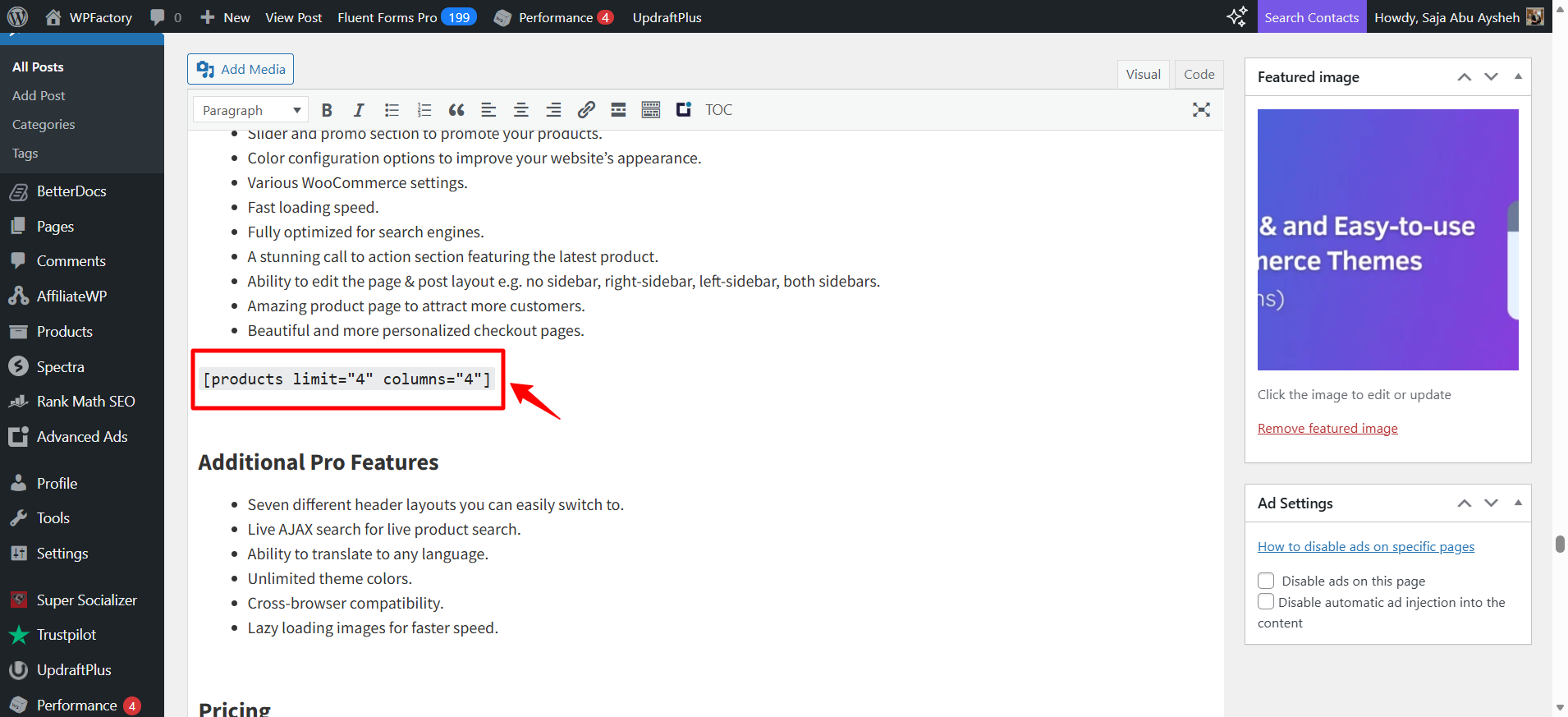
How to Add Shortcodes in the Classic Editor
If you’re using the Classic Editor:
- Open your page or post
- In either Visual or Text mode, place your cursor where you want the shortcode
- Type or paste the shortcode directly into the content area
- Click Update or Publish
WordPress will automatically process the shortcode when the page loads.
How to Add Shortcodes to Widgets
You can use WooCommerce shortcodes in widget areas such as sidebars or footers:
- Go to Appearance → Widgets in the WordPress dashboard
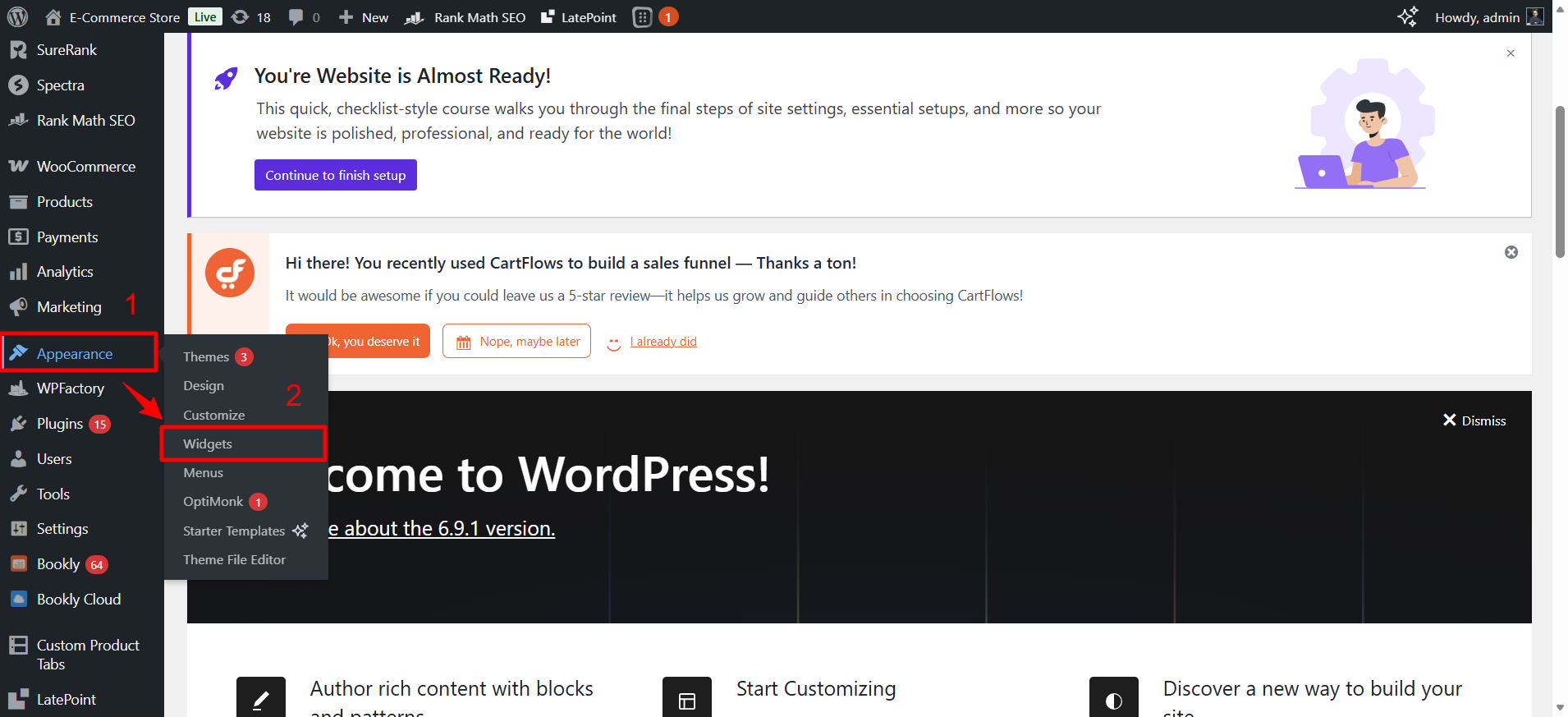
2. Add a Text or HTML widget to your desired widget area
3. Paste your shortcode into the widget content field
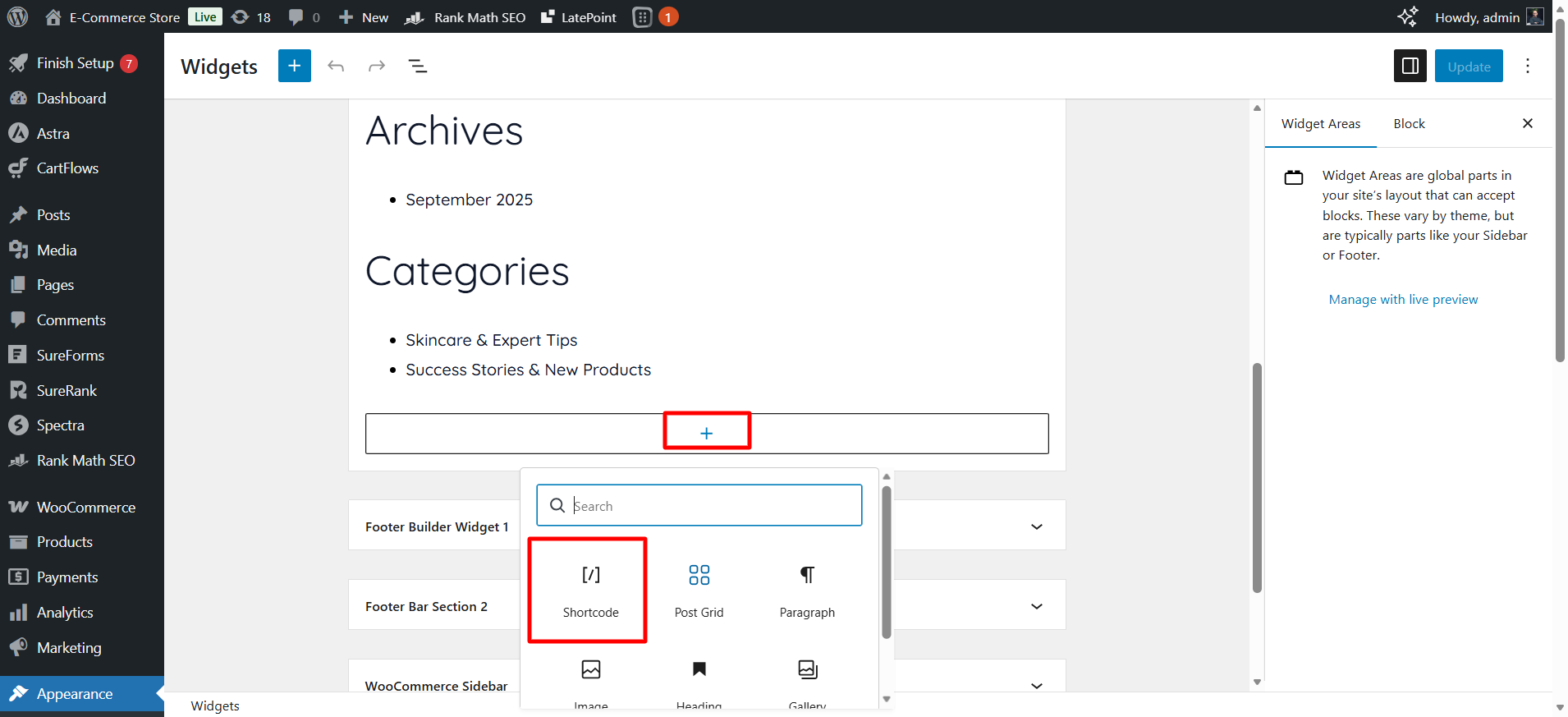
4. Click Save
This is particularly useful for displaying featured products in your sidebar or adding a mini cart to your footer.
How to Add Shortcodes to Product Pages
You can add shortcodes directly to product descriptions:
- Open the product in the WordPress dashboard
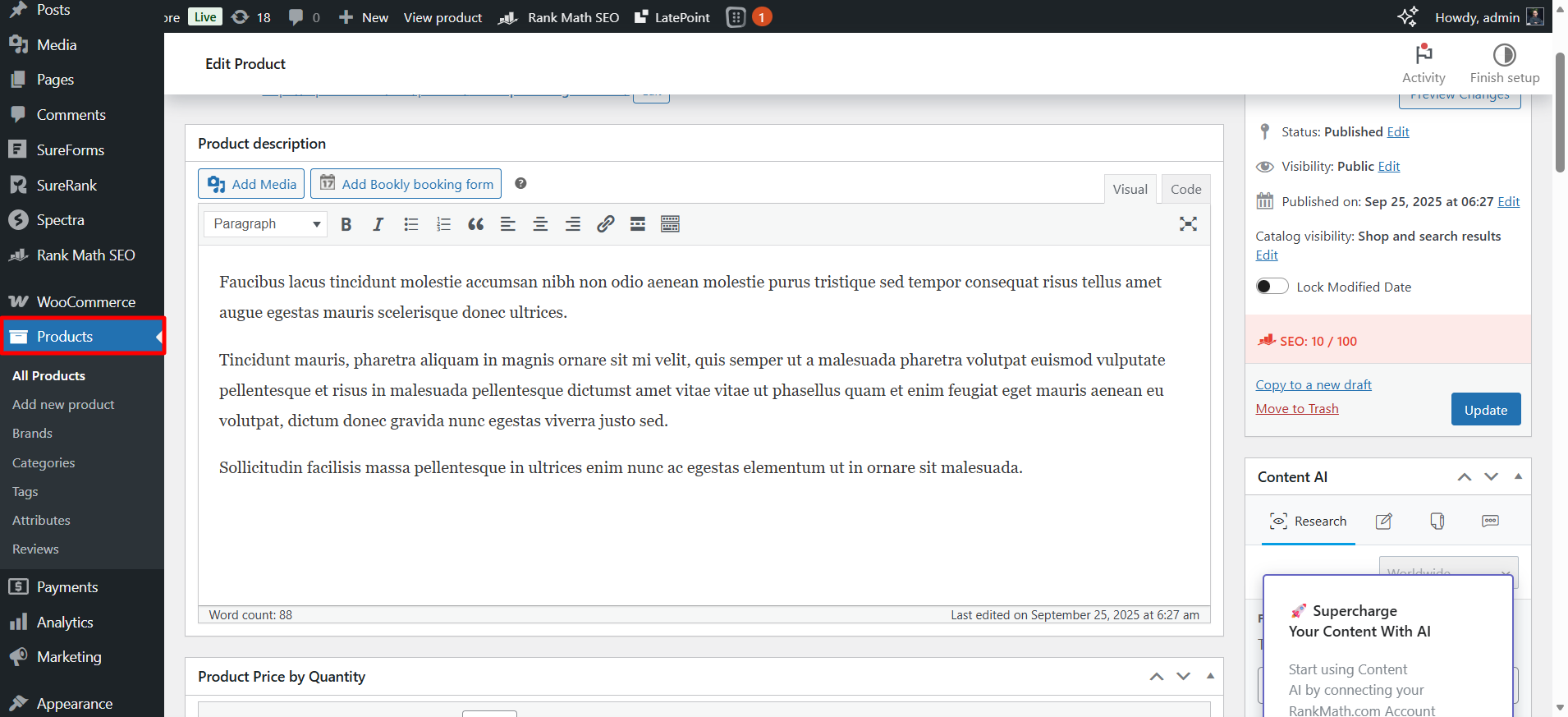
- Scroll to either the Product Short Description or Product Description editor
- Add a Shortcode block (in Gutenberg) or paste the shortcode directly (in Classic Editor)
- Update the product
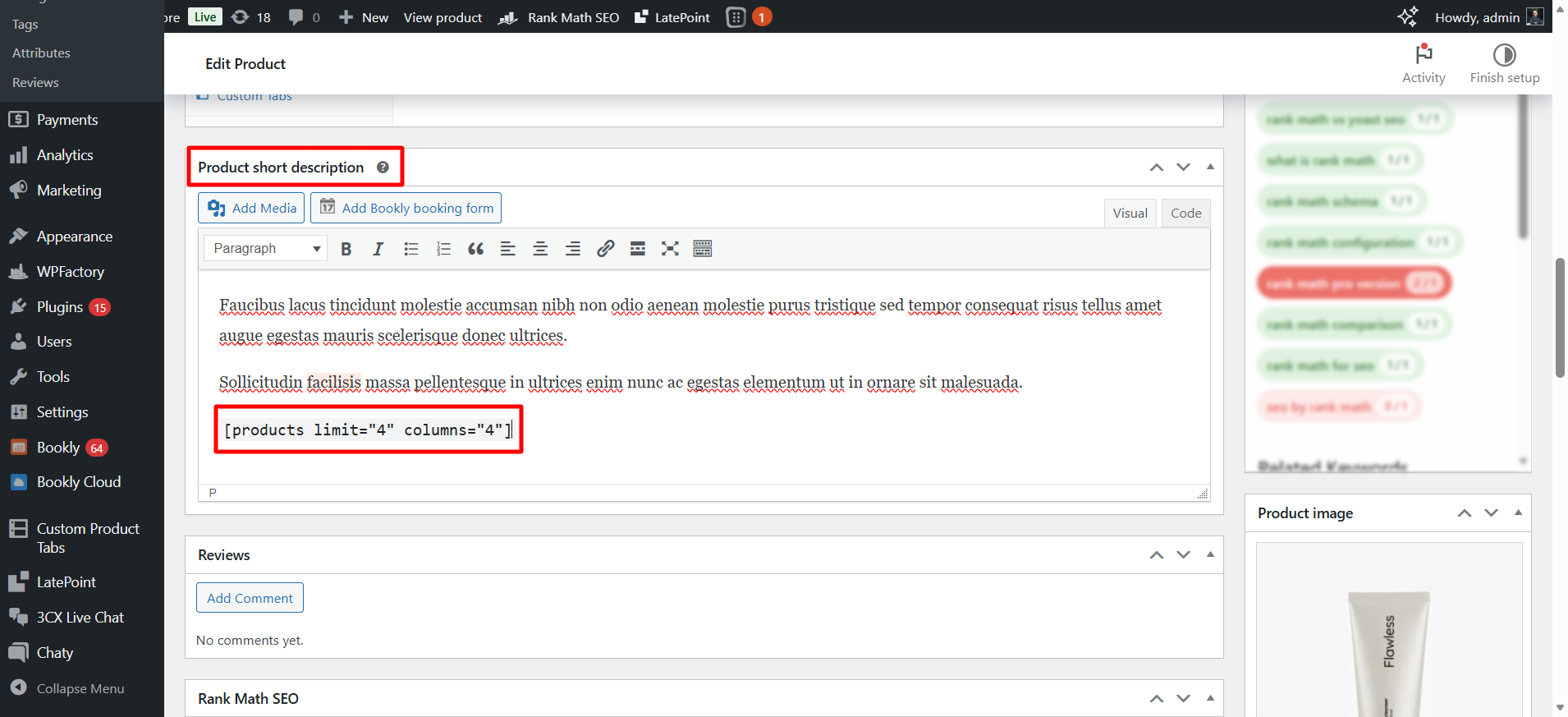
This allows you to display related products, promotional grids, or custom content within individual product pages.
Products & Shop Display Shortcodes
[products]
[products]The most versatile shortcode for displaying products. Without parameters, it shows your recent products in a grid.
Common Parameters:
limit– Number of products to show (default: 12)columns– Grid columns (default: 4)orderby– Sort order: date, title, price, popularity, rating, rand, menu_orderorder– ASC or DESCclass– Add custom CSS classesids– Show specific products by ID (comma-separated)skus– Show specific products by SKU (comma-separated)category– Filter by category slugtag– Filter by product tagattribute– Filter by attributeterms– Specific attribute valuesvisibility– Control visibility (featured, catalog, search, hidden)stock_status– Filter by stock (instock, outofstock, onbackorder)on_sale– Show only sale products (true/false)best_selling– Show best sellers (true/false)top_rated– Show top-rated products (true/false)
Examples:
[products limit="8" columns="4" orderby="popularity"]
[products ids="123,456,789"]
[products category="shirts" visibility="featured" orderby="price"]
[products attribute="color" terms="blue,red" terms_operator="AND" stock_status="instock"]
[recent_products]
[recent_products]Displays recently added products.
Parameters:
per_page– Number of products (default: 12)columns– Grid columns (default: 4)orderby– Sort methodorder– ASC or DESC
Example:
[recent_products per_page="12" columns="4"]
[featured_products]
[featured_products]Shows products marked as featured in your WooCommerce settings.
Parameters:
per_page– Number of products (default: 12)columns– Grid columns (default: 4)orderby– Sort methodorder– ASC or DESC
Example:
[featured_products per_page="4" columns="4"]
[sale_products]
[sale_products]Displays products currently on sale.
Parameters:
per_page– Number of products (default: 12)columns– Grid columns (default: 4)orderby– Sort methodorder– ASC or DESC
Example:
[sale_products per_page="8" columns="4"]
[best_selling_products]
[best_selling_products]Shows your best-selling products based on total sales.
Parameters:
per_page– Number of products (default: 12)columns– Grid columns (default: 4)
Example:
[best_selling_products per_page="6" columns="3"]
[top_rated_products]
[top_rated_products]Displays products with the highest average ratings.
Parameters:
per_page– Number of products (default: 12)columns– Grid columns (default: 4)orderby– Sort methodorder– ASC or DESC
Example:
[top_rated_products per_page="8" columns="4"]
[product_page]
[product_page]Embeds a complete single product page anywhere on your site.
Parameters:
id– Product ID (required)sku– Product SKU (alternative to id)
Example:
[product_page id="99"]
[product_page sku="HOODIE-BLUE"]
This is particularly useful for creating dedicated landing pages for specific products outside your normal shop structure.
[product]
[product]Displays a single product’s thumbnail, title, price, and add to cart button (more compact than [product_page]
Parameters:
id– Product IDsku– Product SKUclass– Custom CSS classes
Example:
[product id="123"]
Category & Tag Based Display Shortcodes
[product_category]
[product_category]Displays products from specific categories.
Parameters:
category– Category slug (required, comma-separated for multiple)per_page– Number of products (default: 12)columns– Grid columns (default: 4)orderby– Sort methodorder– ASC or DESCoperator– IN, NOT IN, AND (for multiple categories)
Examples:
[product_category category="hoodies" per_page="12"]
[product_category category="shirts,hoodies" operator="AND"]
[product_category category="accessories" orderby="price" order="ASC"]
[product_categories]
[product_categories]Displays product category listings with images and product counts.
Parameters:
number– Number of categories to showorderby– name, id, slug, menu_order, countorder– ASC or DESCcolumns– Grid columns (default: 4)hide_empty– Hide categories with no products (1 or 0)parent– Show only direct children of a category (use category ID)ids– Show specific categories (comma-separated IDs)
Examples:
[product_categories number="12" columns="4"]
[product_categories parent="0" orderby="name"]
[product_categories ids="12,15,18"]
[product_tag]
[product_tag]Shows products with specific tags.
Parameters:
tag– Tag slug (required)per_page– Number of products (default: 12)columns– Grid columns (default: 4)orderby– Sort methodorder– ASC or DESC
Example:
[product_tag tag="summer-collection" per_page="8"]
[product_attribute]
[product_attribute]Displays products filtered by specific attribute values.
Parameters:
attribute– Attribute name (required)filter– Attribute value/term (required)per_page– Number of products (default: 12)columns– Grid columns (default: 4)orderby– Sort methodorder– ASC or DESC
Example:
[product_attribute attribute="color" filter="blue" per_page="12"]
[product_attribute attribute="size" filter="large" columns="3"]
This is excellent for creating filtered product displays, such as “All Blue Products” or “All Large Items.”
[related_products]
[related_products]Displays products related to a specific product based on categories and tags.
Parameters:
id– Product ID to find related products forlimit– Number of related productscolumns– Grid columnsorderby– Sort methodorder– ASC or DESC
Example:
[related_products id="123" limit="4" columns="4"]
Cart, Checkout & Account Page Shortcodes
[woocommerce_cart]
[woocommerce_cart]Displays the shopping cart page. This is automatically used on your cart page but can be placed elsewhere if needed.
Example:
[woocommerce_cart]
[woocommerce_checkout]
[woocommerce_checkout]Shows the checkout page. Like the cart shortcode, this is automatically used on your checkout page.
Example:
[woocommerce_checkout]
[woocommerce_my_account]
[woocommerce_my_account]Displays the customer account dashboard with order history, downloads, addresses, and account details.
Example:
[woocommerce_my_account]
[woocommerce_order_tracking]
[woocommerce_order_tracking]Shows the order tracking form where customers can check their order status using order ID and email.
Example:
[woocommerce_order_tracking]
This is useful for creating a dedicated order tracking page separate from the account area, especially for guest customers.
Add to Cart Shortcodes
[add_to_cart]
[add_to_cart]Displays an add to cart button for a specific product.
Parameters:
id– Product IDsku– Product SKUquantity– Default quantityshow_price– Show product price (true/false)style– Inline CSS stylingclass– Custom CSS classes
Example:
[add_to_cart id="123" show_price="true"]
[add_to_cart_url]
[add_to_cart_url]Generates a direct URL that adds a specific product to the cart when visited.
If you want to take this a step further and turn those links into real conversion tools, URL Coupons for WooCommerce makes it even more powerful.
Parameters:
id– Product IDsku– Product SKU
Example:
[add_to_cart_url id="123"]
This is useful for email campaigns or creating custom “Quick Buy” links.
Shop Messages & Notifications
[shop_messages]
[shop_messages]Displays WooCommerce notices and messages (success, error, info). Useful when creating custom page templates.
To make these messages more visible and engaging, Popup Notices for WooCommerce takes standard WooCommerce notices to the next level.
Example:
[shop_messages]
[woocommerce_thankyou]
[woocommerce_thankyou]Shows order received/thank you page details. Rarely used manually as it’s part of the checkout flow.
Parameters:
order_id– Specific order ID to display
Example:
[woocommerce_thankyou]
Advanced Product Search (Premium Extension)
[woocommerce_product_search]
[woocommerce_product_search]The WooCommerce Product Search premium extension provides an advanced live search shortcode with extensive filtering capabilities.
Key Parameters:
title– Search in product titles (yes/no)excerpt– Search in short descriptions (yes/no)content– Search in full descriptions (yes/no)sku– Search by SKU (yes/no)tags– Include product tags (yes/no)categories– Include categories (yes/no)limit– Maximum results (default: 10)show_description– Show product descriptions (yes/no)show_price– Show prices (yes/no)show_add_to_cart– Show add to cart buttons (yes/no)product_thumbnails– Show product images (yes/no)placeholder– Custom placeholder text
Example:
[woocommerce_product_search show_description="yes" limit="10" product_thumbnails="yes"]
Practical Use Cases
Creating Custom Landing Pages
Shortcodes excel at building targeted landing pages. For example, a summer sale page might use:
[sale_products per_page="8" columns="4" category="summer-collection"]
Or a new arrivals section on your homepage:
[recent_products per_page="4" columns="4"]
Promotional Product Showcases
Display specific products you want to promote using IDs:
[products ids="101,102,103,104" columns="4"]
This gives you complete control over which products appear and in what order.
Category Landing Pages
Create rich category pages by combining category displays with product grids:
[product_categories parent="15" columns="4"]
[product_category category="electronics" per_page="12" orderby="popularity"]
Building Custom Shop Layouts
Use shortcodes in page builders or custom templates to create unique shop experiences. For instance, you might create a “Recommended for You” section:
[products limit="4" columns="4" orderby="rand"]
Or showcase your best sellers alongside new arrivals on a single page.
Seasonal Campaigns
Tag products for seasonal campaigns and create dedicated pages:
[product_tag tag="holiday-2024" per_page="16" columns="4"]
This approach works particularly well for creating promotional landing pages that attract backlinks and organic traffic.
Performance & Optimization Tips
Combining Multiple Shortcodes
You can use multiple shortcodes on the same page to create rich layouts. For example:
Featured Products section:
[featured_products per_page="4" columns="4"]
On Sale Now section:
[sale_products per_page="8" columns="4"]
New Arrivals section:
[recent_products per_page="4" columns="4"]
Performance Considerations
Each shortcode generates database queries. Using too many shortcodes on a single page can impact load times. Best practices:
- Limit shortcodes per page – Ideally under 5-6 shortcodes per page
- Use caching – Enable caching plugins to cache shortcode output
- Set reasonable limits – Use appropriate
limit/per_pagevalues - Consolidate when possible – Use a single
[products]
Styling Shortcode Output
Shortcodes inherit your theme’s WooCommerce styles. To customize:
- Use the
classparameter to add custom CSS classes - Target shortcode output with CSS using
.woocommercewrapper classes - Override WooCommerce templates in your theme for deeper customization
- Use page builders that support WooCommerce shortcode styling
Example with custom class:
[products limit="8" columns="4" class="custom-product-grid"]
Then in your CSS:
.custom-product-grid .product {
    /* Your custom styles */
}
Troubleshooting Common Issues
Shortcode Appears as Plain Text
If you see [products]
Check Shortcode Formatting – Ensure you’re using the Shortcode block in Gutenberg, not a Paragraph block. In the Classic Editor, verify there are no extra HTML tags interfering.
Use Straight Quotes – Make sure you’re using straight double quotes (“) not curly quotes (” “). Curly quotes will break the shortcode.
Update WooCommerce and WordPress – Outdated versions might not support certain shortcodes properly.
Check Theme Compatibility – Switch to a default WordPress theme (like Twenty Twenty-Four) temporarily. If the shortcode works, your theme may be causing conflicts.
Check Plugin Conflicts – Deactivate all plugins except WooCommerce and test. Reactivate plugins one by one to identify conflicts.
Verify Placement – Ensure there are no invisible characters around the shortcode that could prevent it from being recognized.
Shortcodes Not Rendering Properly
If the shortcode renders but displays incorrectly:
Verify Shortcode Placement – Make sure the page doesn’t conflict with existing WooCommerce pages (Shop, Checkout, etc.).
Check Documentation – Confirm the shortcode is supported in your chosen location by checking official WooCommerce documentation.
Refresh Permalinks – Go to Settings → Permalinks and click Save Changes to reset the permalink structure and clear cached URLs.
Check for JavaScript Errors – Open your browser’s developer console (F12) and look for JavaScript errors that might prevent proper rendering.
Products Not Displaying
If the shortcode renders but shows no products:
Check Product Status – Ensure products are published and set to “Public” visibility in the Publish section.
Verify Categories and Tags – Confirm products have the appropriate categories and tags assigned, especially when using category or tag filters.
Check Product Visibility – Make sure products aren’t set to “hidden” in catalog visibility settings.
Verify Stock Status – If using stock_status filters, ensure products meet the criteria.
Check Attribute Names – When using attribute-based shortcodes, use the exact attribute slug (found in Products → Attributes).
Use Correct Slugs – Use term slugs, not term names, for categories, tags, and attributes (these are case-sensitive).
Layout Breaking
If products display but break your page layout:
Adjust Column Count – Modify the columns parameter to fit your page width better.
Check Theme Support – Ensure your theme supports the number of columns you’re using.
Look for CSS Conflicts – Check for CSS conflicts with other plugins using browser developer tools.
Test with Default Theme – Switch to a default WordPress theme to isolate whether the issue is theme-related.
Check Responsive Design – Test on different screen sizes to ensure responsive behavior works correctly.
Pagination Not Working
Shortcodes don’t support pagination by default. If you need pagination:
Use the Main Shop Page – Standard shop pages have built-in pagination.
Implement Custom Pagination – Add pagination through custom code if needed.
Use Load More Buttons – Implement AJAX-based “Load More” functionality via custom JavaScript.
Consider WooCommerce Blocks – Modern WooCommerce blocks often include better pagination support.
Attribute Filters Not Working
If attribute-based filtering isn’t working:
Use Exact Attribute Slugs – Find the correct slug in Products → Attributes and use it exactly.
Use Term Slugs – Use term slugs, not term names (e.g., “red-color” not “Red Color”).
Check Visibility Settings – Verify the attribute is set to “visible on product page” in attribute settings.
Verify Product Assignment – Confirm that products actually have the attribute assigned with values.
Still having issues? Visit our Troubleshooting Guide for step-by-step solutions.
WooCommerce Blocks vs Shortcodes
WooCommerce increasingly promotes blocks over shortcodes in the Gutenberg editor. Understanding the differences helps you choose the right approach.
Advantages of Blocks
Visual Editing Interface – See a live preview of what you’re building directly in the editor.
Intuitive Controls – Adjust settings using visual controls rather than remembering parameter names.
Better Gutenberg Integration – Designed specifically for the block editor with native WordPress features.
Enhanced Customization – Many blocks include built-in styling controls and advanced options.
Future-Proof – WooCommerce development focuses primarily on blocks now.
Advantages of Shortcodes
Classic Editor Compatibility – Work perfectly in the Classic Editor where blocks aren’t available.
Custom Page Templates – Easy to insert into custom PHP templates using do_shortcode().
Programmatic Control – Simpler to insert dynamically via code or action hooks.
Page Builder Compatibility – Many page builders support shortcodes better than blocks.
More Parameter Options – Some shortcodes offer parameters not yet available in block equivalents.
Lightweight – Generally require fewer resources than block-based implementations.
When to Use Each
Use Blocks When:
- Working primarily in Gutenberg
- You want visual editing
- Building pages for non-technical users
- You need built-in styling options
Use Shortcodes When:
- Using Classic Editor
- Adding to custom templates
- Need programmatic insertion
- Using page builders
- Require specific parameters not in blocks
Both approaches remain valid, and you can use them interchangeably based on your specific needs.
Alternative Solutions to Shortcodes
While shortcodes are powerful, several alternatives exist for customizing your WooCommerce store.
WordPress Blocks
Modern WooCommerce provides extensive block support. Key WooCommerce blocks include:
- Product Collection Block – Display filtered product grids
- Featured Product Block – Showcase individual products
- Product Categories Block – Display category grids
- Cart Block – Modern cart page
- Checkout Block – Enhanced checkout experience
- Mini Cart Block – Sidebar cart widget
Blocks offer visual editing and are the recommended approach for modern WooCommerce sites.
WordPress Page Builder Plugins
Popular page builders integrate with WooCommerce, offering drag-and-drop customization:
Elementor (free + pro versions) – Extensive WooCommerce widgets and templates
Divi ($89/year or $249 lifetime) – Built-in WooCommerce modules and layouts
Beaver Builder (starts at $99/year) – WooCommerce-specific add-ons available
Visual Composer (starts at $49/year) – WooCommerce integration and templates
SeedProd (starts at $39.50/year) – Landing page builder with WooCommerce support
These builders provide visual interfaces for creating complex layouts without coding.
WordPress Site Editor
The built-in WordPress Site Editor (Full Site Editing) provides block-based customization:
- Access via Appearance → Editor
- Create custom templates using blocks
- No additional plugins required
- Lightweight and fast
- Native WordPress experience
This is ideal for maintaining performance while customizing your store’s appearance.
Custom Code
For developers, custom PHP, CSS, and JavaScript provide maximum control:
Theme Functions – Add functionality via functions.php Template Overrides – Customize WooCommerce templates Action Hooks – Insert content at specific locations Custom Widgets – Create reusable components
This approach requires coding knowledge but offers unlimited possibilities.
Quick Reference Table
| Shortcode | Purpose | Key Parameters |
|---|---|---|
|
Display products with filtering | limit, columns, orderby, category, ids, skus, visibility, stock_status |
|
Recently added products | per_page, columns, orderby |
|
Featured products | per_page, columns, orderby |
|
Products on sale | per_page, columns, orderby |
|
Best sellers | per_page, columns |
|
Highest-rated products | per_page, columns, orderby |
|
Single product summary | id, sku, class |
|
Full product page | id, sku |
|
Products from category | category, per_page, columns, operator |
|
Category grid | number, columns, orderby, parent, hide_empty |
|
Products with tag | tag, per_page, columns |
|
Filter by attribute | attribute, filter, per_page |
|
Related products | id, limit, columns |
|
Cart page | none |
|
Checkout page | none |
|
Account dashboard | none |
|
Order tracking form | none |
|
Add to cart button | id, sku, quantity, show_price |
|
Add to cart URL | id, sku |
|
WooCommerce notices | none |
Frequently Asked Questions
What are WooCommerce shortcodes?
WooCommerce shortcodes are small code snippets placed inside square brackets that let you display dynamic WooCommerce content anywhere on your site, including pages, posts, and widgets.
They act as shortcuts for adding features like product grids, cart pages, checkout forms, and account pages without writing any custom code. Each shortcode can include parameters to control what appears, such as specific products, categories, or layout settings.
While less visual than blocks, they remain a powerful way to customize store pages and add WooCommerce functionality quickly.
How do I create a shortcode in WooCommerce?
You can create custom shortcodes in WordPress by declaring the desired functionality in your theme’s functions.php file and registering it using add_shortcode().
However, for existing WooCommerce content and features, simply use the built-in shortcodes provided by WooCommerce. Add them to your pages or posts using the WordPress Shortcode block in Gutenberg, or paste them directly in the Classic Editor. Those pages are easier to manage later if their URLs are tidy, and you can change a page slug in WordPress at any point.
How do I edit shortcodes in WooCommerce?
You can edit WooCommerce shortcodes by modifying the shortcode text directly in the page or post where it appears. In the Block Editor, select the Shortcode block and modify the parameters in the text field.
In the Classic Editor, locate the shortcode within the content area and edit it like regular text. To change what the shortcode displays, update its parameters – for example, changing product IDs, categories, or the number of items shown.
WooCommerce doesn’t provide a visual interface for editing shortcode settings, so all customization happens by manually updating the shortcode text.
Do shortcodes affect SEO?
Shortcodes don’t directly affect SEO, but the content they generate does. Search engines index the output of shortcodes just as they would manually added content.
For example, if a shortcode displays best-selling products with proper titles, descriptions, and images, those elements contribute to your site’s SEO. However, if shortcodes load slowly or generate duplicate content, they could negatively impact SEO.
Use shortcodes strategically, ensure fast loading times with caching, and verify that generated content includes proper headings, alt text, and product information for optimal SEO performance.
Can I use multiple shortcodes on the same page?
Yes, you can use multiple shortcodes on the same page to create rich, varied layouts. However, keep performance in mind – each shortcode generates database queries that can slow down page loading.
Best practice is to limit yourself to 5-6 shortcodes per page and use caching plugins to optimize performance. When combining shortcodes, consider the overall user experience and ensure the page doesn’t become cluttered or overwhelming.
Why is my shortcode displaying as text?
If your shortcode appears as plain text (like [products]
Try switching to a default WordPress theme temporarily to test if the shortcode works – if it does, your theme may be interfering with shortcode processing.
Final Thoughts
WooCommerce shortcodes provide powerful flexibility for customizing your store’s layout and presentation. While newer WooCommerce blocks offer enhanced visual editing, shortcodes remain essential for custom implementations, programmatic content insertion, and compatibility with various page builders and themes.
The key to effective shortcode use is understanding your options and combining them strategically. Start with basic implementations, test performance with your specific setup, and gradually build more complex product displays as you become comfortable with the parameters and filtering options.
Remember that shortcodes are just one tool in your WooCommerce toolkit. Combine them with proper SEO practices, quality product data, user-friendly navigation, and fast hosting to create a store that both looks great and converts effectively.
Whether you choose shortcodes, blocks, or a combination of both, focus on creating the best possible experience for your customers.