Table of Contents
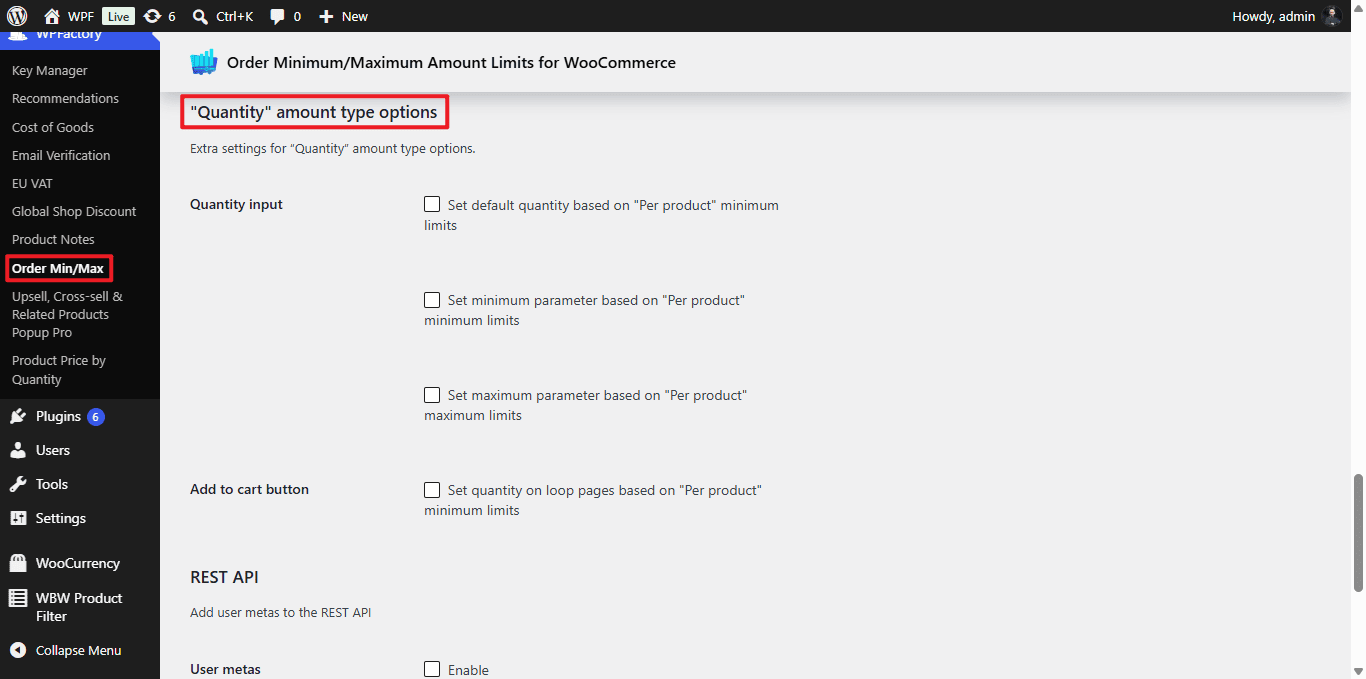
To set the product quantity field from your min/max limits in Order Minimum/Maximum Amount Limits for WooCommerce Pro, go to WPFactory > Order Min/Max > General and scroll to “Quantity” amount type options. Turn on the Quantity input default, minimum, or maximum controls, which read your per-product limits, and save. This is a Pro feature.
Before you start #
- WooCommerce, active.
- Order Minimum/Maximum Amount Limits for WooCommerce Pro: these quantity-input controls are a Pro feature.
- Quantity selected as an amount type, and per-product limits set in the Products sub-tab (these controls read the “Per product” limits).
Step-by-step #
- Go to WPFactory > Order Min/Max (also reachable at WooCommerce > Settings > Order Min/Max Amount) and open the General tab.
- Scroll to “Quantity” amount type options.
- Turn on the controls you want (see the table), then click Save changes.
Options #
| Label | Option ID | Default | What it does |
|---|---|---|---|
| Quantity input (default) | alg_wc_oma_default_qty_input_based_on_per_product_min |
No | Sets the field’s starting value to the per-product minimum. |
| Quantity input (minimum) | alg_wc_oma_min_qty_input_based_on_per_product_min |
No | Sets the field’s min attribute to the per-product minimum. |
| Quantity input (maximum) | alg_wc_oma_max_qty_input_based_on_per_product_max |
No | Sets the field’s max attribute to the per-product maximum. |
| Add to cart button (loop) | alg_wc_oma_loop_add_to_cart_set_qty_from_min |
No | On shop and archive pages, adds the per-product minimum quantity in one click. |
Ready to set this up? #
This is a Pro feature of Order Min/Max Amount. If you are still on the free version, upgrading unlocks this along with the rest of the Pro toolkit. Get Order Min/Max Amount Pro.