Checklist: ChatGPT Instant Checkout WooCommerce

ChatGPT Instant Checkout WooCommerce is becoming one of the biggest shifts in how people shop online, and if you run a WooCommerce store, it’s something you’ll want to get ready for.
Imagine a customer chatting with ChatGPT and saying, “I want to buy a hoodie” and your product shows up, with a direct checkout link.
That’s what this is all about, getting your products to show up inside ChatGPT, with instant purchase options.
In this article:
You’ll get a step-by-step checklist to help you prepare your WooCommerce store for this new feature.
You’ll learn how to apply as a merchant, what product data you need, how to make sure your items are ready to be seen by ChatGPT, and which tools can help you get it all done faster and easier.
This guide will help you take smart steps now so your store is ready when customers start buying through ChatGPT.
What Is ChatGPT Instant Checkout?
ChatGPT Instant Checkout is a new way for people to shop directly through conversations using ChatGPT.
Imagine you’re chatting with someone online and ask, “Can I get a black t-shirt in size large?” Instead of giving you a link to visit a website, ChatGPT now shows you the actual product inside the chat, and you can buy it instantly, without opening another tab or app. That’s what Instant Checkout does.
For WooCommerce store owners, this opens a whole new sales channel, your products can be discovered, shown, and purchased without customers ever visiting your site.
It’s like setting up a mini-store right inside a conversation.
But to be part of this, your WooCommerce store needs to meet a few technical requirements, like having clean product data, unique identifiers such as GTIN or MPN, and a proper product feed, that’s where this article comes in.
We’ll show you exactly what you need to get started, what to check off your list, and how to make sure ChatGPT can find and sell your products instantly.
Merchant Registration: How to Sign Up for ChatGPT Instant Checkout?
If you’re thinking “I want my WooCommerce store to use ChatGPT Instant Checkout” this is the part where you prepare and take action.
Step 1: Submit the interest form
OpenAI has created a merchant application form for stores that want to:
- Integrate their products into ChatGPT search results
- Enable Instant Checkout inside ChatGPT
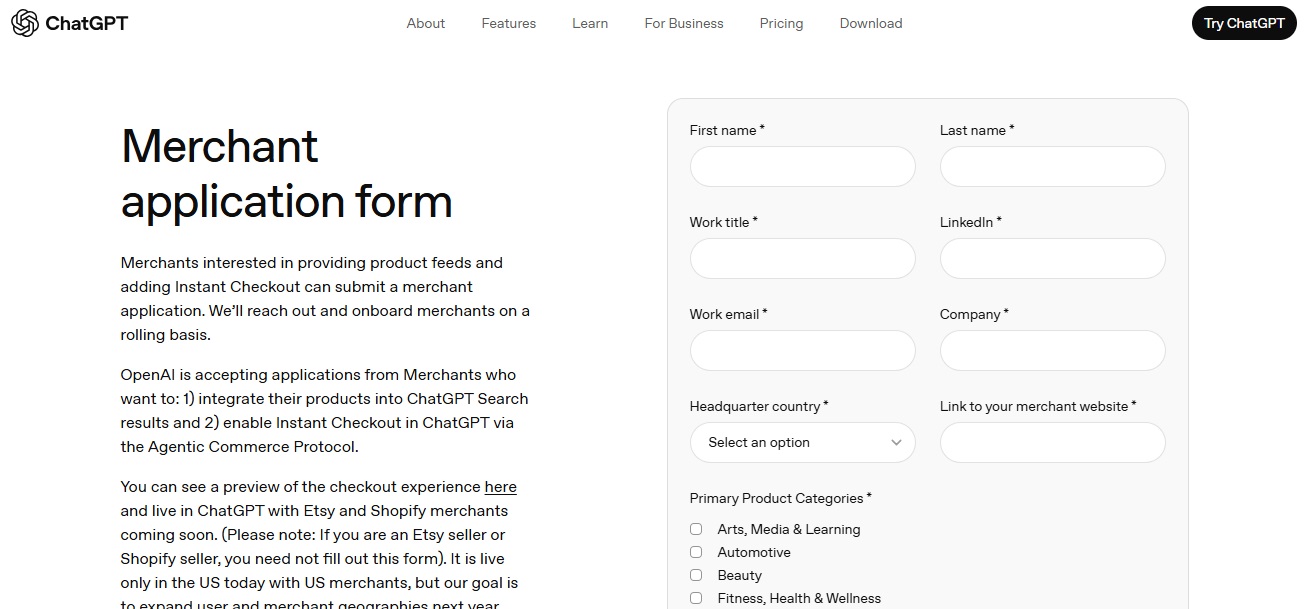
You’ll need to fill out your business details, region, product types, and agree to their policies. After you submit it, OpenAI will review your application and contact you when the next stage is open.
What to expect after applying?
- You’ll get a confirmation email saying they’ve received your form.
- OpenAI will notify you when feed submission or checkout integration is available for your region or platform.
- Once you’re approved, you may be asked to provide:
- A product feed (structured data)
- Checkout integration details (if you want Instant Checkout enabled)
- Compliance with required product attributes and identifiers
Keep in mind: right now, Instant Checkout is live only for U.S. merchants (for single‑item purchases) and broader availability is still being rolled out.
Why this matters for WooCommerce store owners?
Even if your store uses WooCommerce and you don’t yet see “Enable Instant Checkout” in your dashboard, submitting the interest form means you’re on their radar.
Once your system is approved, having everything ready can give you a head start.
Essential Data Requirements for Eligibility
Before your WooCommerce store can appear in ChatGPT shopping results, or use Instant Checkout, you need to make sure your product data is clear, complete, and properly structured.
Think of this like packing a suitcase before a trip! If you forget the basics, you won’t be allowed on the flight.
Here’s what OpenAI needs from you:
Basic Product Information
Your products must include:
- Name – Like “Leather Laptop Bag – 15 Inch”
- Description – Short but useful details: what it is, what it’s made of, who it’s for
- Price – The exact cost, without confusion (e.g: $49.99)
- Availability – Is it “in stock”, “out of stock”, or “pre-order”?
These are the basics ChatGPT needs to understand what you’re selling.
Product Images and URLs
You must also provide:
- Clear product images, not blurry or full of text. One image is the minimum, but more is better.
- A working product page URL, so ChatGPT users can view or buy the item directly.
➡ Tip: If a user taps your product in ChatGPT, they’ll be shown this image and link. So make it count.
Global Product Identifiers (GTIN, UPC, MPN..)
This part is important, and where many WooCommerce stores get stuck.
To be accepted by OpenAI, your products must include at least one global identifier, such as:
- GTIN (Global Trade Item Number)
- UPC (Universal Product Code)
- ISBN (for books)
- MPN (Manufacturer Part Number)
These identifiers are like fingerprints, they help ChatGPT and OpenAI know exactly what the product is, and prevent mix-ups with similar items.
How to Add These in WooCommerce (the easy way)
Adding these manually can be messy. That’s where a plugin like EAN and Barcodes for WooCommerce
comes in.
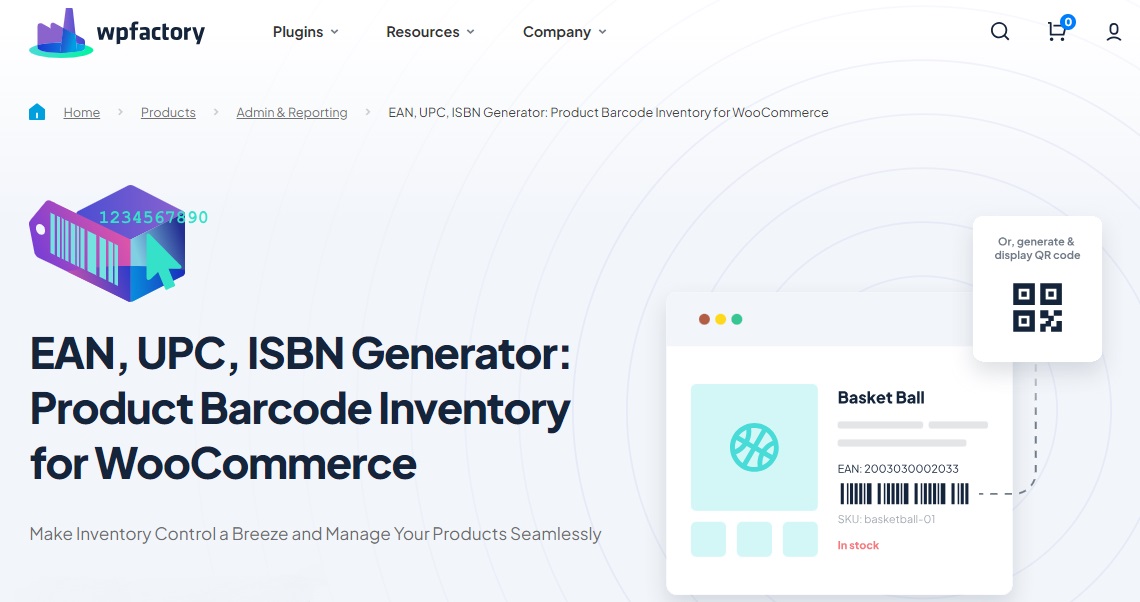
This plugin lets you:
- Add barcodes (EAN/GTIN/UPC) to every product or variation
- Show or hide them on product pages
- Export them with your product feed, perfect for platforms like ChatGPT
If you want to be “ChatGPT-ready” using this tool is a smart move.
It takes care of the global identifiers that OpenAI looks for, without needing to hire a developer or dive into confusing code.
Preparing a Product Feed for ChatGPT
If your WooCommerce store is ready, your next big task is getting your product feed set up so ChatGPT can find your items, understand them, and show them when people chat.
Here’s what that means and how you can handle it.
How ChatGPT Finds Products?
- ChatGPT uses something called a product feed, a structured list that puts all your product details into one file.
- The feed is sent to OpenAI in formats like CSV, XML or JSON. The AI reads it, indexes your products, and uses it when someone asks ChatGPT to help them buy something.
- The clearer and more accurate your feed is, the better chance your products have to appear when a shopper uses ChatGPT.
What WooCommerce Store Owners Can Do?
- Use a plugin like WooCommerce Product XML Feeds Manager. This tool helps you generate a compatible feed without doing everything manually.
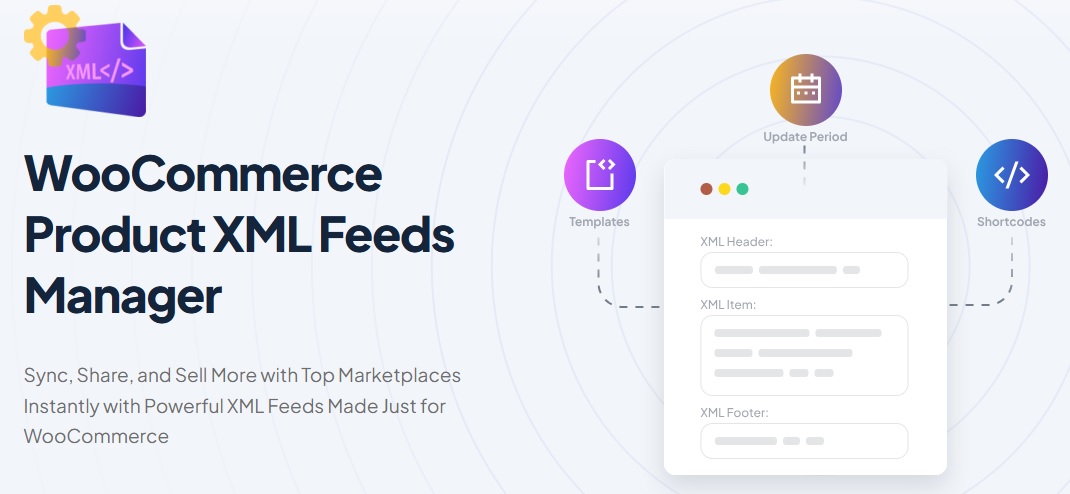
- Make sure your product feed includes all the required details (we covered many of these in the previous section).
- Update your feed frequently, ChatGPT expects fresh data like stock and price changes.
- Once you’re ready and signed up (see the registration section earlier), you’ll be able to submit your feed when OpenAI opens that step.
- Use the merchant interest form on ChatGPT’s site to stay on their radar.
Why This Prepares You for Instant Checkout?
When your feed is solid, two things happen:
- ChatGPT can show your products to people who are asking to buy something like what you sell.
- When Instant Checkout rolls out for shops like yours, you’ll already have the data piece ready, so you can switch on the shopping feature quickly.
This step is less about flashy announcements and more about getting your house in order. Having a clean feed means you’re ahead, not scrambling later.
Technical SEO & Structured Data Readiness
Before your products can show up inside ChatGPT searches, OpenAI (and Google) need to properly read your product pages.
This is where Technical SEO and Structured Data come in. Let’s break that down.
What Is Structured Data (and Why Should You Care)?
Think of your WooCommerce product page like a store shelf.
Humans can look and understand: “Oh, this is a backpack, it’s red, it costs $49, and it’s in stock.”
But search engines (and ChatGPT) don’t see the page like humans do.
They need special tags to understand what’s what. These tags are called structured data, or schema markup.
- Schema.org is a shared language used by Google, ChatGPT, and other platforms to understand websites.
- Using it lets AI know exactly what your product is, how much it costs, if it’s in stock, what the rating is, and more.
Without structured data, your product might look like just a wall of text.
Tools to Check Your Structured Data
To make sure your WooCommerce product pages are sending the right signals, use these free tools:
Paste in your product page URL and see what Google finds.
This shows if your schema is working or broken.
- Ahrefs, Screaming Frog, or RankMath Pro (advanced users)
These tools let you crawl your whole site and spot missing or broken structured data in bulk.
What Should Be on Your Product Pages?
To be fully readable, make sure each WooCommerce product page includes:
- Title (Product name)
- Description (Clear and useful, not just filler)
- Price (Regular + sale price)
- Image (Preferably high resolution)
- Stock status
- SKU or product ID
- Review rating (if available)
Many SEO plugins for WooCommerce (like Yoast, RankMath, or All in One SEO) already help insert schema markup automatically, just make sure those features are enabled.
Don’t Forget: Your Pages Must Be Crawlable & Indexable
It sounds technical, but it really just means:
- Don’t block product pages with noindex tags.
- Don’t hide products behind login walls.
- Allow search engines (and bots like ChatGPT’s crawler) to access your site in robots.txt.
- Avoid slow-loading product pages. If your site takes too long to load, AI might skip it.
You can test crawlability using:
- Google Search Console
- httpstatus to check HTTP status codes
Quick Tip
If you’re using a plugin like WooCommerce Product XML Feeds Manager (mentioned earlier), structured data from your feed + your product page makes it easier for ChatGPT to connect the dots. The feed gives them your catalog, and schema markup confirms the details.
Bottom line:
Think of structured data like labeling every item on a shelf for a blindfolded robot.
The clearer the labels, the better your product chances of showing up when someone asks ChatGPT to help them shop.
Smart Checklist for WooCommerce Merchants
Before your WooCommerce store is ready for ChatGPT Instant Checkout, there are a few important things to check off. Think of this like packing your bag before a big trip, forget one thing, and the whole journey might not go smoothly.
1. Unique Product Titles & Descriptions
Don’t copy-paste from other sites. Make sure each product has a name and description that clearly says what it is and why someone might want it. Think like you’re explaining it to a friend.
2. Valid GTINs, UPCs, or MPNs
These are like ID numbers for your products, and ChatGPT needs them to understand your items. If your products don’t have them yet, you can generate and add them using the WooCommerce EAN and Barcode Generator plugin. It’s like giving your product a passport.
3. Product Feed Setup
ChatGPT currently finds products through structured data and product feeds. Make this step easier with the WooCommerce Product XML Feeds Manager plugin. It builds the feed for you, no tech skills needed.
4. Complete Product Info
Make sure every product has:
-
A working product URL
-
At least one clear image
-
An accurate price and availability status
It’s like filling out a full profile, the more complete, the better.
5. Sign Up as a Merchant
Submit your store through the official ChatGPT Merchant Application Form. It’s free and simple. You’ll hear back if your store qualifies for Instant Checkout.
6. ChatGPT Optimization Tips
-
Use natural language in your product names and descriptions, how real people talk.
-
Keep data clean, complete, and up to date.
-
Test how your products appear by asking ChatGPT about them (e.g: “Find a cotton t-shirt under $20”).
Once everything in this checklist is done, you’ll be in a much better position to get your WooCommerce store accepted and visible through ChatGPT’s Instant Checkout experience.
What Comes Next? Staying Ahead in the AI Shopping Era
Getting your WooCommerce store ready for ChatGPT Instant Checkout is a solid first step, but it’s only the beginning.
OpenAI is constantly testing and improving how users shop through AI, that means things will change, new features will roll out.
Smarter ways to display products might show up. Requirements might expand.
To keep up with the evolving ChatGPT Instant Checkout WooCommerce experience, you’ll want to:
- Keep your product info fresh. Update prices, descriptions, and availability regularly.
- Check your feed and structured data from time to time.
- Watch for announcements from OpenAI about updates or new eligibility rules.
And don’t worry, we’ve got you covered.
As ChatGPT continues to reshape the future of online shopping, we’ll be sharing updates, guides, and plugin tips to help you stay in the loop and keep your store ready for what’s next.
Think of it as a long-term partnership between your store and AI, just like keeping your shelves stocked and your shop window clean, keeping your data ready for ChatGPT Instant Checkout WooCommerce will help you stand out in the new era.