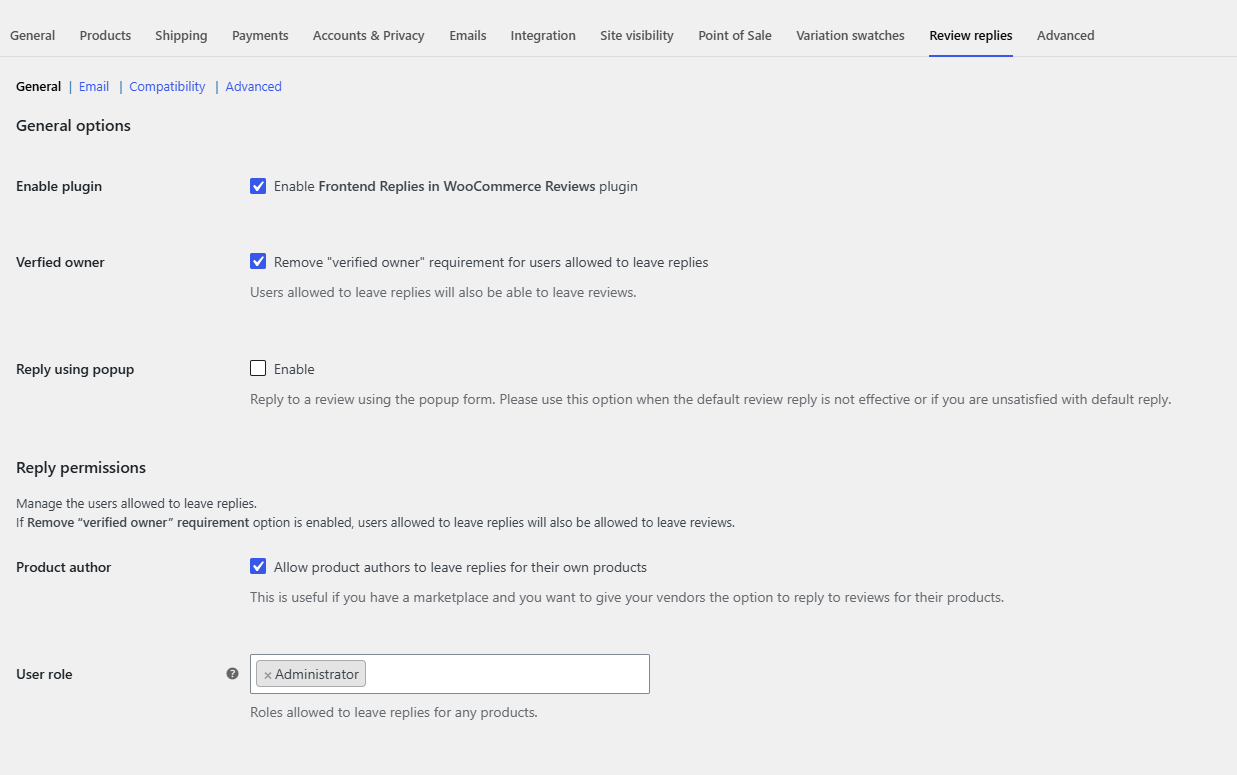
To get started with Easy Replies to WooCommerce Reviews, upload and activate the plugin, then check its settings at WooCommerce > Settings > Review replies. The defaults already let administrators and product authors reply to reviews directly on the product page, so you can post your first reply right away.
Before you start #
- WooCommerce must be installed and active. Easy Replies does nothing without it.
- Product reviews must be enabled in WooCommerce and open on the product, because replies use the standard review form.
Install the plugin #
- Download the plugin zip from your WPFactory account.
- In your WordPress dashboard, go to Plugins > Add New > Upload Plugin.
- Choose the zip, click Install Now, then Activate.
On the Plugins screen the plugin is listed as Frontend Replies in WooCommerce Reviews Pro. That is the same product.
Where the settings live #
Go to WooCommerce > Settings > Review replies, or click Settings under the plugin name on the Plugins screen. The tab has four sections:
- General: switch the plugin on or off, choose who can reply, and control the reply form, ratings and review tab title.
- Email: email review authors when someone replies, and clean up the notification text.
- Compatibility: fixes for WooCommerce 6.7+, Dokan, Porto and REHub.
- Advanced: CSS selectors and the comment reply script, for themes with custom review markup.
What works out of the box #
| Setting | Default | Effect |
|---|---|---|
| Enable plugin | On | Reply links are added under reviews |
| Product author | On | The user set as a product’s author can reply to its reviews |
| User role | Administrator | Administrators can reply to reviews on any product |
| Verfied owner | On | Repliers are not blocked by the “verified owners only” review rule |
| Rating requirement | On | Repliers do not have to pick a star rating |
| Rating meta | On | Replies never store a rating, so they cannot change a product’s average |
| Hide rating | On | The star rating field is hidden when replying |
Post your first reply #
- Log in as an administrator.
- Open a product that has at least one review and go to its Reviews tab.
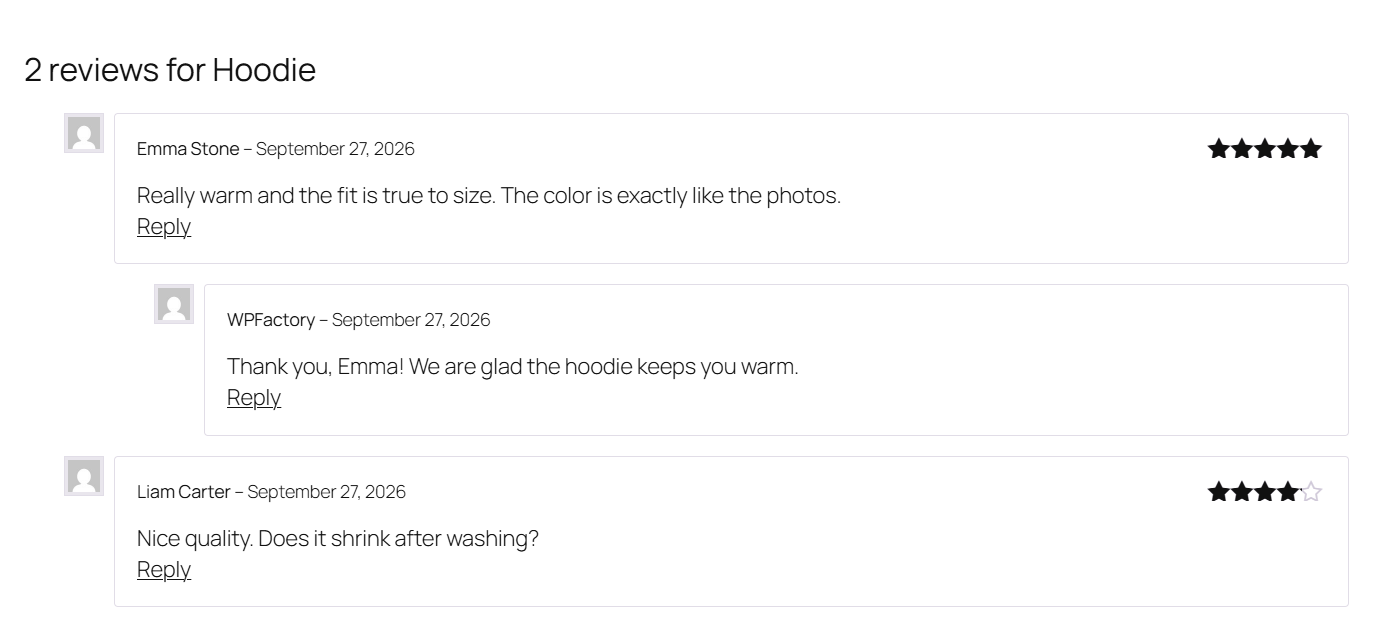
- Click Reply under the review.
- The review form moves under that review. Type your reply and submit it.
The reply appears under the original review once it is approved. Replies sent through the standard form follow the moderation rules in Settings > Discussion. If you prefer a pop-up form, see how to reply to WooCommerce reviews from the product page.
Next steps #
- How to let vendors or shop managers reply to reviews
- How to notify customers when you reply to their review
- Easy Replies settings reference
Need a hand? Our team answers every ticket on the Easy Replies support forum.