To update WooCommerce stock in bulk with Excel, go to WPFactory > Stock Manager in Products Stock Manager with Excel for WooCommerce, tick the fields to update on the Settings tab, then upload an .xlsx file with product IDs or SKUs and new values on the Update tab.
Before you start #
- Log in as an Administrator. Other roles can see the screen, but the upload does nothing for them.
- Enable Manage stock? on the products or variations whose quantity you update, otherwise WooCommerce ignores the stored quantity.
- Back up your database. The update writes straight to your products.
- Use an .xlsx file. CSV files are refused and older .xls files are not processed.
How to update stock and prices from Excel #
- Go to WPFactory > Stock Manager and click the Settings tab.
- Tick the fields you want to change: Update Stock Number, Update Stock Status, Update Regular Price, Update Sale Price. Leave the others unticked so their columns are ignored.
- If your columns differ from the default layout (see the table below), choose the right letters in the Excel Column Letter fields. Click Save Changes.
- Prepare your file. The quickest way is the Export tab (see how to export products and stock to Excel), or download the sample file from the Update tab.
- Edit the values. Keep headings on row 1 and start products on row 2. Put an ID or a SKU on every row.
- Save the file as Excel Workbook (.xlsx).
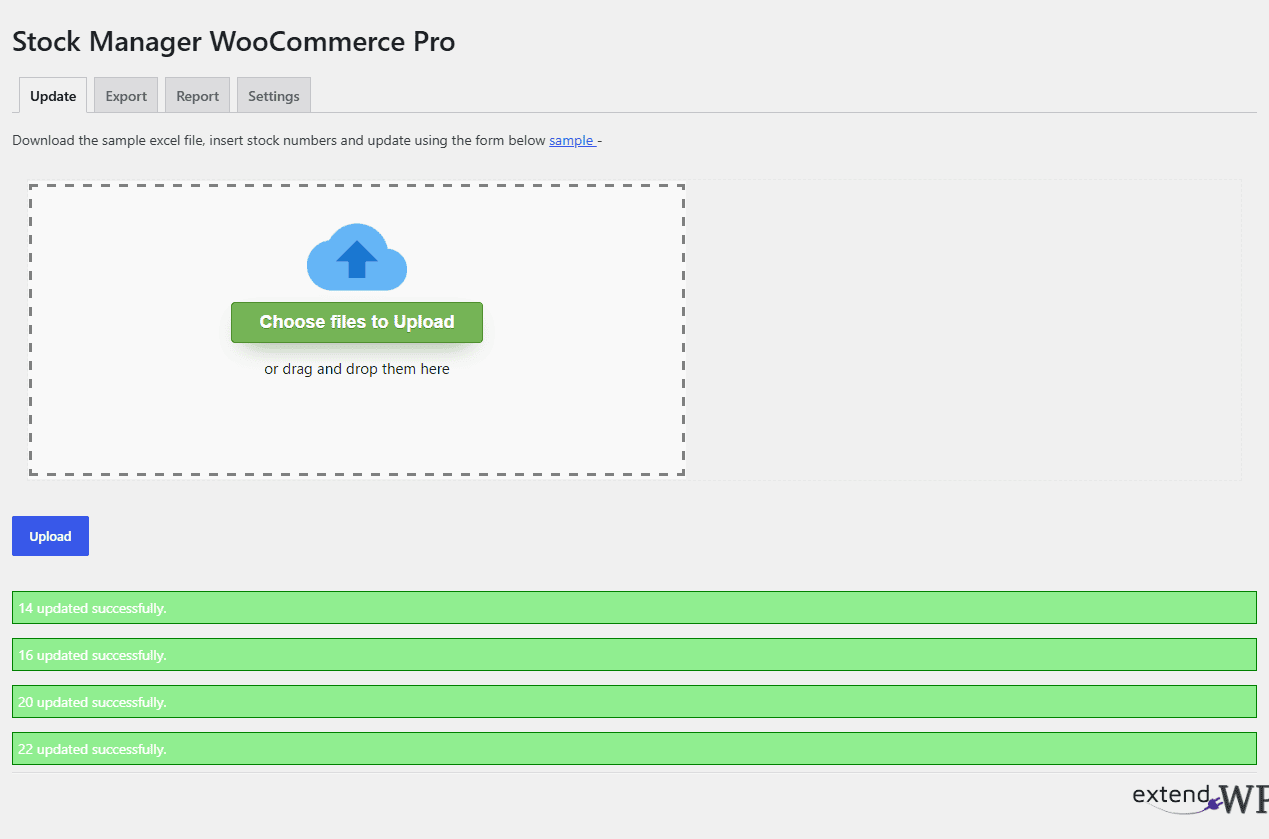
- Click the Update tab and choose the file. The upload starts as soon as you select it: confirm the prompt “Are you sure you want to update the products stock and prices ?”.
- Read the results. Each row prints “[ID] updated successfully”, or “ID or SKU not provided” when a row has neither.
Default column layout #
| Column | Heading in the sample | Setting that uses it | Accepted values |
|---|---|---|---|
| A | ID | Product ID Excel Column Letter | Product or variation ID |
| B | SKU | SKU Excel Column Letter | Existing SKU |
| C | REGULAR PRICE | Update Regular Price | A number greater than 0 |
| D | SALE PRICE | Update Sale Price | A number of 0 or more (0 removes the sale price) |
| E | STOCK | Update Stock Number | A number of 0 or more |
| F | STOCK STATUS | Update Stock Status | instock or outofstock |
How rows are matched and written #
- ID first, SKU second: if the ID cell has a value, it is used. The SKU is only looked up when the ID cell is empty. If you set the SKU column to A, IDs are ignored and every row is matched by SKU.
- Invalid values are skipped: an empty or non-numeric stock, a negative number, or a regular price of 0 leaves that field unchanged.
- Stock above 0 sets In stock: in a manual upload, when a row has a stock quantity above 0, the product is marked In stock, even if the status column says otherwise. A stock of 0 leaves the status as it is unless you also update the status.
- Active price: the product price becomes the sale price when one is set, otherwise the regular price.
- Housekeeping: the product’s modified date is refreshed (and the parent’s, for variations) and its cached data is cleared, so the store shows new values right away.
Add up stock from several rows #
If a product appears on more than one row, for example because stock comes from several warehouses, tick Add Stock for same Product from multiple Excel Rows together with Update Stock Number. The rows are then added together instead of the last row winning. See how to sum stock from multiple Excel rows.
Start every product from zero #
Tick Setting Zero Stock for All Products before Manual Update if the file is your complete stock list. Before reading the file, Stock Manager sets every product to 0 and Out of stock, so products missing from the file end up out of stock. This applies to products, not to individual variations.
FAQ #
Can I upload a CSV file? #
No. A CSV file is refused with the message “Only format allowed: xls, xlsx”, and an older .xls file is accepted by the form but not processed. Open the file in Excel or Google Sheets and save or download it as .xlsx.
Can I update products by SKU only? #
Yes. Leave the ID column empty on each row and fill in the SKU. Or set SKU Excel Column Letter to A to match every row by SKU.
Why did the stock change but not show on the product page? #
Manage stock? is off for that product. Stock Manager stores the quantity but does not enable stock management. Turn it on in the product’s Inventory tab.
Can I run the same update automatically? #
Yes. Put the file online and use scheduled updates from a remote Excel file.
Get more control #
Bulk updates are the core of Products Stock Manager with Excel for WooCommerce. Pro adds column mapping, variation updates and scheduled imports. See what Pro unlocks.
Need a hand? Our team answers every ticket on the Stock Manager support forum.