To skip or apply WooCommerce order minimums and maximums based on coupons, use Order Minimum/Maximum Amount Limits for WooCommerce Pro. Go to WPFactory > Order Min/Max > Coupons, tick Coupons, then choose coupons that skip the limits (Exclude), coupons that trigger them (Require), or skip them for any coupon.
Before you start #
- WooCommerce, active, with coupons enabled.
- Order Minimum/Maximum Amount Limits for WooCommerce Pro: the Coupons section is a Pro feature.
Step-by-step #
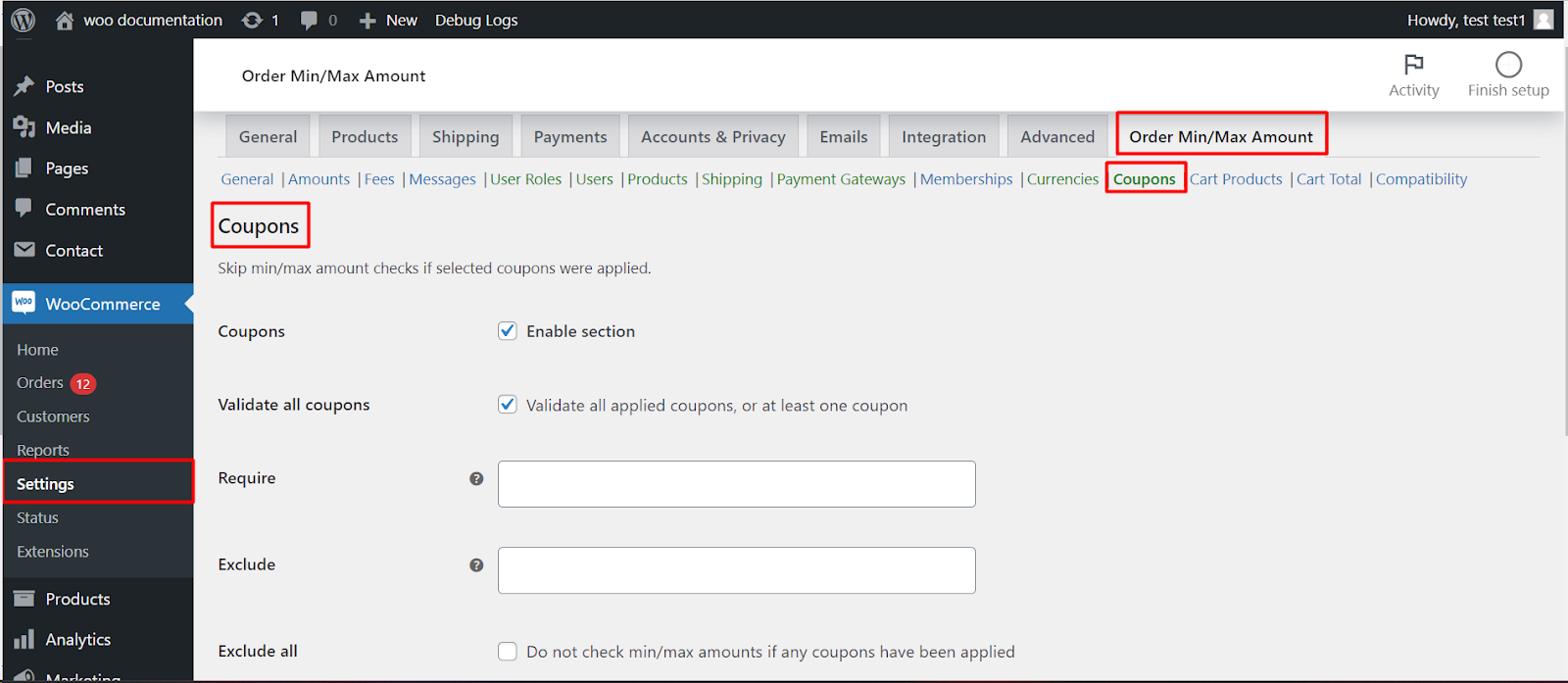
- Go to WPFactory > Order Min/Max (also reachable at WooCommerce > Settings > Order Min/Max Amount) and open the Coupons sub-tab.
- Tick Coupons (
alg_wc_oma_coupons_enabled) to enable the section. - Pick coupons in Require or Exclude (the lists show every coupon in your store by title and ID), or tick Exclude all.
- Set Validate all coupons for how several applied coupons are judged, then click Save changes.
Options in this section #
| Label | Option ID | Default | What it does |
|---|---|---|---|
| Coupons (enable section) | alg_wc_oma_coupons_enabled |
No | Turns coupon-based rules on. |
| Validate all coupons | alg_wc_oma_coupons_validate_all |
Yes | Match all applied coupons, or at least one. |
| Require | alg_wc_oma_coupons_include |
(none) | Enforce limits only when these coupons are applied. Orders with no coupon skip the limits. |
| Exclude | alg_wc_oma_coupons_exclude |
(none) | Skip limits when these coupons are applied. |
| Exclude all | alg_wc_oma_coupons_exclude_all |
No | Skip limits whenever any coupon is applied. Ignored when Require or Exclude has coupons. |
How the coupon rules decide #
Order Min/Max Amount checks the coupons in the cart each time it validates a limit, for every amount type (sum, quantity, weight and the rest). When the coupon rules say “skip”, the limit counts as met, so the customer sees no min/max message and can check out.
| Your setup | Cart | Result |
|---|---|---|
| Exclude: VIP | VIP applied | Limits skipped |
| Exclude: VIP | No coupon, or another coupon | Limits enforced |
| Require: BULK | BULK applied | Limits enforced |
| Require: BULK | No coupon, or another coupon | Limits skipped |
| Exclude all (Require and Exclude empty) | Any coupon applied | Limits skipped |
With several coupons in the cart, Validate all coupons (default on) skips the limits as soon as one coupon is outside Require or inside Exclude. Turned off, the limits stay enforced if at least one applied coupon qualifies.
Common uses #
- VIP or staff codes: put the code in Exclude so its holders can order any amount.
- Promo with a minimum: put a discount code in Require so the minimum applies only to orders that use that discount.
- No limits on discounted orders: tick Exclude all and leave both lists empty.
If it does not work #
- The Coupons checkbox is off or you are on the free version, where the section is disabled.
- Exclude all is ticked but Require or Exclude still has coupons. The lists take over and Exclude all is ignored.
- The cart is empty or the coupon was removed. Coupon rules only run on a cart that has items.
- Another rule also applies, for example a Cart Products rule. Any rule that skips the check lets the order through.
FAQ #
Is this the same as the coupon’s own minimum and maximum spend? #
No. WooCommerce’s coupon Minimum spend and Maximum spend fields decide whether a coupon can be used. The Coupons section here works the other way round: it decides whether your store-wide order limits apply when a coupon is used.
Do I type the coupon codes? #
No. Require and Exclude are search lists of the coupons that exist in your store, shown by title and ID. Create the coupon in WooCommerce first.
Does this work with per-role or per-product limits? #
Yes. The coupon rules apply to every limit check, whether the limit comes from the General settings, a user role, a product or another section.
Related: skip order limits when specific products are in the cart and minimum or maximum order rules not enforced.
Ready to set this up? #
Coupon-based rules are part of Order Min/Max Amount Pro. Get Order Min/Max Amount Pro.
Need a hand? Our team answers every ticket on the Order Min/Max Amount support forum.