Table of Contents
Additional Custom Emails & Recipients for WooCommerce lets you send extra WooCommerce email notifications beyond the built-in ones, each with its own triggers, recipients, and content. This guide covers installing Custom Emails and finding its settings.
Before you start #
- WooCommerce, installed and active. Custom Emails is an extension and will not run without it.
- The free version lets you create one custom email. To add more than one, you need Custom Emails Pro.
Method 1: install the free version from WordPress.org #
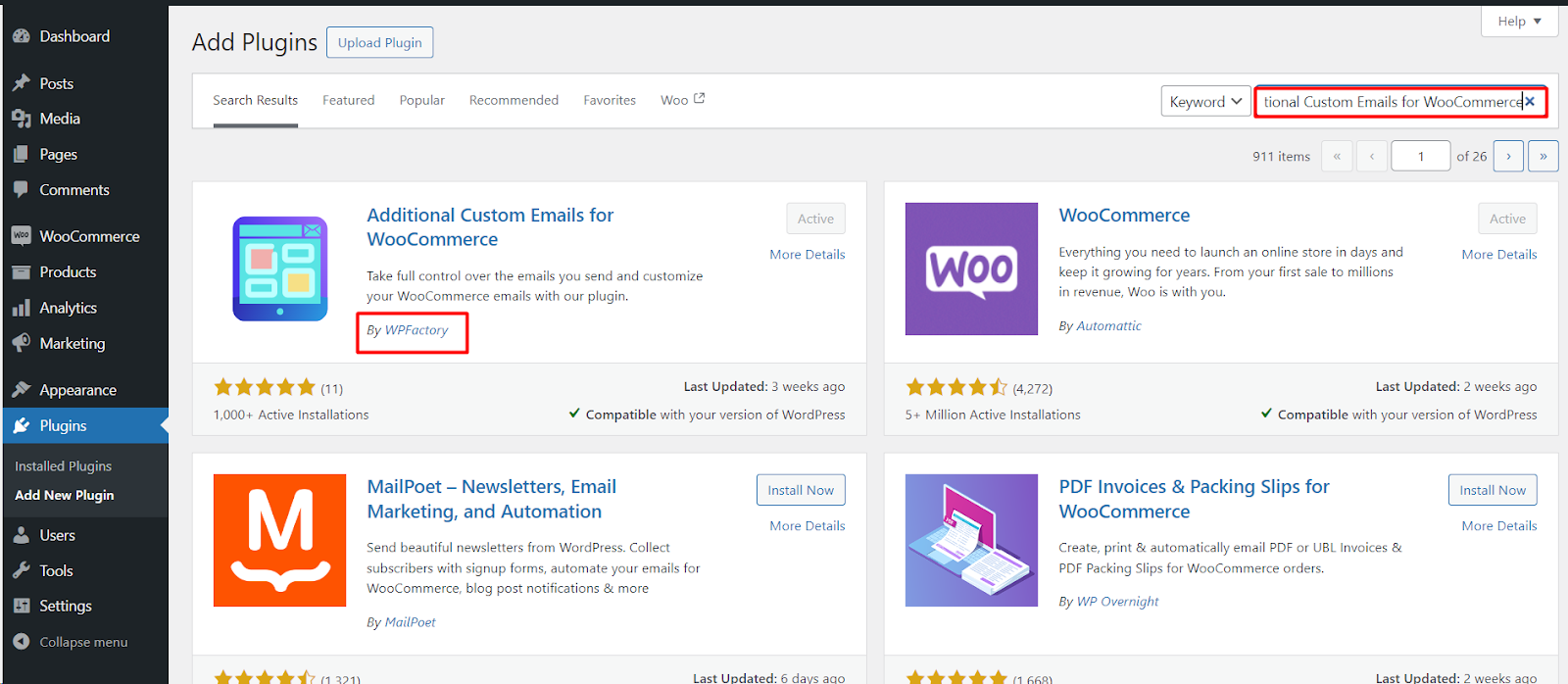
- In your WordPress dashboard, go to Plugins > Add New.
- Search for Additional Custom Emails & Recipients for WooCommerce.
- Find the plugin by WPFactory and click Install Now, then Activate.
Method 2: upload the Pro version #
- Download the Pro zip from your account on wpfactory.com.
- Go to Plugins > Add New and click Upload Plugin at the top.
- Choose the zip file, click Install Now, then Activate.
If you run both the free and Pro versions, keep only the Pro version active. The free version steps aside automatically when Pro is present.
Where the settings live #
Custom Emails has two settings locations, and it helps to know the difference from the start:
- Plugin settings: go to WPFactory > Custom Emails (also reachable at WooCommerce > Settings > Custom Emails). This holds the General options (number of emails, admin titles, enabled trigger groups, custom triggers, scheduler, and so on) and the Scheduled list.
- Each email’s own settings: go to WooCommerce > Settings > Emails and open your custom email. This is where you set its triggers, recipients, subject, content, and targeting rules.
Next steps #
- Set the number of emails and defaults: see General Options & Scheduled.
- Configure your first email under WooCommerce > Settings > Emails.
- Always test on a real order before going live (open an order and use the Order actions dropdown to send the email to yourself first).
Get more from your store emails #
The single custom email is free. Additional Custom Emails & Recipients for WooCommerce Pro lets you add unlimited custom emails, each with its own triggers, recipients, and rules. See what Pro unlocks.