The plugin-wide settings for Additional Custom Emails & Recipients for WooCommerce live in one place: the General tab. This is where you set how many custom emails you have, name them, choose which trigger groups appear, add custom triggers, and pick a scheduler. Each individual email’s content and rules are configured separately, under WooCommerce > Settings > Emails.
Go to WPFactory > Custom Emails (also reachable at WooCommerce > Settings > Custom Emails) and open the General tab.
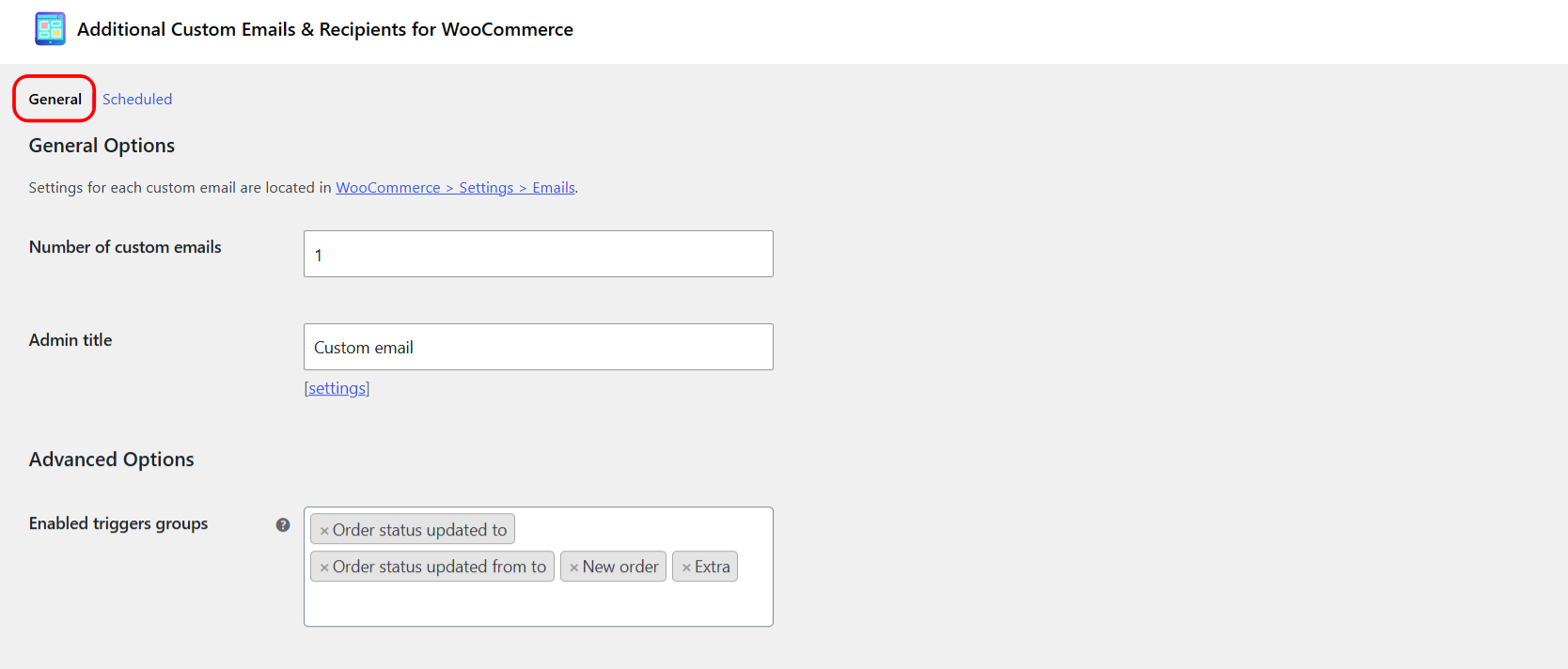
General Options #
| Setting | Option ID | Default | Free/Pro |
|---|---|---|---|
| Number of custom emails | alg_wc_custom_emails_total |
1 | Free is fixed at 1; Pro makes this editable |
| Admin title | alg_wc_custom_emails_titles[1] |
Custom email |
Free |
The Admin title is how the email is labelled throughout the admin (the Emails list, the Order actions dropdown, and the Scheduled list). The [settings] link next to it jumps straight to that email’s own settings under WooCommerce > Settings > Emails. In Pro, each additional email gets its own admin-title row here.
Advanced Options #
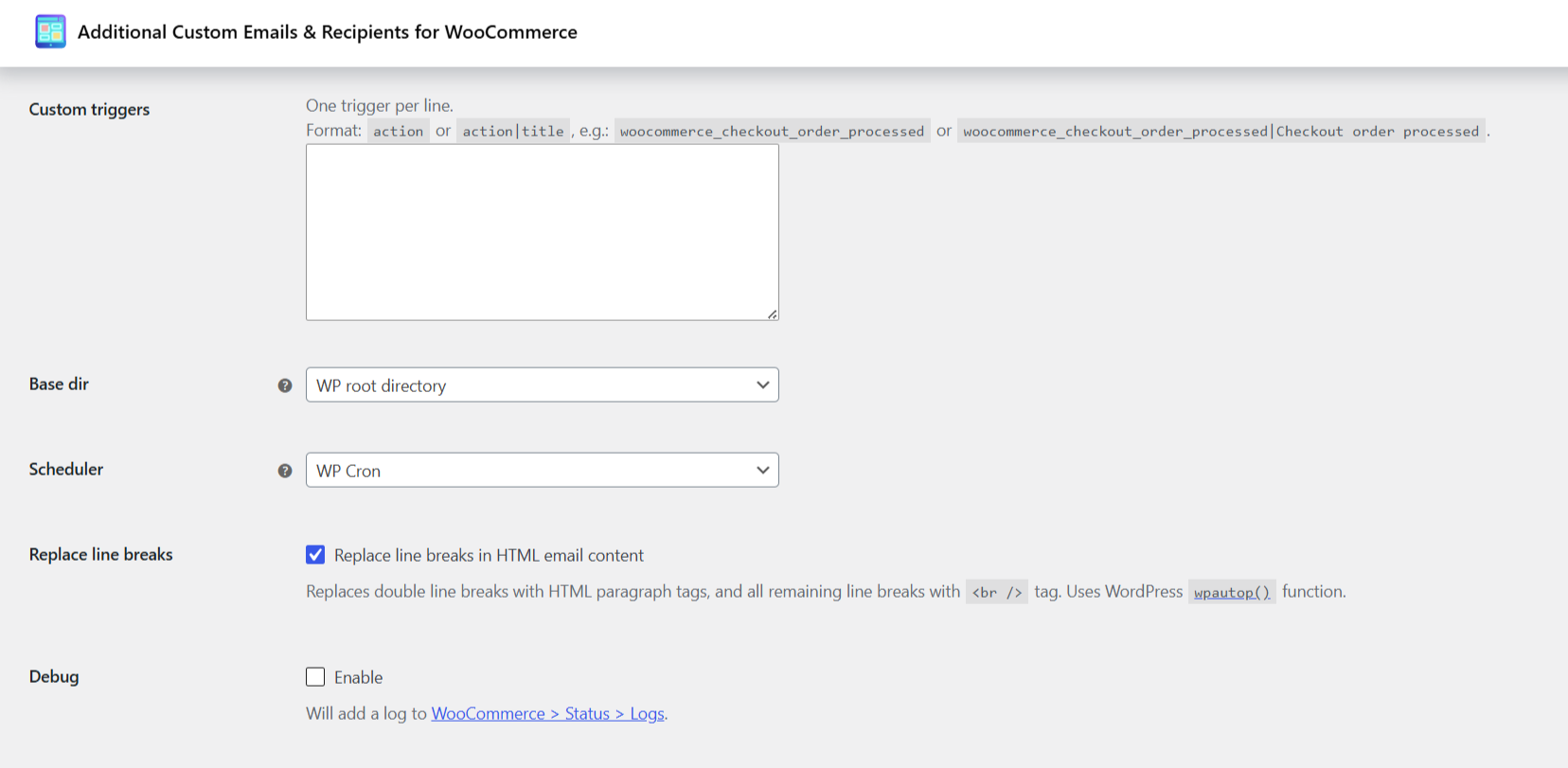
| Setting | Option ID | Default |
|---|---|---|
| Enabled triggers groups | alg_wc_custom_emails_enabled_trigger_groups |
Order status updated to, Order status updated from to, New order, Extra |
| Custom triggers | alg_wc_custom_emails_custom_triggers |
empty |
| Base dir | alg_wc_custom_emails_base_dir |
WP root directory |
| Scheduler | alg_wc_custom_emails_scheduler |
WP Cron |
| Replace line breaks | alg_wc_custom_emails_wpautop |
Yes |
| Debug | alg_wc_custom_emails_debug_enabled |
No |
| Delete plugin data | alg_wc_custom_emails_delete_plugin_data |
No |
Every option above is available in the free version. Notes on the ones that trip people up:
- Enabled triggers groups controls which trigger groups appear in each email’s Triggers list. Turning off groups you never use (for example the Subscriptions groups) makes the Triggers dropdown shorter and easier to manage. It does not disable any email.
- Custom triggers lets you fire emails from any WooCommerce or WordPress action. One per line, in the format
actionoraction|title, for examplewoocommerce_checkout_order_processed|Checkout order processed. This is a free feature. - Base dir sets the root for the “Email attachments” paths on each email: WP root directory or the WP uploads directory.
- Scheduler decides how delayed emails are queued: WP Cron or Action Scheduler. Both are free. Action Scheduler is more reliable on busy stores if you have it available (WooCommerce bundles it).
- Replace line breaks runs HTML email content through WordPress
wpautop()so plain line breaks become paragraphs and<br />tags. Turn it off if you are pasting fully formed HTML. - Debug writes a step-by-step log to WooCommerce > Status > Logs (source
custom-emails-for-woocommerce). Turn this on first whenever an email is not sending. - Delete plugin data is destructive: ticking it and saving removes all Custom Emails settings and email configurations. There is no undo.
Reset section settings #
At the bottom of each tab is a Reset section settings checkbox. Tick it and click Save changes to return that tab to its defaults.
Get more from your store emails #
The single custom email is free. Additional Custom Emails & Recipients for WooCommerce Pro lets you add unlimited custom emails and copy settings between them. See what Pro unlocks.