A trigger is the event that sends a custom email. Alongside the built-in order, subscription, and Extra triggers, Additional Custom Emails & Recipients for WooCommerce lets you turn almost any WordPress or WooCommerce action hook into a trigger of your own. This is how you send an email off an event the plugin does not list by default, for example a hook added by another plugin.
Custom triggers are added on the plugin’s own tab and then appear in every email’s Triggers list.
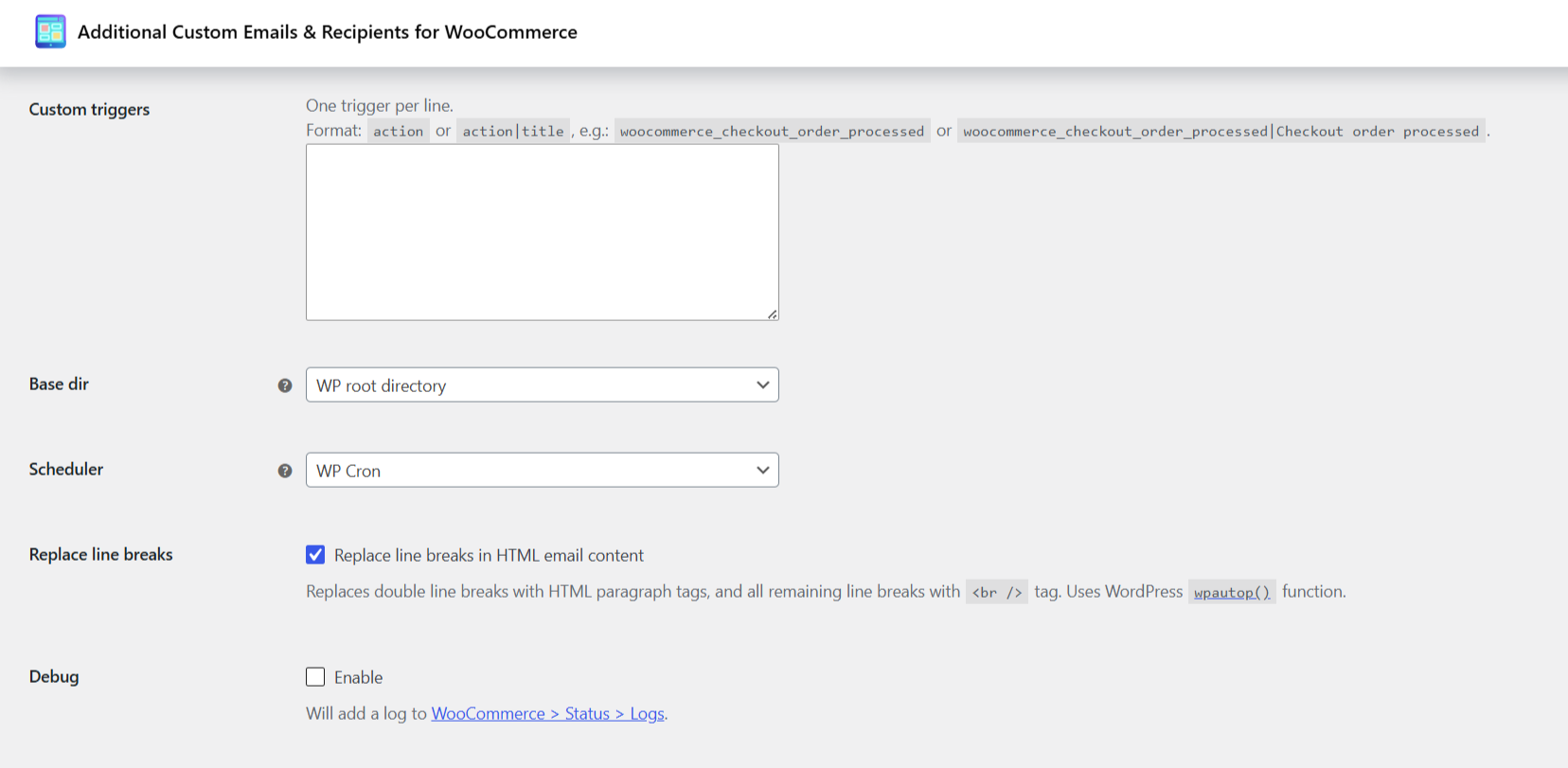
Where to add them #
Go to WPFactory > Custom Emails > General (also reachable at WooCommerce > Settings > Custom Emails > General) and open the Advanced Options section. The Custom triggers field (option ID alg_wc_custom_emails_custom_triggers) is a text area, one trigger per line.
The format #
Each line is either the action hook name on its own, or the hook name and a display label separated by a vertical bar:
| Format | Example | Result in the Triggers list |
|---|---|---|
action |
woocommerce_checkout_order_processed |
Listed under its raw hook name. |
action|title |
woocommerce_checkout_order_processed|Checkout order processed |
Listed as “Checkout order processed” (easier to recognize). |
Use the labeled form whenever you can. The label is only cosmetic, but it makes the per-email Triggers list readable.
Using the trigger #
Save the General tab, then open any email under WooCommerce > Settings > Emails. The Triggers field now shows a Custom triggers group containing every line you added. Select it like any other trigger. The email is then sent whenever that action fires, subject to the same per-email Order Options as the built-in triggers.
Custom triggers are always available in the Triggers list once defined; they do not depend on the Enabled triggers groups setting that governs the built-in groups.
What the trigger receives #
When the action fires, the plugin reads the hook’s first argument as the object to send the email for. If that argument is an object with a get_id() method (an order, a subscription, a product), the plugin resolves its ID automatically; if it is already an ID, it is used directly. The plugin then decides the email context from that object:
- An order ID produces an order email, so order shortcodes such as
[order_number]resolve. - A product ID produces a product email.
- A user ID produces a user email.
Choose hooks whose first argument matches the content you want to send. A hook that passes an order ID first is the most reliable choice for order-based emails, because the Order Options and order shortcodes then have something to work with.
A worked example #
Suppose another plugin fires my_plugin_membership_activated with a user ID as its first argument when a membership goes live. Add this line to Custom triggers:
my_plugin_membership_activated|Membership activatedSave, open your welcome email, select Membership activated in Triggers, and set the recipient to %customer% or a user-oriented address. The email now sends each time that membership hook runs.
Notes and limits #
- The hook must actually fire on your site. A misspelled or non-existent action name is accepted in the field but never triggers anything.
- Only the hook’s first argument is used to identify the object. Hooks that pass their ID in a later argument will not resolve an object automatically.
- Custom triggers respect the Delay field and every Order Options condition, exactly like built-in triggers.
Ready to wire up your own events? #
Additional Custom Emails & Recipients for WooCommerce Pro lets you attach custom triggers to unlimited emails, each with its own recipients and content. Get the plugin to send an email off any event in your store.