To show the Processing and Complete buttons on more orders, go to WPFactory > Order Status (also reachable at WooCommerce > Settings > Order Status), open the General section, and under Admin Order List Actions Buttons check Override, select the statuses that should show each button, and save. This is free in Additional Custom Order Status for WooCommerce.
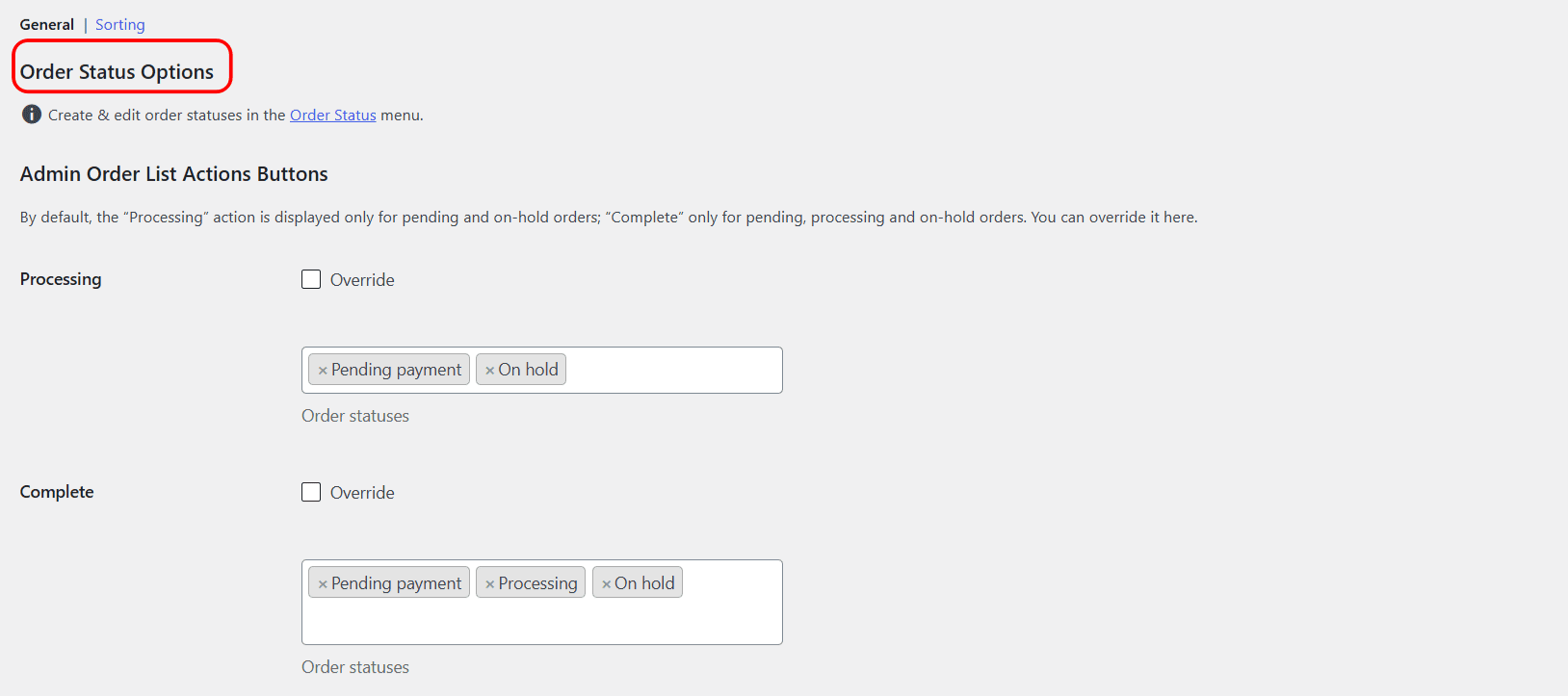
The default behavior #
By default, WooCommerce shows the Processing action only on pending and on-hold orders, and the Complete action only on pending, processing, and on-hold orders. The override lets you widen or change that.
Where to set it #
Go to WPFactory > Order Status (also reachable at WooCommerce > Settings > Order Status), open the General section, and find Admin Order List Actions Buttons.
Options #
| Setting | Option ID | Default |
|---|---|---|
| Processing: Override | wfwp_wc_order_status_admin_order_actions_processing_override |
No |
| Processing: Order statuses | wfwp_wc_order_status_admin_order_actions_processing_has_status |
Pending, On hold |
| Complete: Override | wfwp_wc_order_status_admin_order_actions_complete_override |
No |
| Complete: Order statuses | wfwp_wc_order_status_admin_order_actions_complete_has_status |
Pending, On hold, Processing |
Steps #
- Check Override for Processing, Complete, or both.
- In the matching Order statuses box, select the statuses that should show that button.
- Save changes. The button now appears on orders in the statuses you chose.
Note: the override only adds a button where WooCommerce has not already placed one. It does not remove the standard buttons.
Get more from your statuses #
This feature is free. Additional Custom Order Status for WooCommerce Pro adds automated emails on status change. See what Pro unlocks.