To sort order statuses in WooCommerce with Additional Custom Order Status for WooCommerce, go to WPFactory > Order Status (also reachable at WooCommerce > Settings > Order Status) and open the Sorting section. Choose Default, By title (ascending) or Custom for each of four admin places, and for Custom list one status slug per line. Sorting is free.
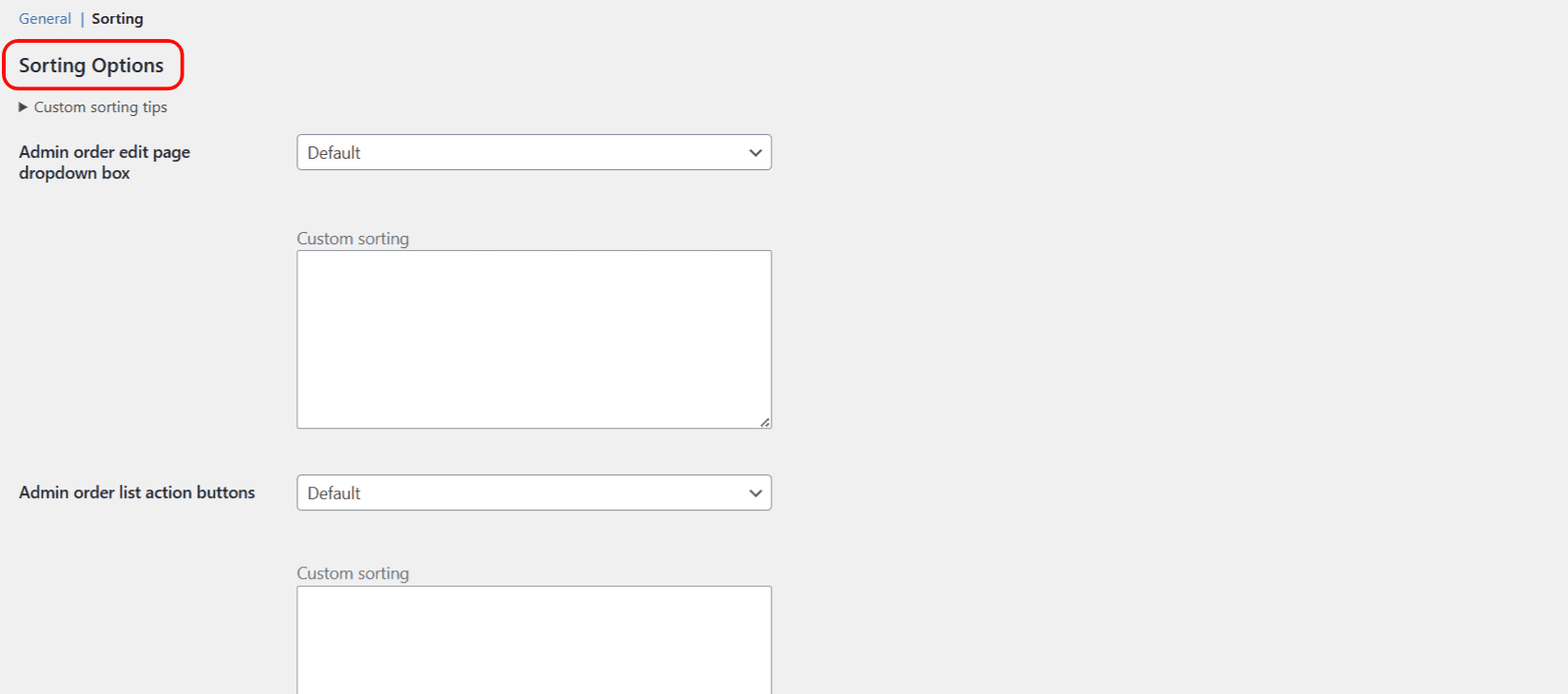
Where to set sorting #
Go to WPFactory > Order Status (also reachable at WooCommerce > Settings > Order Status) and open the Sorting section.
The four sorting options #
You can sort each of these independently:
| Setting | Option ID | Default |
|---|---|---|
| Admin order edit page dropdown box | wfwp_wc_order_status_sorting |
Default |
| Admin order list action buttons | wfwp_wc_order_status_sorting_order_list_actions |
Default |
| Admin order preview action buttons | wfwp_wc_order_status_sorting_order_preview_actions |
Default |
| Admin order bulk actions | wfwp_wc_order_status_sorting_bulk_actions |
Default |
Sorting modes #
Each setting offers three modes:
- Default: keep the standard WooCommerce order.
- By title (ascending): sort alphabetically by status name.
- Custom: set your own order.
Using custom sorting #
- Set the sorting option to Custom.
- In its Custom sorting box, enter one status slug per line, in the order you want.
- Open the Custom sorting tips panel to see the exact list of your current status slugs, then copy them into the box in your preferred order.
- Save changes.
Note: custom sorting for the “Admin order edit page dropdown box” is the most reliable. If a custom list does not take effect for the list, preview, or bulk contexts, use “By title (ascending)” there instead.
Get more from your statuses #
Sorting is free. Additional Custom Order Status for WooCommerce Pro adds automated emails on status change. See what Pro unlocks.