To create a custom order status with Additional Custom Order Status for WooCommerce, go to WooCommerce > Order Status and click Add New Status. Enter a title (it cannot start with a number), set options such as styling and order behavior, and click Publish. The status then appears in the order edit dropdown, orders list and bulk actions.
Where to create statuses #
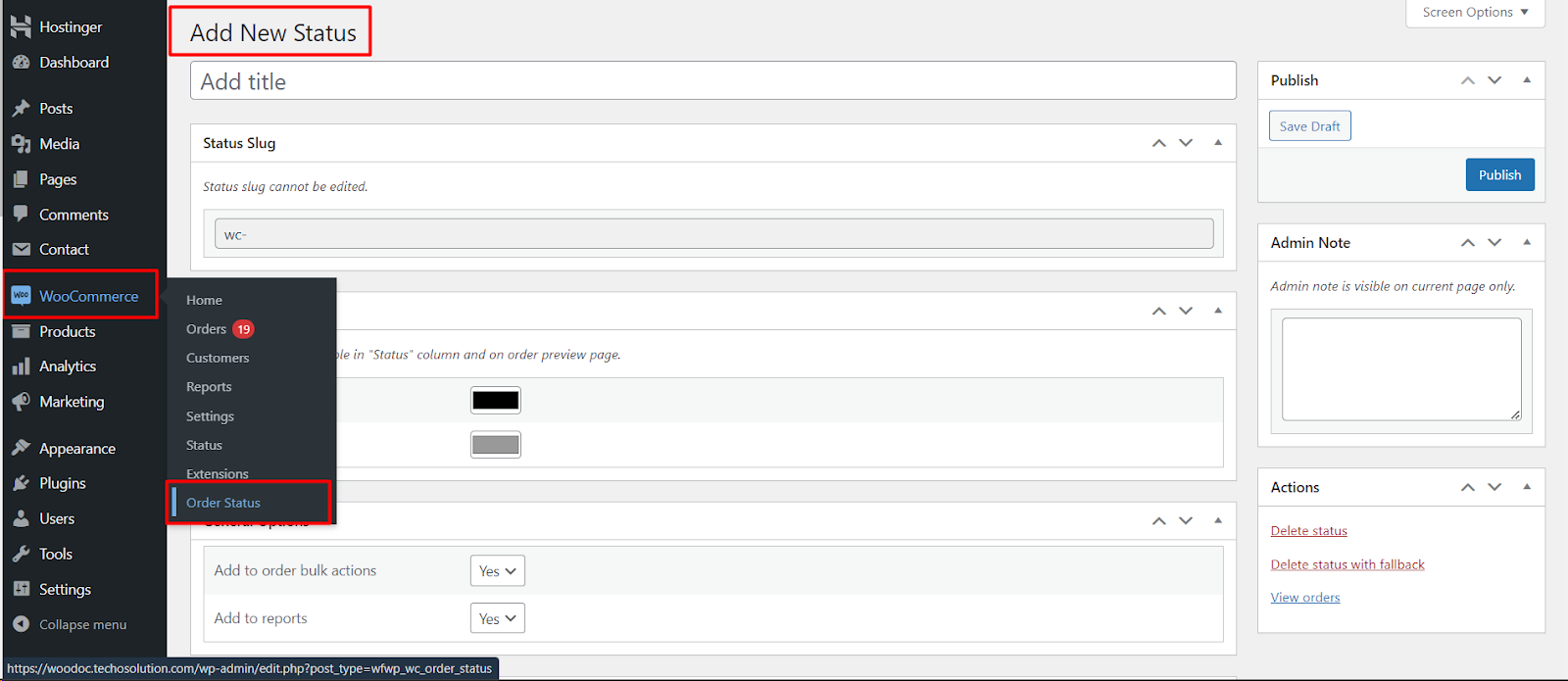
Go to WooCommerce > Order Status. This opens the list of your custom statuses. To add one, click Add New Status at the top.
Note: statuses are managed under WooCommerce > Order Status, not under WooCommerce > Settings. The Settings tab (WPFactory > Order Status) holds only the global sorting and admin action button options.
Adding a new status #
On the Add New Status screen you set a title and then configure the status using the option boxes below it.
- Title: enter a clear name for the status, for example “Under manufacture”. The title cannot start with a number.
- Status Slug: this is generated automatically from the title and shown read-only. You cannot edit it, and it is limited to 17 characters. Custom Order Status stores it internally as
wc-plus the slug.
Click Publish to save the status. It is then available everywhere WooCommerce shows order statuses: the order edit dropdown, the orders list, and bulk actions.
Options you can set for each status #
Each status has its own option boxes on the edit screen:
| Option box | What it controls | Free/Pro |
|---|---|---|
| Styling Options | Text color and background color of the status label. | Free |
| General Options | Add the status to order bulk actions and to WooCommerce reports. | Free |
| Action Buttons Options | Show the status as a quick action button in the orders list and admin order preview, with a custom icon and colors. | Free |
| Order Options | Whether the order is editable, paid, valid for payment, sets “date paid”, and grants download permissions. | Free |
| Email Options | Send an email when an order moves to this status, with a custom address, subject, heading, and content. | Pro |
| Admin Note | A private note shown only on the status edit page. | Free |
See Styling Options and the related how-to articles for the full details of each box.

Editing and deleting statuses #
- Edit a status: open it from WooCommerce > Order Status and change any option, then click Update. The slug cannot be changed once the status is published.
- Delete a status: use the Delete status link in the Actions box. To move existing orders off the status first, use Delete status with fallback, which reassigns those orders to the “On hold” status before deleting.
- Reorder statuses: change how statuses appear using the Sorting section under WPFactory > Order Status.
Get more control #
This feature is free, with no limit on the number of statuses. Additional Custom Order Status for WooCommerce Pro adds automated emails when an order reaches a status. See what Pro unlocks.