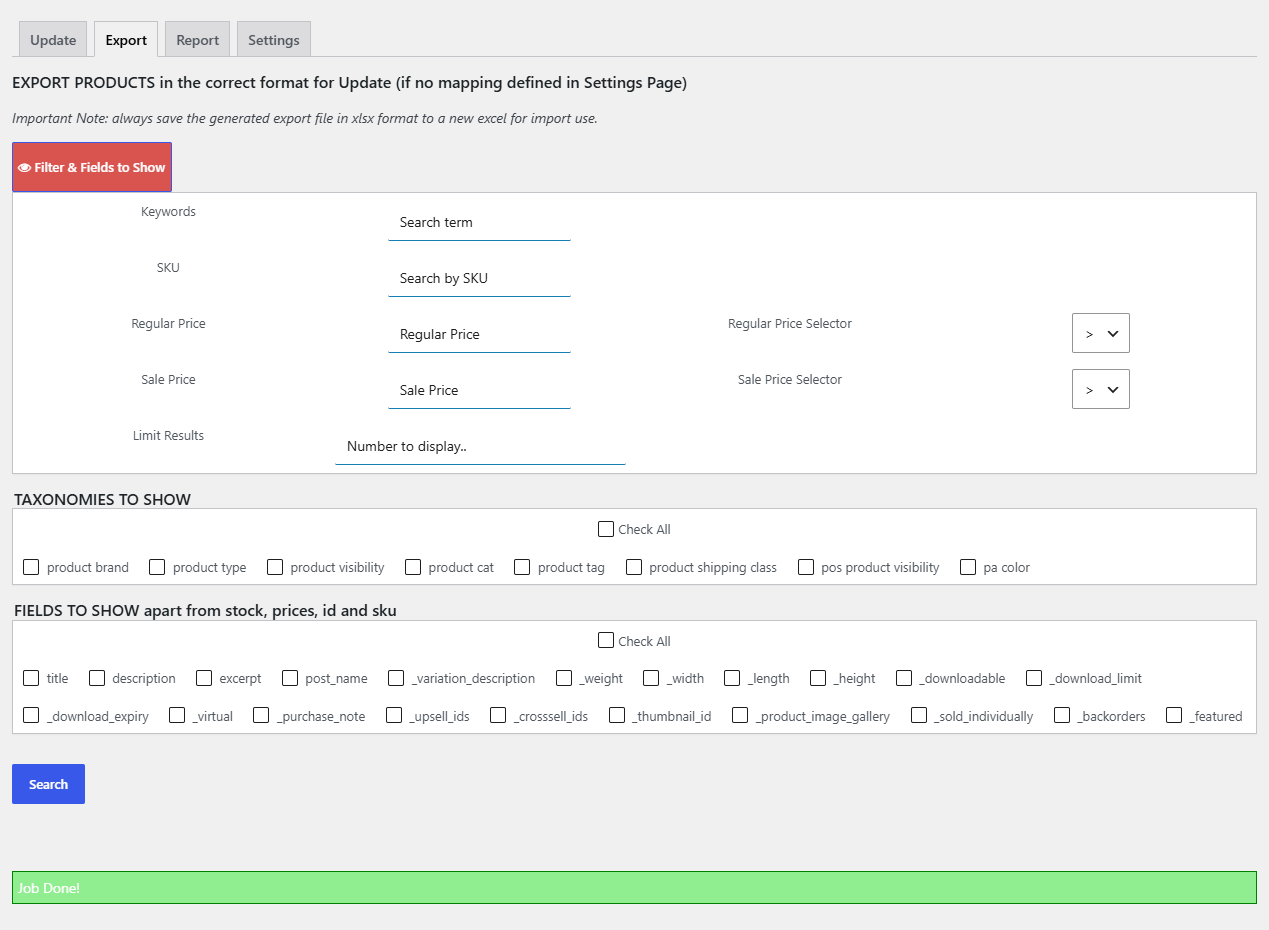
To export WooCommerce products and stock to Excel, go to WPFactory > Stock Manager in Products Stock Manager with Excel for WooCommerce and open the Export tab. Choose filters and extra fields, click Search, wait for “Job Done!”, then click Export to xlsx.
What the export contains #
Every export starts with the six columns the update needs, in the default order, so you can edit the file and upload it straight back:
| Column | Heading |
|---|---|
| A | ID |
| B | SKU |
| C | REGULAR PRICE |
| D | SALE PRICE |
| E | STOCK |
| F | STOCK STATUS |
Extra columns you select are added after column F. Simple products get one row each. Variable products get one row per available variation, with the variation ID in column A, so you can update variations individually.
How to export your products #
- Go to WPFactory > Stock Manager and click the Export tab.
- Click Filter & Fields to Show to open the options.
- Optionally narrow the export with Keywords, SKU or Limit Results (the number of products to export).
- Under TAXONOMIES TO SHOW, tick taxonomies such as product categories, tags or attributes to add them as columns. Use Check All to select every taxonomy.
- Under FIELDS TO SHOW apart from stock, prices, id and sku, tick extra fields such as title, description, weight, dimensions, upsell IDs or backorders.
- Click Search. Products load in batches of 500. Wait until the message changes to Job Done!.
- Click Export to xlsx, shown below the product table, to download the file. Export to csv and Export to txt are also available for other uses.
Note: the Export tab reminds you to always save the generated file in xlsx format for import use. The Update tab only processes .xlsx files.
Extra fields you can add #
| Field | What it exports |
|---|---|
| title, description, excerpt, post_name | Product name, long and short description, and URL slug |
| _variation_description | The variation description (variations only) |
| _weight, _width, _length, _height | Shipping weight and dimensions |
| _downloadable, _download_limit, _download_expiry, _virtual | Download and virtual product settings |
| _purchase_note, _sold_individually, _backorders, _featured | Other product settings |
| _upsell_ids, _crosssell_ids | Linked product IDs, comma separated |
| _thumbnail_id, _product_image_gallery | Image URLs |
These columns help you recognize products while editing. The update only reads the ID, SKU, price, stock and status columns, so changes to extra columns are not imported.
FAQ #
Why does the export not include my grouped or external products? #
The export writes rows for simple products and for the variations of variable products. Other product types have no row.
Can I filter the export by price? #
The Regular Price field narrows the export, but in version 4.0.3 it matches the exact price you enter, whatever selector you choose. The Sale Price filter currently has no effect. Use Keywords, SKU or your spreadsheet’s own filters for anything more precise.
Can I edit the title column and import it back? #
No. Stock Manager updates stock quantity, stock status and prices only. Extra columns are for reference.
The export stops before “Job Done!”. What should I do? #
Large catalogs load in several requests. Use Limit Results or a Keywords filter to export in smaller groups, and ask your host to check PHP time limits if a request fails.
Get more control #
Exporting simple and variable products with extra fields is part of Products Stock Manager with Excel for WooCommerce Pro. Next, upload your edited file to update stock in bulk.
Need a hand? Our team answers every ticket on the Stock Manager support forum.