Table of Contents
To start migrating WooCommerce data with All In One WooCommerce Migration: Import & Export to Excel, install and activate the plugin, then open WPFactory > Store Migration. The start screen shows the migration order, and each tab lets you download a sample Excel file, upload your own .xlsx file and map its columns.
Before you start #
- WordPress with WooCommerce active. The plugin does not load without WooCommerce.
- PHP 8.1 or newer (the plugin header sets
Requires PHP: 8.1). - A WordPress Administrator account. The menu is visible to shop managers, but the import and export handlers only run for administrators.
- Your WPFactory license key for automatic updates, entered in WPFactory > Key Manager.
Install and open the plugin #
- Download the plugin ZIP from your WPFactory account.
- In WordPress go to Plugins > Add New Plugin > Upload Plugin, upload the ZIP and click Activate. If the older free edition (
store-migration-products-orders-import-export-with-excel) is active, it is deactivated automatically. - Open WPFactory > Store Migration, or click Settings under the plugin name on the Plugins screen.
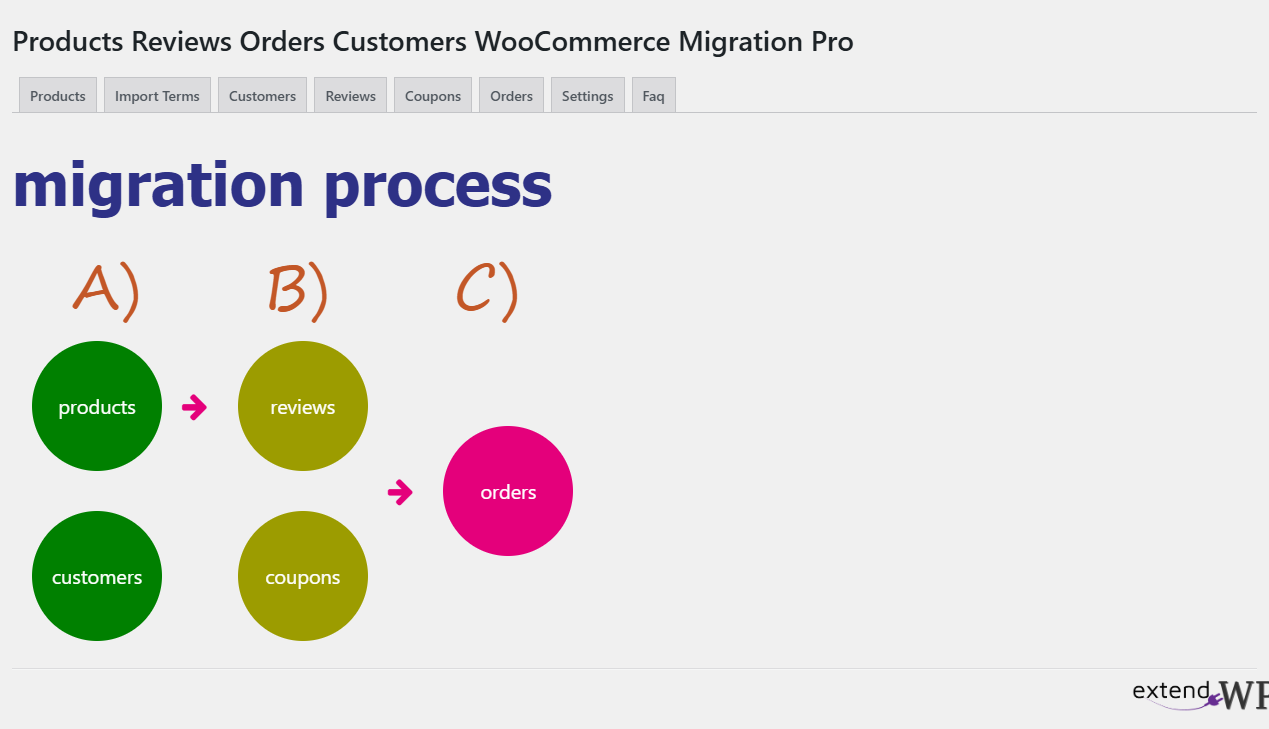
The Store Migration screens #
| Tab | What you do there |
|---|---|
| Products | Import Products (create or update simple, variable, external and subscription products) and Export Products. |
| Import Terms | Create product categories, tags, attribute values or other product taxonomy terms from a sheet. |
| Customers | Import Customers and Export Customers (users with the Customer role). |
| Reviews | Import Reviews and Export Reviews for products. |
| Coupons | Import Coupons and Export Coupons. |
| Orders | Import Orders and Export Orders. |
| Subscriptions | Shown only when WooCommerce Subscriptions is active: Import Subscriptions, Export Subscriptions and New Export. |
| Settings | One option, Import/Export Product Custom Fields. |
| Faq | Built-in answers about the migration sequence, taxes and shipping in orders. |
Your first export and import #
- Go to Products > Export Products, click Filter & Fields to Show, tick Check All under FIELDS TO SHOW and click Search.
- Wait for Job Done!, then click the export button for xlsx. Keep the file in .xlsx format.
- On the target store, go to Products > Import Products, choose the .xlsx file and click Upload.
- On the DATA MAPPING screen, drag each Excel column (black buttons under EXCEL COLUMNS) onto the matching product field, or tick Auto Match Columns.
- Click Upload and keep the page open until you see JOB DONE!.
Note: uploads must be real .xlsx files. The file picker accepts xls and xlsx, but the server only processes files with the xlsx (Office Open XML) type, so re-save CSV or old .xls files as .xlsx first.
Where to go next #
- How to migrate WooCommerce products and orders to another store with Excel
- How to import and update WooCommerce products with Excel
- Store Migration settings and Excel column reference
Ready to set this up? #
This is part of Store Migration, a paid WPFactory plugin: every screen described here is included with your license. Get Store Migration.
Need a hand? Our team answers every ticket on the Store Migration support forum.