To import or update WooCommerce products from Excel with All In One WooCommerce Migration: Import & Export to Excel, go to WPFactory > Store Migration > Products > Import Products, upload an .xlsx file, drag your columns onto product fields, pick any import options, and click Upload to process the sheet row by row.
Before you start #
- Download a sample from the top of the screen: Simple Products, Simple Products with Attributes, Variable Products, Variable Products from 1 excel row, Affiliate Products, plus WPML and Subscriptions samples when those plugins are active.
- Create the global product attributes (for example Color, Size) under Products > Attributes. The mapping screen lists one field per existing attribute taxonomy (
pa_). - To import custom fields (ACF or other meta) or Yoast SEO fields, set Import/Export Product Custom Fields to Yes in the Settings tab first.
Steps #
- Go to WPFactory > Store Migration and open Products > Import Products.
- Choose your .xlsx file and click Upload.
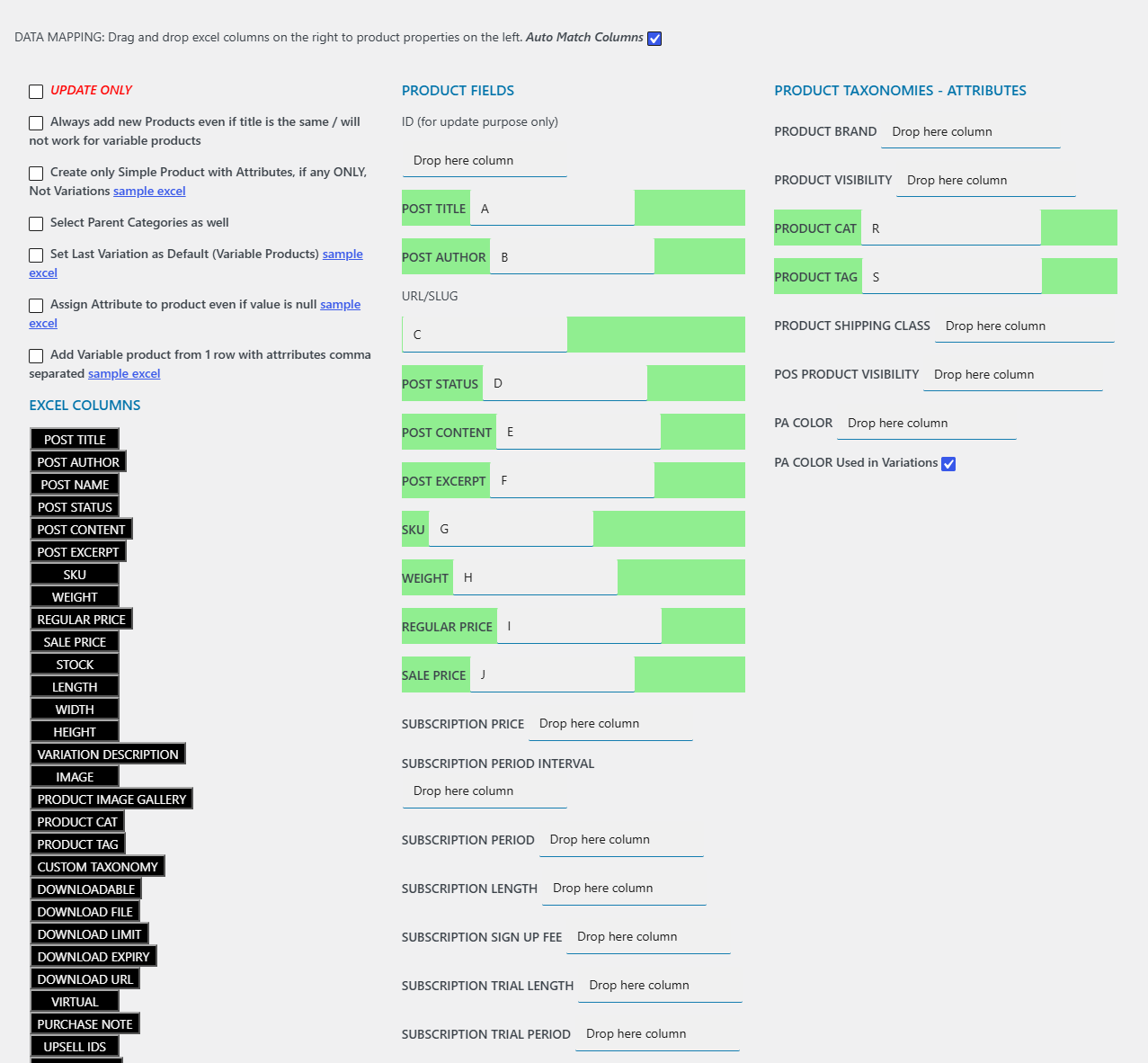
- On the DATA MAPPING screen, drag each Excel column onto a PRODUCT FIELD, or tick Auto Match Columns and check the green matches. The letter placed in a field is the Excel column letter.
- Map at least POST TITLE, SKU or ID. The import stops with an alert if none of them is mapped.
- Tick the import options you need (table below).
- For each attribute field you map, keep Used in Variations ticked for variable products, or untick it for display-only attributes.
- Click Upload and keep the page open until JOB DONE! appears. Each row reports created, “already exists. Updated” or a warning.
Import options #
| Option | Field name | Default | Effect |
|---|---|---|---|
| UPDATE ONLY + update by… | update_only, updateby |
Off | Only update existing products, matched by ID, SKU or TITLE. No new products are created. |
| Always add new Products even if title is the same | add_always_new |
Off | Creates a new product for every row, even when a product with that title exists. Does not work for variable products. |
| Create only Simple Product with Attributes, if any ONLY, Not Variations | product_type |
Off | Rows sharing a title build one simple product with attribute values, no variations. |
| WooCommerce Subscriptions | subscriptions |
Off | Shown when WooCommerce Subscriptions is active. Creates subscription products. |
| Select Parent Categories as well | selectparent |
Off | Also assigns the parent categories of each category in the row. |
| Set Last Variation as Default (Variable Products) | default_attr |
Off | Sets the attributes of the last imported variation as the default selection. |
| Assign Attribute to product even if value is null | assign_attr |
Off | Assigns the mapped attributes to the product even on rows where the cell is empty. |
| Add Variable product from 1 row with attributes comma separated | var_one_row |
Off | One row creates every variation from comma separated attribute values; all variations share the row’s price, SKU, stock, dimensions and images. |
Simple vs variable products #
- Simple product, no attributes: one row per product, identified by a unique title.
- Simple product with attributes: one row per attribute value with the same title, and tick Create only Simple Product with Attributes.
- Variable product: one row per variation with the same title; leave that box unticked.
- Variable product from one row: put comma separated values (for example
m,l,xl) in each attribute column and tick Add Variable product from 1 row. - External/Affiliate product: map PRODUCT URL and BUTTON TEXT (see the Affiliate Products sample).
How existing products are matched #
- With UPDATE ONLY ticked, the product is found by the identifier you choose in update by….
- Without it, a row whose mapped ID column holds an existing product ID updates that product; an ID that does not exist shows “Does not exist. You need to import based on titles”.
- Otherwise the title is checked: an existing product with the same title is updated, a new title creates a product. If the title cell is empty but SKU is filled, the product with that SKU is updated.
Images #
- By URL: put the full image URL in the IMAGE column. The file is downloaded into the Media Library. The URL must end in .jpg, .jpeg, .jpe, .gif or .png. Dropbox share links are converted to direct downloads.
- By name: upload images to the Media Library yourself, then put the image name (its Media Library title) in the column.
- Gallery: put comma separated URLs or names in the IMAGE GALLERY column.
- An image whose file name already exists as a Media Library item is reused instead of downloaded again.
FAQ #
Can I update prices and stock only? #
Yes. Tick UPDATE ONLY, choose SKU (or ID) in update by…, and map only the identifier plus the columns you want to change, such as REGULAR PRICE, SALE PRICE and STOCK.
How do I mark a product as out of stock? #
Put 0 in the STOCK column or outofstock in STOCK STATUS. Any stock value also turns on stock management for the product.
What status do imported products get? #
The value of the mapped POST STATUS column (for example publish, draft, pending). If the cell is empty, the product is published.
Does it support WPML translations? #
Yes. With WPML active, the mapping screen shows WPML TRANSLATIONS fields: ORIGINAL TITLE or ID and LANGUAGE CODE. Use the WPML Products sample file. The unique SKU check is relaxed so translations can share a SKU.
Ready to set this up? #
This is part of Store Migration, a paid WPFactory plugin: every screen described here is included with your license. Get Store Migration.
Need a hand? Our team answers every ticket on the Store Migration support forum.