To export WooCommerce products, orders or customers to Excel with All In One WooCommerce Migration: Import & Export to Excel, go to WPFactory > Store Migration, open the Export screen of the data type, set filters, tick the fields to include, click Search, then download the table as xlsx, csv or txt.
Steps #
- Go to WPFactory > Store Migration and open Products > Export Products, Orders > Export Orders, Customers > Export Customers, Coupons > Export Coupons or Reviews > Export Reviews.
- Click Filter & Fields to Show to open the filters.
- Set the filters you need (see the tables below). Leave Limit Results empty to export every match.
- Under FIELDS TO SHOW (and TAXONOMIES TO SHOW for products), tick the columns to include, or tick Check All.
- Click Search. The progress bar fills while rows load in batches of 500.
- When the message changes to Job Done!, click the export button for xlsx, csv or txt below the table.
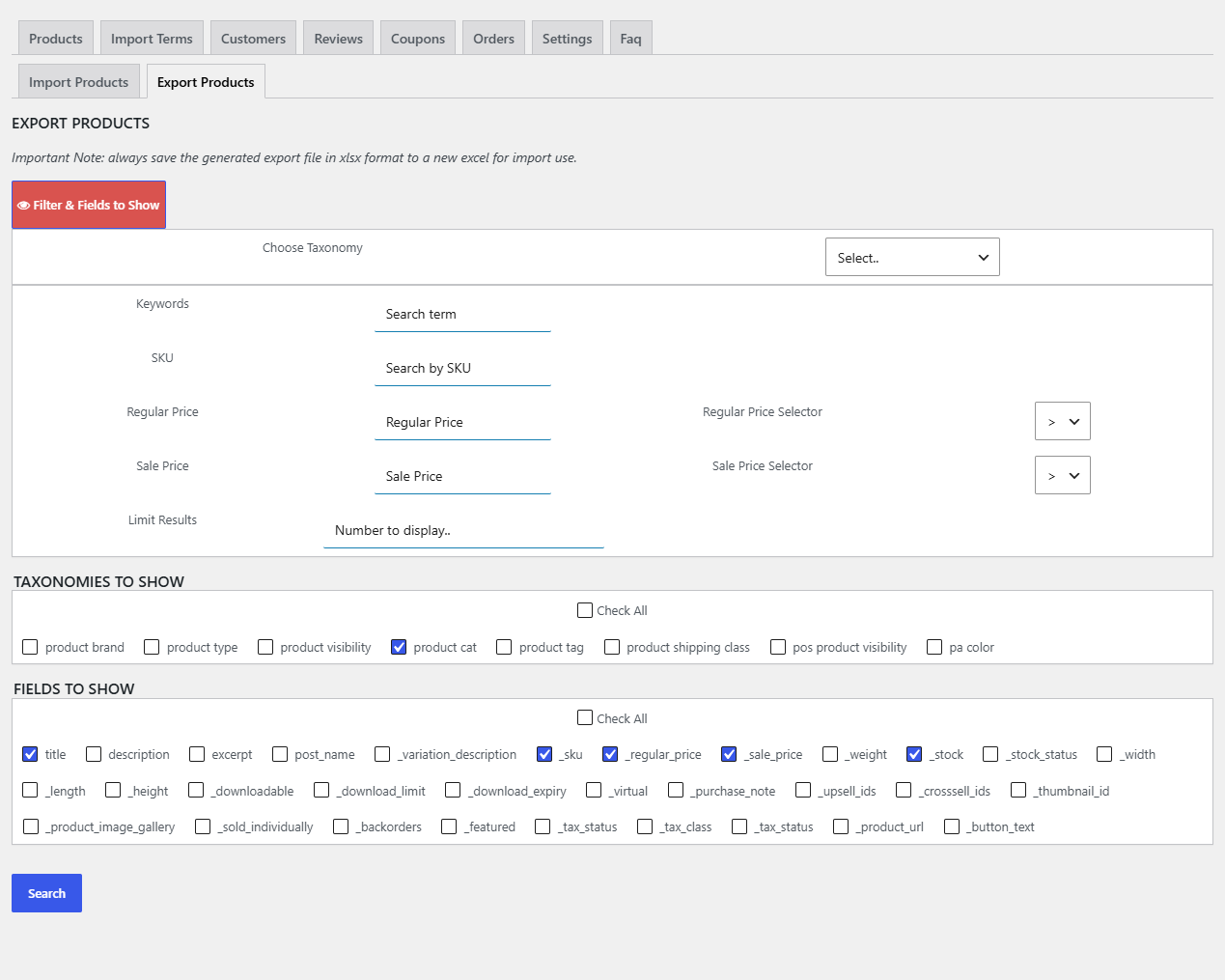
Note: the plugin shows this reminder on the product export screen: always save the generated export file in xlsx format before using it for an import.
Product export filters #
| Filter | What it does |
|---|---|
| Choose Taxonomy / Tax Terms | Pick a product taxonomy (for example product_cat), then a term, to export only products in that term. |
| Keywords | WordPress search on product title and content. |
| SKU | Exports the product with that SKU. |
| Regular Price + Regular Price Selector | Compare the regular price with >, >=, <=, <, == or !=. |
| Sale Price + Sale Price Selector | Shown on the screen, but in version 3.0.2 the sale price value is not added to the query, so it does not narrow the results. |
| Limit Results | Maximum number of products (1 to 100000). |
Product exports always start with ID, PARENT ID and POST TYPE. Simple, external and subscription products export as one row; variable products export one row per variation, with the parent ID in PARENT ID. Images export as file URLs and galleries as comma separated URLs. Custom fields appear in FIELDS TO SHOW only when Import/Export Product Custom Fields is set to Yes.
Order export filters #
| Filter | What it does |
|---|---|
| Keywords | Search term passed to the WooCommerce order query. |
| Status | All (default) or one order status. |
| From Creation Date / To Creation Date | Order creation date range. Both dates are used together. |
| Limit Results | Maximum number of orders. |
Order fields include ID, status, created, completed and paid dates, product IDs, product names and quantities (comma separated, one order per row), customer ID, billing and shipping address fields, subtotal, refunded, total, tax, discount, shipping total and payment method title. Dates export in the format d M Y h:i:s, for example 15 Jul 2025 03:20:00.
Customer, coupon and review exports #
- Customers: users with the Customer role, optionally filtered by registration date range. Fields are
user_pass(the stored password hash),user_login,user_url,user_email,roleand user meta keys such as billing and shipping fields. - Coupons: filter by keyword; fields are coupon code, amount, description, status, author, discount type, individual use, product IDs, excluded product IDs, usage limit, expiry date, apply before tax and free shipping.
- Reviews: filter by keyword and status (Approve is selected by default; also All, Hold, Spam, Trash). Only comments on products are exported, with the rating.
FAQ #
Why does my export include fewer columns than the import screen? #
The export only includes the boxes you tick under FIELDS TO SHOW and TAXONOMIES TO SHOW. Tick Check All in both lists for a full export.
Can I export orders as one row per product line? #
No. Each order is one row; product IDs, names and quantities are joined with commas in their cells.
Where is the exported file saved? #
The xlsx, csv or txt file is generated in your browser from the on-screen table and downloaded by the browser; nothing is stored on the server for these exports.
Is there a limit on how many rows I can export? #
The Limit Results field accepts up to 100000. Rows load in batches of 500, so large exports take longer but avoid a single long server request.
Ready to set this up? #
This is part of Store Migration, a paid WPFactory plugin: every screen described here is included with your license. Get Store Migration.
Need a hand? Our team answers every ticket on the Store Migration support forum.