To watermark AI product images in WooCommerce, edit a style at AI Images > Styles in AI Product Image Generator for WooCommerce, open the Watermark tab, tick Enable Watermark, choose text or a logo, a position and an opacity, and click Update Style. Every image generated with that style is watermarked on your server.
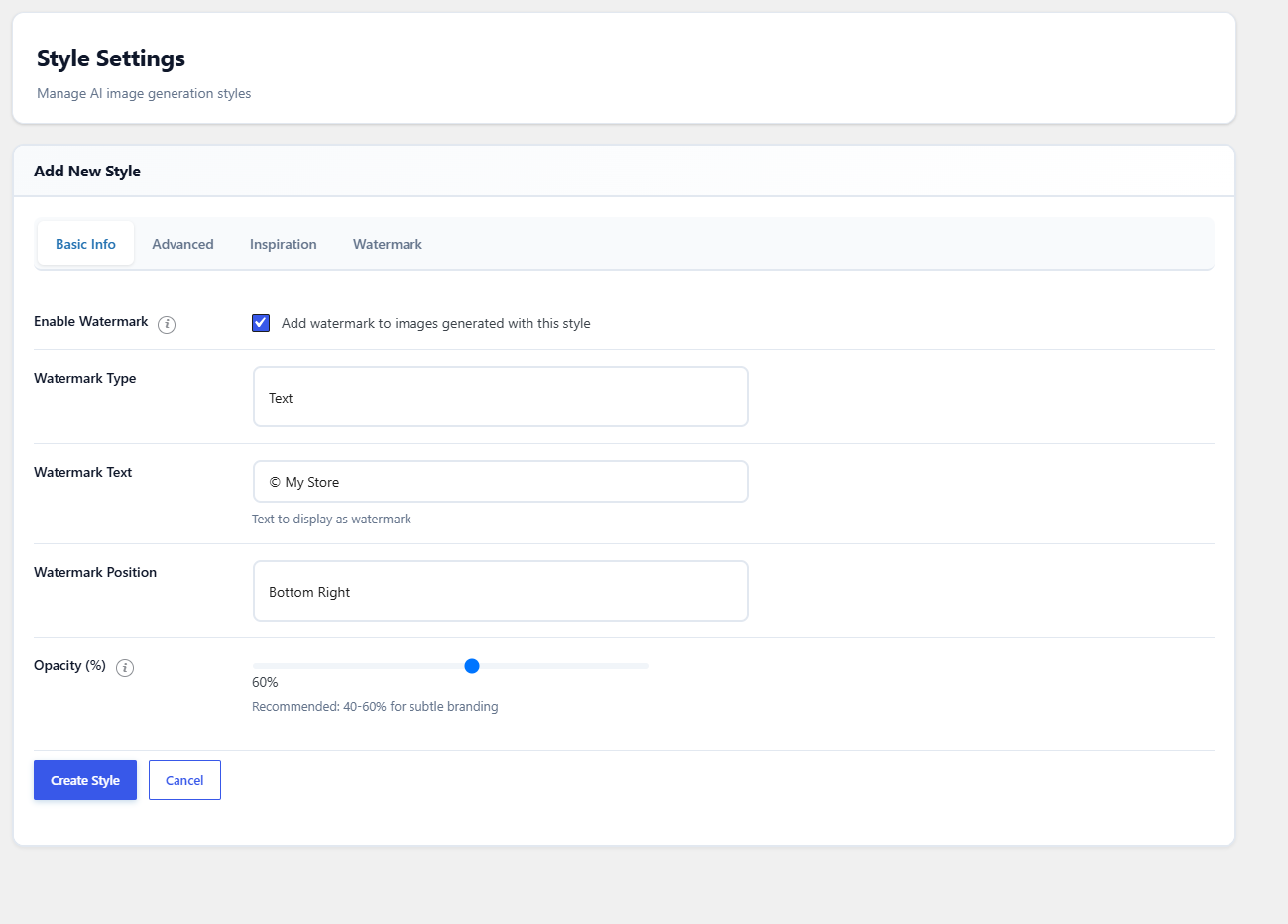
Before you start #
- Your server needs the PHP GD extension and the exif extension. The plugin uses GD to draw the watermark and exif to detect the image type.
- Watermarks are part of a style, so each style can have its own watermark, or none.
- Only newly generated images are watermarked. Your original product photos and images generated earlier are not changed.
How to add a watermark #
- Go to AI Images > Styles and click Edit on a style (or Add New Style).
- Open the Watermark tab.
- Tick Enable Watermark (Add watermark to images generated with this style).
- In Watermark Type, choose Text or Image Logo.
- For text, type it in Watermark Text. The built-in styles use your site title. For a logo, click Upload Logo and pick an image from the Media Library (a PNG with a transparent background works best).
- Choose Watermark Position: Top Left, Top Right, Bottom Left, Bottom Right (default) or Center.
- Set Opacity (%). The default is 50; 40 to 60 gives subtle branding.
- Click Update Style (or Create Style).
- Generate an image with the style and check the result.
How the watermark is drawn #
| Type | Behavior |
|---|---|
| Text | White text with a dark drop shadow, at the chosen position, with the chosen opacity. The plugin looks for a TrueType font on the server (DejaVu Sans or Liberation Sans on many Linux hosts) and uses it at 24 points. If none is found, it falls back to GD’s small built-in font, which cannot be resized. |
| Image Logo | The logo is scaled down, keeping its proportions, to at most 20% of the image width and height, then placed at the chosen position. In version 1.0.1 the opacity setting is not applied to logos, so the logo is drawn at its own transparency. If the logo cannot be loaded, the plugin draws the text watermark instead. |
The watermark is applied to the generated file after it is saved to your site, in both Managed Credits and Use My API Key modes. The AI service never sees your watermark.
FAQ #
Can I watermark my existing product images? #
No. The watermark is applied only to images this plugin generates, at the moment they are generated.
Can I remove a watermark later? #
Not from a watermarked file. Turn off Enable Watermark in the style and generate the image again.
My text watermark is tiny. Why? #
No TrueType font was found on your server, so the plugin used GD’s built-in font. Use an Image Logo watermark instead, or ask your host to install a common font such as DejaVu Sans.
Why did generation stop working after I enabled a watermark? #
The exif or GD extension may be missing on your server. Ask your host to enable them, or turn off the watermark. See Troubleshooting.
Need a hand? Our team answers every ticket on the AI Image Generator support forum.