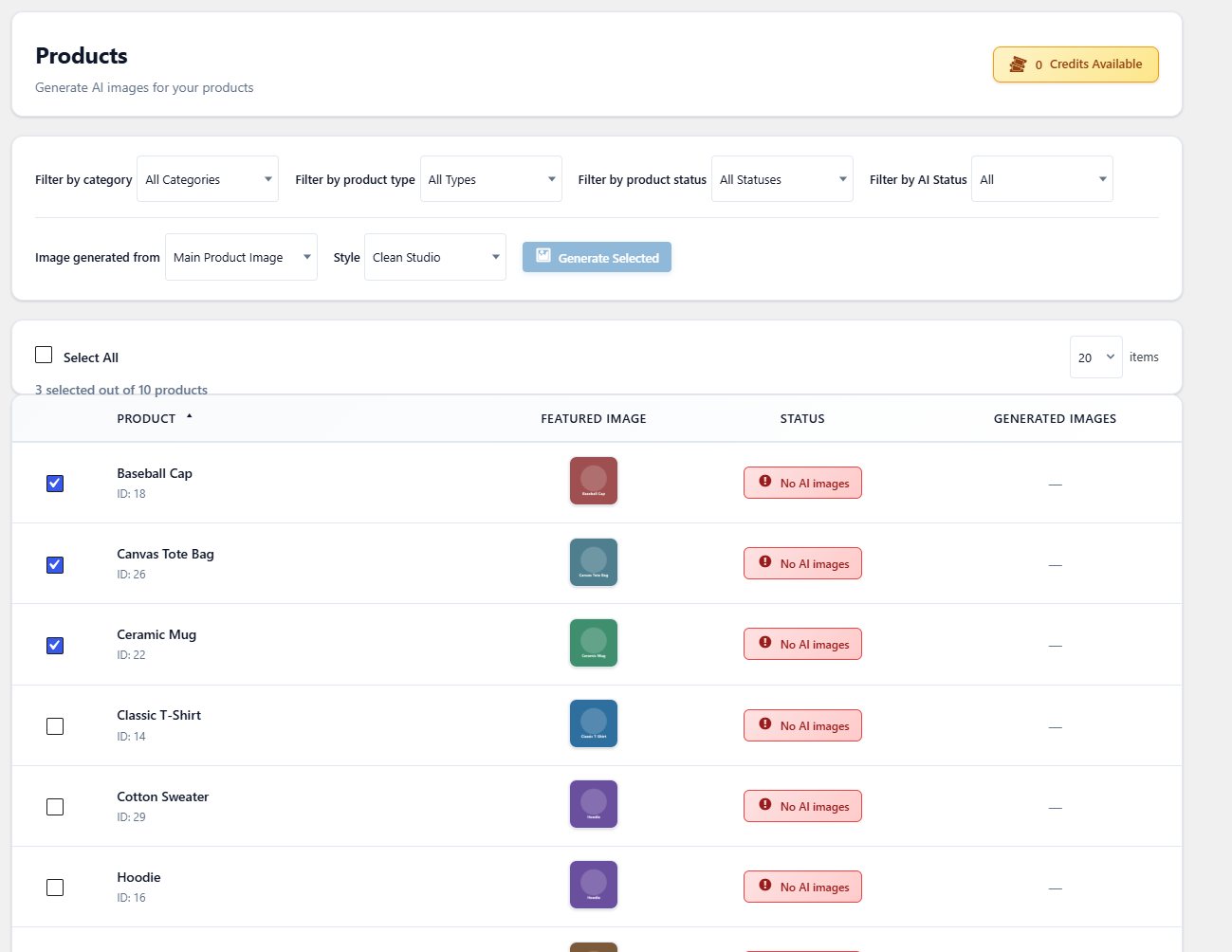
To bulk generate AI images for WooCommerce products, go to AI Images > Generate Images in AI Product Image Generator for WooCommerce, tick the products, choose the image source and a style, and click Generate Selected. The jobs run in the background through WP-Cron, and a progress bar shows how many are done.
Before you start #
- A working connection (verified license with enough credits, or a Gemini API key). See How to Connect Your Gemini API Key or Managed Credits.
- At least one active style. If there is none, the page shows No active styles found. Please create a style first.
- Test the style on one product first (How to Generate WooCommerce Product Images with AI) so you do not spend credits on a result you do not like.
- WP-Cron must be running on your site, because the queue is processed by scheduled events.
How to generate images for many products #
- Go to AI Images > Generate Images. The header shows the connection mode and, for Managed Credits, your available credits.
- Narrow the list with the filters if needed: Filter by category, Filter by product type (Simple or Variable), Filter by product status (Published, Draft, Pending Review) and Filter by AI Status (Created or Not Created). Click Clear to reset them.
- Tick the products you want, or use Select All. You can show 20, 50 or 100 products per page.
- In Image generated from, choose Main Product Image, Product Gallery or Both (Main + Gallery).
- In Style, choose the style to apply.
- Click Generate Selected and confirm.
- Watch the progress bar. It shows how many products have been processed, then a summary with Success, Failed and Total counts. You can leave the page; the queue keeps running.
- Check AI Images > History for the Bulk generation complete summary and any failure messages.
How the background queue works #
- Each selected product becomes one job. The first run is scheduled about 10 seconds after you click.
- Jobs are processed 5 at a time. After each batch, the next batch is scheduled a few seconds later until the queue is empty.
- Each job generates every source image and variant for that product, exactly like the single-product button, including the style’s Auto-Set and watermark options.
- Because the queue runs on WP-Cron, it only advances when WP-Cron runs. On low-traffic sites, or if
DISABLE_WP_CRONis set without a server cron job, it can stall.
Limits and credits #
| Limit | Value |
|---|---|
| Bulk runs per user | 5 per hour. After that you see Rate limit exceeded. Please try again in N minute(s). |
| Jobs processed per batch | 5 |
| Variants per source image | Set in the style, 1 to 6 in the form |
| Credits (Managed Credits) | Checked per product before it is processed. A product fails with Insufficient credits if the balance is too low for all of its images. |
To estimate credits: products x source images per product x variants x credits per image (shown in AI Images > Settings > Credits).
FAQ #
Can I stop a bulk run? #
Version 1.0.1 has no stop button in the admin screens. Select fewer products per run if you want tighter control, and contact support if you need to stop a run that is already in progress.
Why are some products marked as failed? #
Common reasons are a product with no image for the chosen source, insufficient credits, or an error returned by the AI service. When the AI request itself fails, AI Images > History shows a Failed to generate images for message with the error returned. For missing images or credits, run the product from its edit screen to see the message directly.
Are variable products supported? #
Yes, the parent product’s main and gallery images are used. Individual variation images are not processed.
Does bulk generation replace my product images? #
Only if the style has Auto-Set as Featured or Auto-Set as Gallery turned on. Otherwise the new images are added to the Media Library and listed in each product’s AI Image Generator box.
Need a hand? Our team answers every ticket on the AI Image Generator support forum.