To create a custom AI image style for WooCommerce, go to AI Images > Styles in AI Product Image Generator for WooCommerce, click Add New Style, write a prompt that describes the look you want, set variants and optional reference images, and click Create Style. The style then appears in every Select Style and Style list.
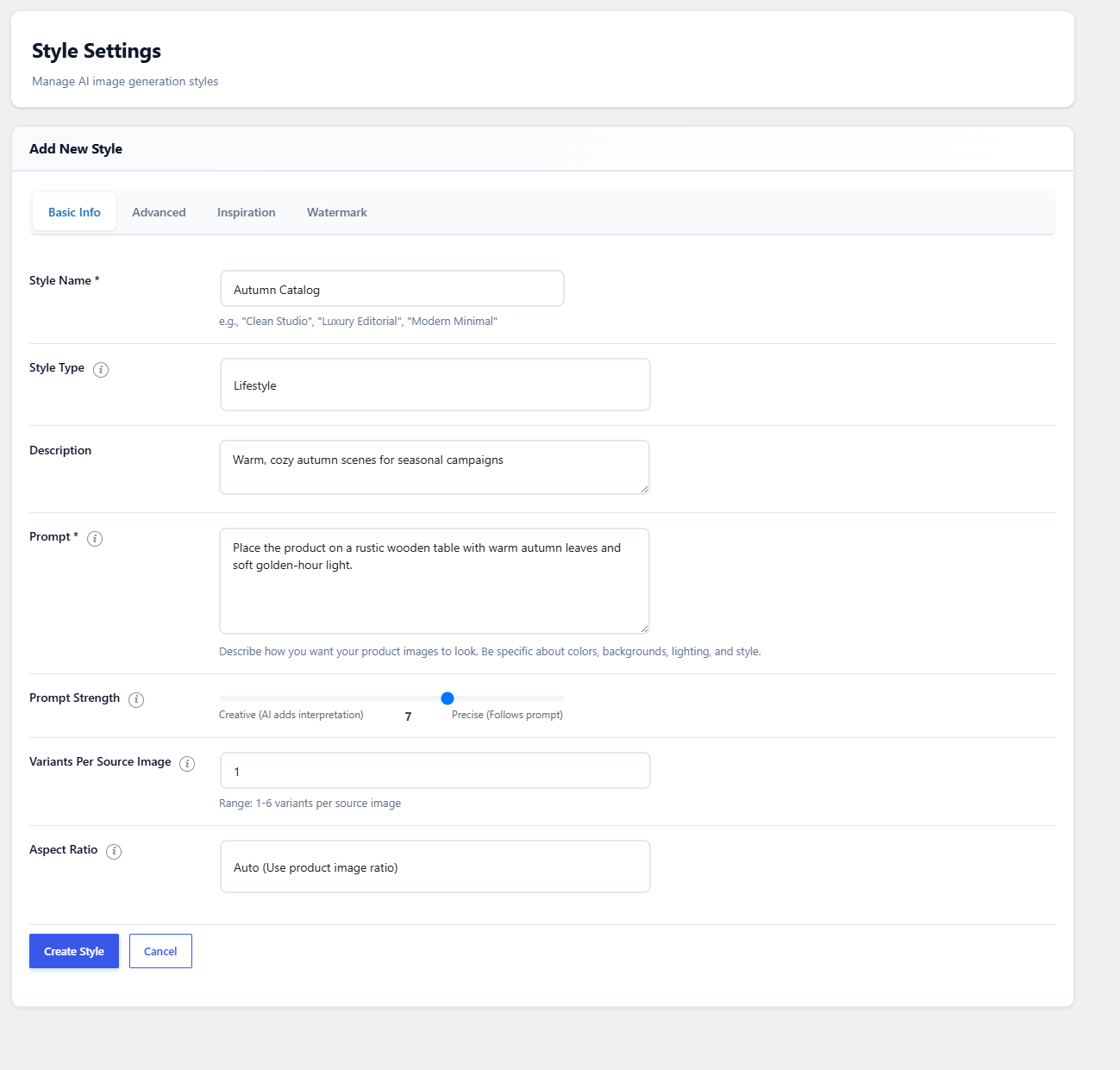
How to create a style #
- Go to AI Images > Styles (administrators only) and click Add New Style.
- On the Basic Info tab, fill in Style Name and Prompt (both required). Optionally pick a Style Type, add a Description, and set Prompt Strength, Variants Per Source Image and Aspect Ratio.
- On the Advanced tab, choose whether results should replace product images automatically (Auto-Set as Featured, Auto-Set as Gallery) and keep Active Status ticked.
- On the Inspiration tab, optionally add reference images with Upload from Media Library.
- On the Watermark tab, optionally turn on a text or logo watermark. See How to Watermark AI Product Images in WooCommerce.
- Click Create Style. Test it on one product before using it in bulk.
Style fields #
| Field | Tab | Default | What it does |
|---|---|---|---|
| Style Name | Basic Info | Empty (required) | Name shown in style lists. It is also available as the {style} tag in the image naming pattern. |
| Style Type | Basic Info | None | Studio, Editorial, Lifestyle, Marketplace, Minimal or Luxury. Stored with the style as a label. In version 1.0.1 it is not added to the request sent to the AI, so describe the look in the Prompt. |
| Description | Basic Info | Empty | Internal note shown on the style card. |
| Prompt | Basic Info | Empty (required) | The instruction sent to the AI with your product photo. Be specific about background, lighting, mood and composition. |
| Prompt Strength | Basic Info | 7 | 1 (creative) to 10 (precise). With Use My API Key, a higher value lowers the AI’s temperature so it follows the prompt more closely. With Managed Credits, this value is not sent to the service. |
| Variants Per Source Image | Basic Info | 1 | 1 to 6. How many results to create for each source image. Each variant is a separate generation and uses credits. |
| Aspect Ratio | Basic Info | Auto (Use product image ratio) | Auto, 1:1, 4:5, 3:2, 16:9 or 9:16. See the note below: in version 1.0.1 this choice has little or no effect on the output. |
| Auto-Set as Featured | Advanced | Off | Makes the first result for the main image the product image; extra variants go to the gallery. |
| Auto-Set as Gallery | Advanced | Off | Replaces each gallery image with its first result in the same position; extra variants go to the end of the gallery. |
| Active Status | Advanced | On for new styles | Only active styles appear in the product box and on the Generate Images page. |
| Reference Images (Attached with Prompt) | Inspiration | None | Up to 7 images from the Media Library. They are sent to the AI along with the product photo, and the prompt is prefixed with an instruction to use them as a style reference for lighting, composition and aesthetic. |
Note about Aspect Ratio: in version 1.0.1, the ratio is not sent to the service in Managed Credits mode. With your own API key, the request asks the AI to keep the original ratio for every option in the list, and only 9:16 resizes the result (to 1080 x 1920 pixels, by stretching rather than cropping). If you need an exact ratio, crop the generated image in the Media Library.
Use product details in the prompt #
The prompt can include placeholders that are replaced with the product’s data before the request is sent:
| Placeholder | Replaced with |
|---|---|
{product_name} |
Product name |
{product_description} |
Description, with HTML removed |
{product_short_description} |
Short description, with HTML removed |
{product_price} |
Current price |
{product_sku} |
SKU |
{product_id} |
Product ID |
{product_category} |
Product category names, comma separated |
Example: Lifestyle photo of {product_name} on a wooden kitchen counter, morning light, suitable for the {product_category} section. Whatever the placeholders contain is sent to the AI service along with the image, so avoid them if a field holds information you do not want to share. The built-in styles use no placeholders.
Manage existing styles #
- Edit: change any field and click Update Style. The built-in styles can be edited too.
- Duplicate: creates a copy named (Copy). The copy starts inactive, so switch it on when it is ready.
- Active toggle: the switch on each style card turns the style on or off without deleting it.
- Delete: removes the style after a confirmation.
FAQ #
How do I write a good prompt? #
Describe the background, lighting, camera angle and mood, and say what must not change, for example keep the product’s shape, colors and labels exactly as they are. Start from one of the built-in styles and edit its prompt.
Do reference images cost extra credits? #
The plugin charges nothing extra for them, but they are uploaded with every generation, which makes each request larger and slower. Use a few strong examples rather than seven similar ones.
Why does my style not appear in the product box? #
It is inactive. Turn on Active Status on the Advanced tab, or use the toggle on the style card.
Can shop managers create styles? #
No. The Styles page requires administrator access (manage_options). Shop managers can use existing styles to generate images.
Need a hand? Our team answers every ticket on the AI Image Generator support forum.