To pin a back button on screen so it stays reachable while visitors scroll, use the Floating Button Options section in Back Button Anywhere Widget for WordPress. This is a Pro feature: it adds a fixed button in one of the four corners of the page, with margins you control.
Before you start #
- Back Button Anywhere Widget for WordPress Pro, activated.
- A theme that calls
wp_footer()(nearly all standard themes do). The floating button is printed on that hook.
Step-by-step setup #
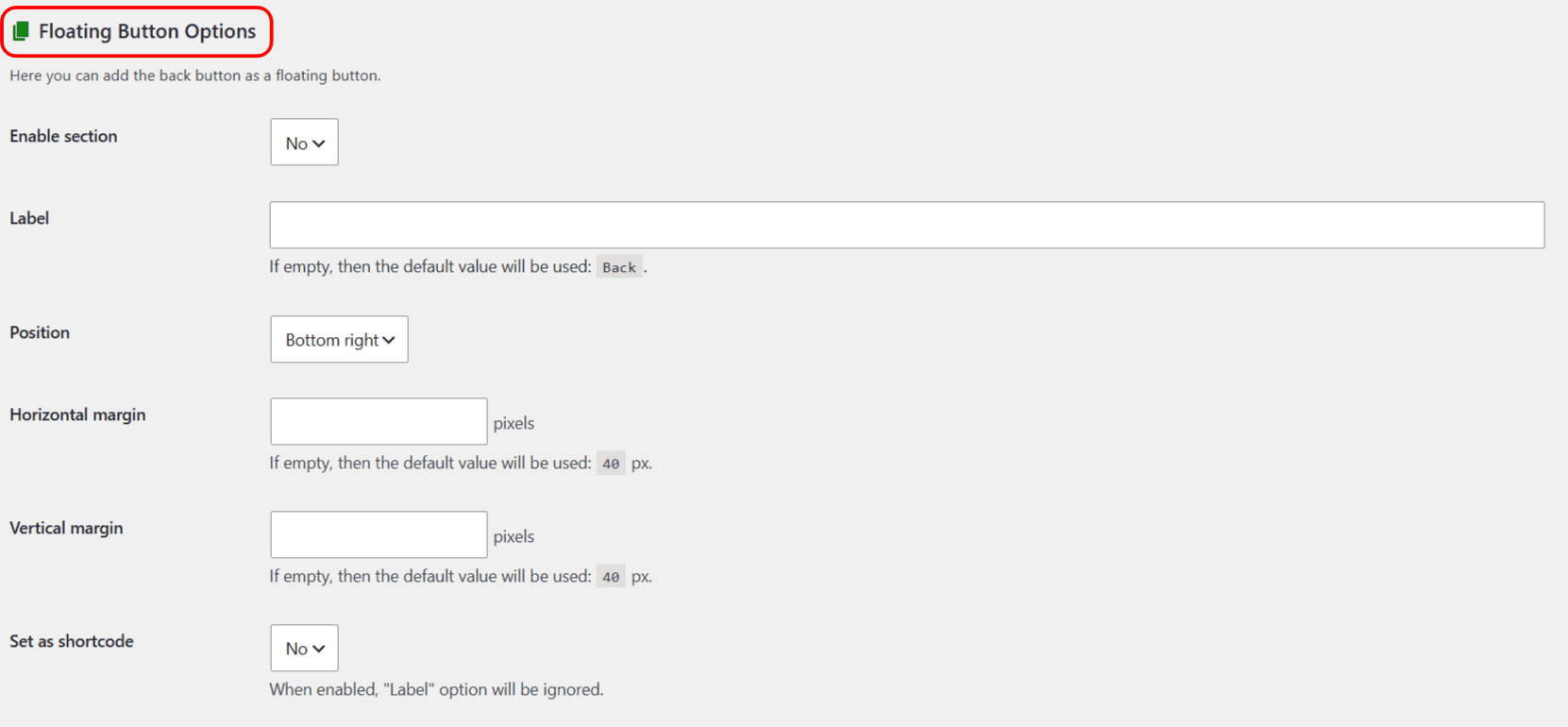
- Go to WPFactory > Back Button and open the Floating Button Options section.
- Set Enable section to Yes.
- Set the Label (leave empty to use “Back”).
- Pick a Position: bottom right, bottom left, top right, or top left.
- Set the Horizontal margin and Vertical margin in pixels (both default to 40).
- Save changes and view any page. The button stays fixed in the chosen corner.
Options reference #
| Label | Option ID | Default | Free/Pro |
|---|---|---|---|
| Enable section | floating_button_enabled |
No | Pro |
| Label | floating_button_label |
Back | Pro |
| Position | floating_button_position |
Bottom right | Pro |
| Horizontal margin | floating_button_h_margin |
40 (px) | Pro |
| Vertical margin | floating_button_v_margin |
40 (px) | Pro |
| Set as shortcode | floating_button_shortcode_enabled |
No | Pro |
| Shortcode | floating_button_shortcode |
[alg_back_button label="Back" type="button" class="alg_back_button_floating"] |
Pro |
Advanced styling with a shortcode #
By default the floating button uses the Label field. For full control, set Set as shortcode to Yes and enter your own shortcode in the Shortcode field. When this is on, the Label field is ignored.
Important: your custom shortcode must include the alg_back_button_floating class, because that class carries the fixed positioning. For example: [alg_back_button label="Back" type="button" class="alg_back_button_floating my-style"].
How the positioning works #
The floating button is placed with position: fixed and a high z-index, offset from the chosen corner by your margins. Add an icon or extra styling through the custom shortcode, or target the alg_back_button_floating class in your own CSS.
Troubleshooting #
- Button not visible: confirm Enable section is Yes and that your theme calls
wp_footer(). - Off screen: reduce the horizontal or vertical margin.
- Custom shortcode not floating: it is missing the
alg_back_button_floatingclass.
Ready to set this up? #
The floating button is a Pro feature of Back Button Widget. Upgrading takes a couple of minutes and unlocks it along with menu placement and hide/show rules. Get Back Button Widget Pro.