This guide pulls together the two broadest ways Change Add to Cart Button Text for WooCommerce changes your button text: the All Products section and the Per Product Type & Condition section. Both are free. Only the “On sale” condition inside the second section needs Pro.
1. All Products: one label everywhere #
The All Products section sets a single button label across your whole catalog. Tick Enable section, fill in Single product page and Shop page, and save. Use shortcodes to make it dynamic, for example Add [alg_wc_atcbl_product_title] to cart. This is the baseline that more specific sections can override.
2. Per Product Type & Condition: label by type and state #
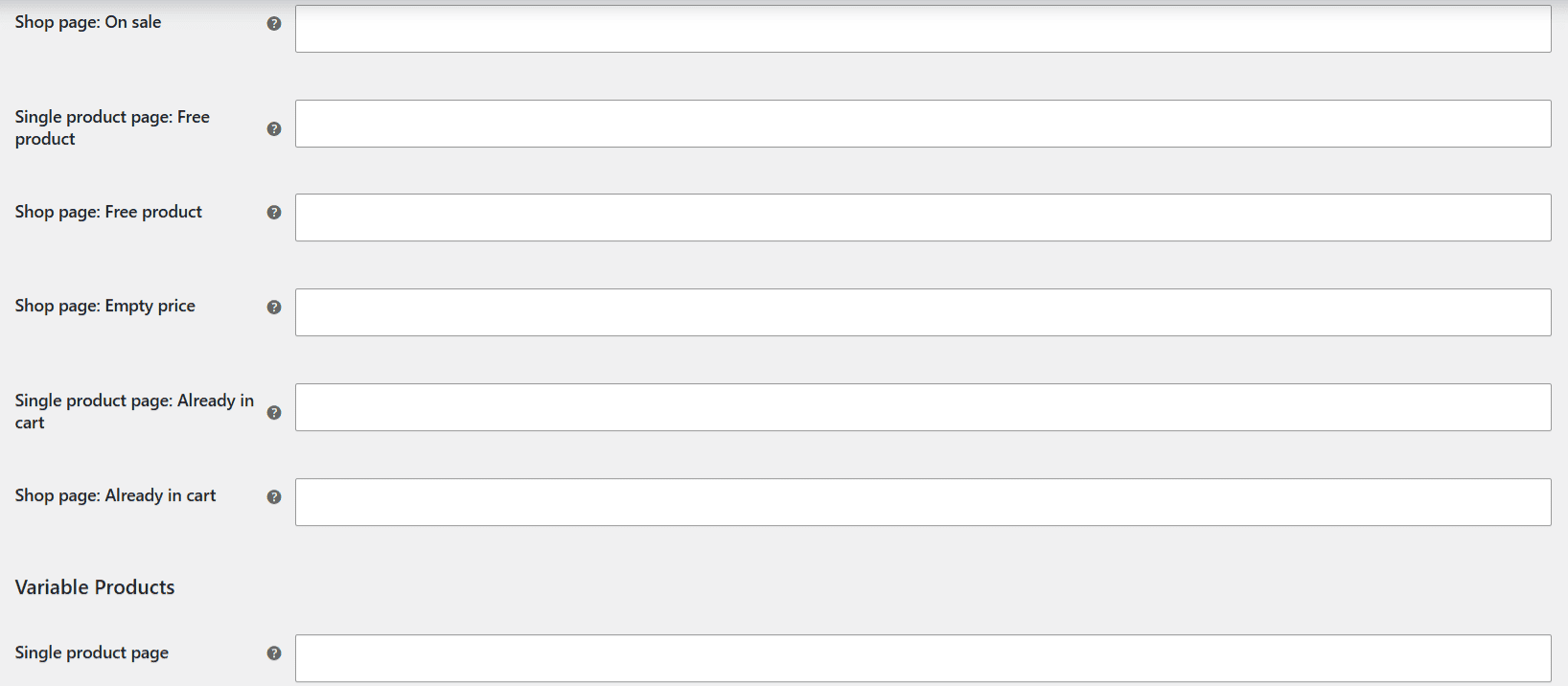
This section targets the button text by product type and by product state:
- Types: Simple, Variable, External, Grouped and Other (a catch-all for any other type).
- Conditions (free): Already in cart, Empty price, Free product.
- Condition (Pro): On sale.
Each type and condition has separate Single product page and Shop page fields, and each shows the WooCommerce default underneath so you know what you are replacing. Leave a field blank to keep that default.
Free vs Pro at a glance #
| Capability | Free/Pro |
|---|---|
| One label for all products | Free |
| Labels per product type | Free |
| Already in cart, Empty price, Free product conditions | Free |
| On sale condition | Pro |
| Shortcodes in labels | Free |
Note: this plugin changes the button text only. It does not restyle the button (color, size or borders); use your theme or custom CSS for appearance.
Ready to set this up? #
The On sale condition is a Pro feature of Change Add to Cart Button Text for WooCommerce. Upgrading takes a couple of minutes and unlocks it along with the rest of the Pro toolkit. Get the Pro version.