External (affiliate) products show a “Buy product” button that sends shoppers to another site. With Change Add to Cart Button Text for WooCommerce you can replace that wording so it fits the destination, for example “View on Amazon” or “Check price”. External product labels live in the Per Product Type & Condition section and are free.
Step-by-step setup #
- Go to WPFactory > Add to Cart Button Labels (also reachable at WooCommerce > Settings > Add to Cart Button Labels).
- Open Per Product Type & Condition and tick Enable section.
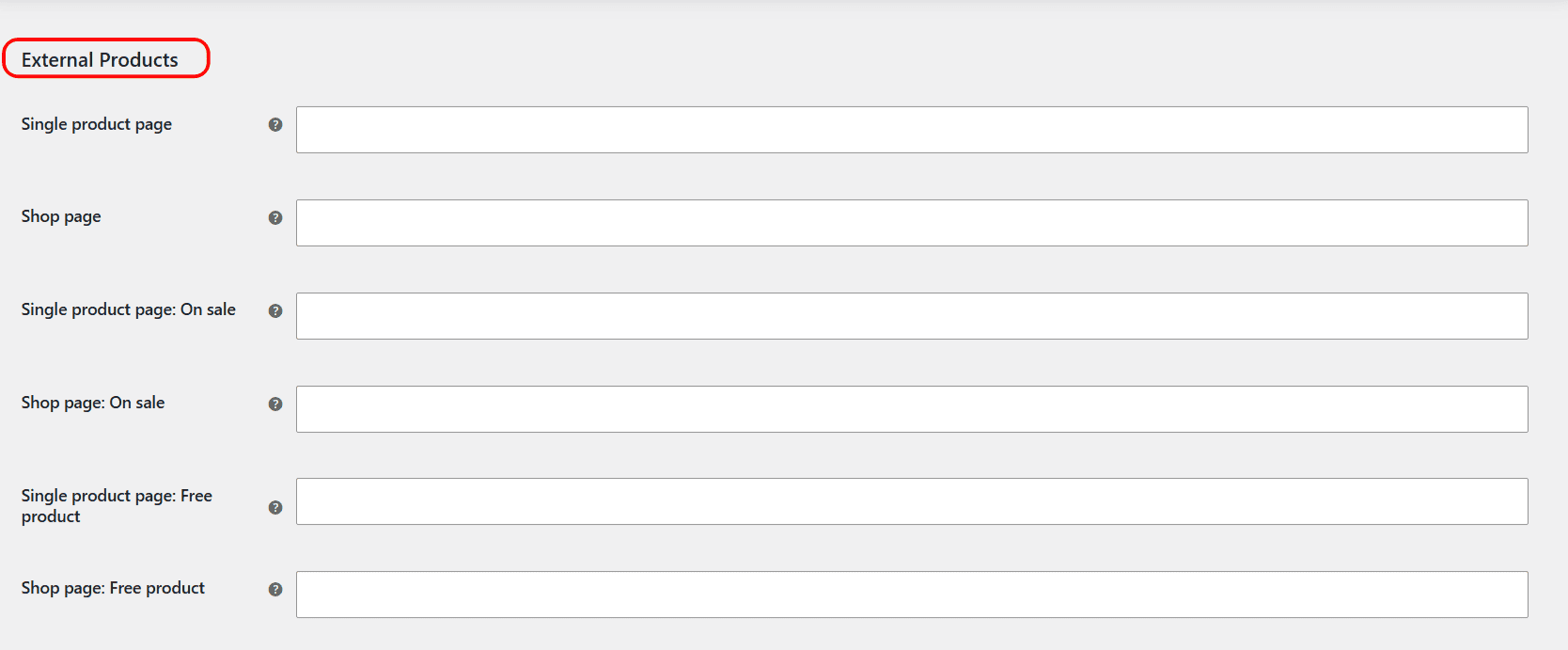
- Scroll to the External Products group.
- Enter your text in Single product page and Shop page.
- Click Save changes.
Conditions available for external products #
External products support these extra state-based labels. Leave any blank to keep the default “Buy product” text:
| Condition | Fires when | Free/Pro |
|---|---|---|
| Empty price | The external product has no price set. | Free |
| Free product | The external product price is zero. | Free |
| On sale | The external product is on sale. | Pro |
External products do not have an “Already in cart” state, because they are never added to the cart. That condition is simply not shown for this type.
Add dynamic content #
External labels accept the same shortcodes as every other section, so you can show the price in the button, for example Buy now for [alg_wc_atcbl_product_price].
Get more control #
External product labels are free, except the On sale condition. Change Add to Cart Button Text for WooCommerce Pro unlocks On sale labels along with the rest of the Pro toolkit. See what Pro unlocks.