To set the Add to Cart button text for one product, enable WPFactory > Add to Cart Button Labels > Per Product in Change Add to Cart Button Text for WooCommerce, then open the product and fill in the Custom Add to Cart Button Labels box. It is free and overrides store-wide, product type, category and tag labels.
The Per Product section is the most specific product-level rule the plugin has. Use it for a pre-order item, a sample, a donation or any product that needs its own wording.
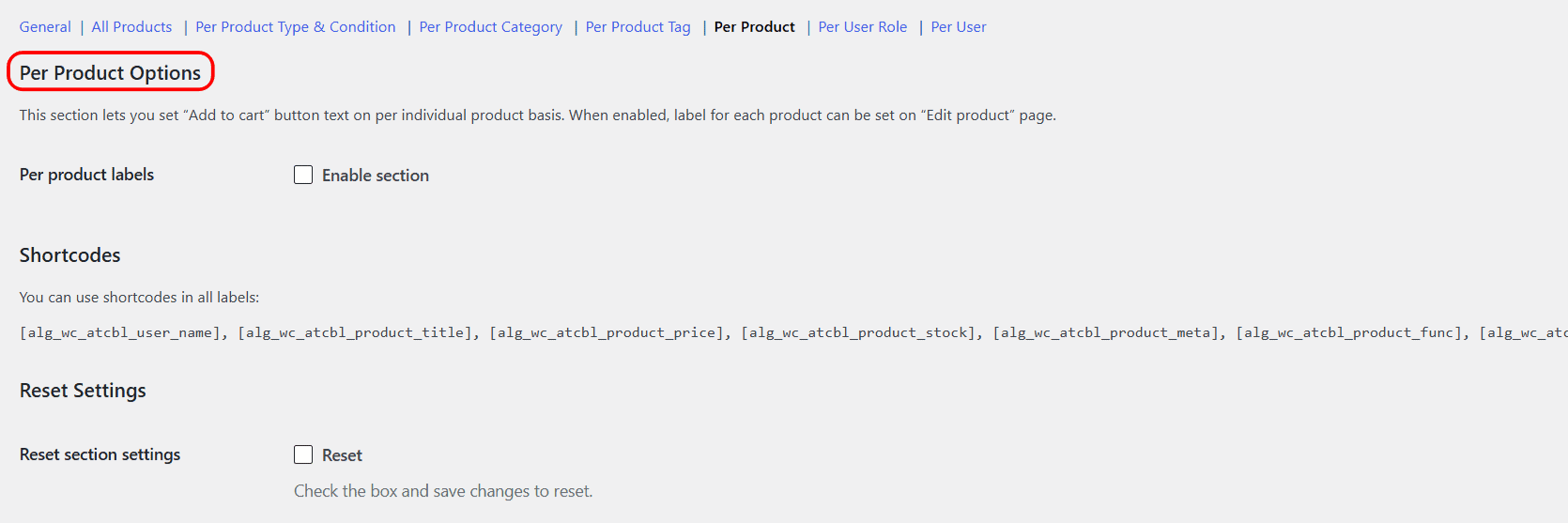
Turn the section on first #
- Go to WPFactory > Add to Cart Button Labels (also reachable at WooCommerce > Settings > Add to Cart Button Labels).
- Open Per Product and tick Enable section (off by default).
- Click Save changes. This adds the label fields to your product editor.
Set the label on the product #
- Open any product under Products > All Products.
- Find the Custom Add to Cart Button Labels box on the edit screen.
- Fill in Single product page and, if you want a different one, Shop page.
- Update the product.
| Field | Stored as post meta | Default |
|---|---|---|
| Single product page | _alg_wc_add_to_cart_button_labels_single |
Empty |
| Shop page | _alg_wc_add_to_cart_button_labels_archive |
Empty |
For a variable product the parent product’s label is used for its variations, so you set it once on the parent. An empty field keeps whatever label a broader rule (or WooCommerce) would show.
What the customer sees #
The Single product page text replaces the button on that product’s page. The Shop page text replaces the button wherever the product appears in a product loop, such as the shop, category and tag archives. Fill in only one field to change only that view.
Which label wins #
A Per Product label overrides All Products, Per Product Type & Condition, Per Product Category and Per Product Tag labels. Two sections can still override it: Per User Role and Per User. If a role or user group matches the visitor, that label shows instead.
Dynamic content #
These fields accept shortcodes too, so a single product can carry its own dynamic button, for example Pre-order [alg_wc_atcbl_product_title]. The product edit fields are saved as plain text, so HTML tags are removed.
Note: Per Product sets one label per product. It does not add per-condition (on sale, free, in cart) fields on the product page, and there is no bulk editor for setting many products at once. To label many products together, use the category, tag or product-type sections instead.
If it does not work #
- The Custom Add to Cart Button Labels box is missing: Enable section in Per Product is off. The box only loads when the section is on. Also check Screen Options at the top of the product editor in case the box is hidden.
- The label was saved but does not show: the Per Product section was switched off later, or Enable plugin on the General section is off.
- A different label shows for you: a Per User Role or Per User group matches your account.
- You set the label on a variation: labels are read from the parent product, so set them on the parent.
FAQ #
Can I set labels for many products at once? #
Not in Per Product. Put the products in a category or tag and use labels by product category or the tag section instead.
Can each variation have its own button text? #
No. Variations use the parent product’s label. There is no attribute or variation targeting in the plugin.
Is Per Product a Pro feature? #
No. Per Product labels are free, with no limit on how many products you label.
For the full picture of product-level targeting, see labels by category, tag and product. If a label still does not change, see Add to Cart label not changing.
Get more control #
Per Product labels are free. Change Add to Cart Button Text for WooCommerce Pro adds unlimited category, tag, user role and user groups, plus on-sale labels. See what Pro unlocks.
Need a hand? Our team answers every ticket on the Add to Cart Button Labels support forum.