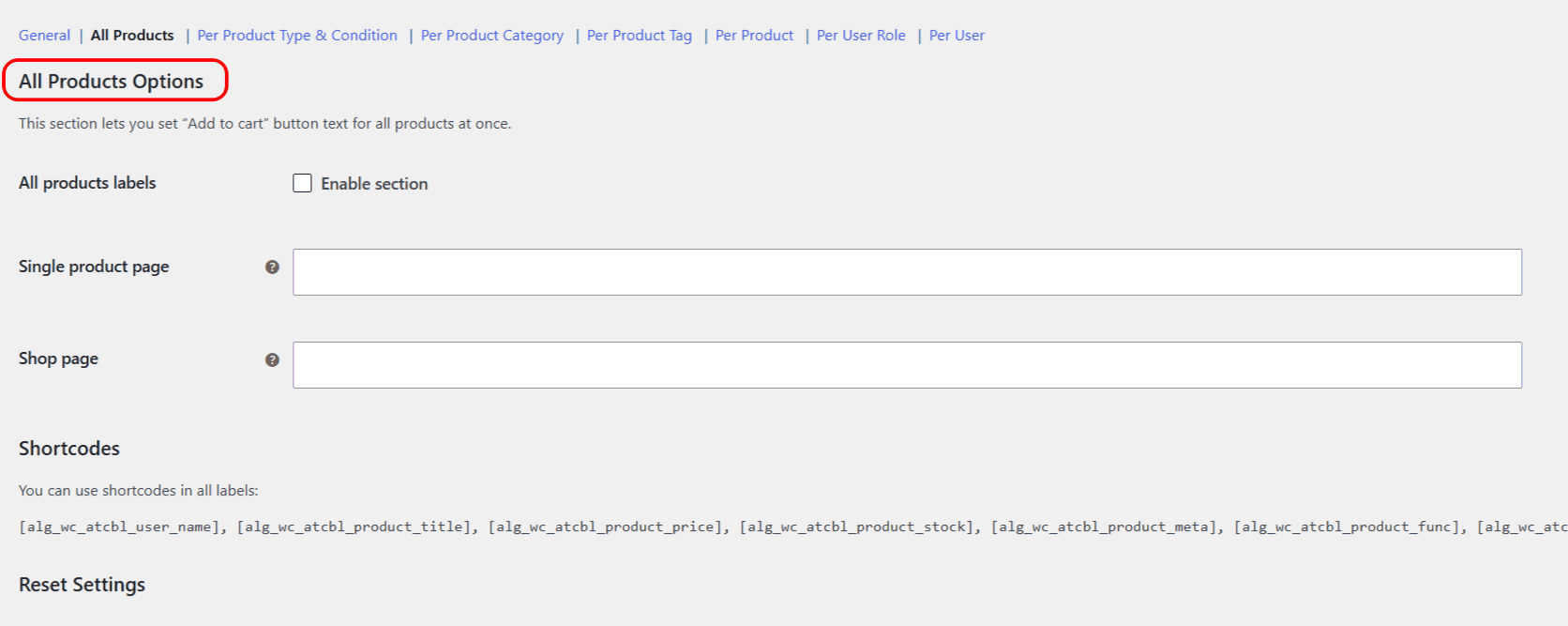
Every section in Change Add to Cart Button Text for WooCommerce gives you two label fields: one for the Single product page and one for the Shop page. This lets you use different wording where a shopper is browsing a listing versus reading a full product page. This article explains the split and how to use it well.
What each field controls #
- Single product page: the button on an individual product’s own page, where the shopper already has the full description in front of them.
- Shop page: the button in listings, which includes the main shop page, category and tag archives, and any product grid or loop your theme renders.
The two fields map to WooCommerce’s own single and archive button hooks, so the wording follows the shopper across your catalog exactly as WooCommerce would place the default button.
Leave a field blank to keep the default #
If you fill in only the Single product page field, listings keep WooCommerce’s normal text, and vice versa. An empty field is always ignored, so you never have to duplicate wording you do not want to change.
Practical pairings #
- Listing: Buy now. Product page: Add this to my cart.
- Listing: Quick add. Product page: Add to cart.
- Variable products list as Select options by default, because a variation must be chosen first. Keep that on the shop page and use a direct label on the single page.
Dynamic content works in both #
Both fields accept shortcodes, so a listing button can stay short while the single-page button shows more detail, for example Add to cart for [alg_wc_atcbl_product_price].
Get more control #
The two-field split is available in every section, free and Pro. Change Add to Cart Button Text for WooCommerce Pro adds unlimited category, tag, user role and user groups, plus on-sale labels. See what Pro unlocks.