The Per Product Type & Condition section of Change Add to Cart Button Text for WooCommerce sets the button text based on what kind of product it is and the state it is in, for example a different label for variable products, or for products that are already in the cart. Most of this section is free: only the “On sale” condition needs Pro.
Step-by-step setup #
- Go to WPFactory > Add to Cart Button Labels (also reachable at WooCommerce > Settings > Add to Cart Button Labels).
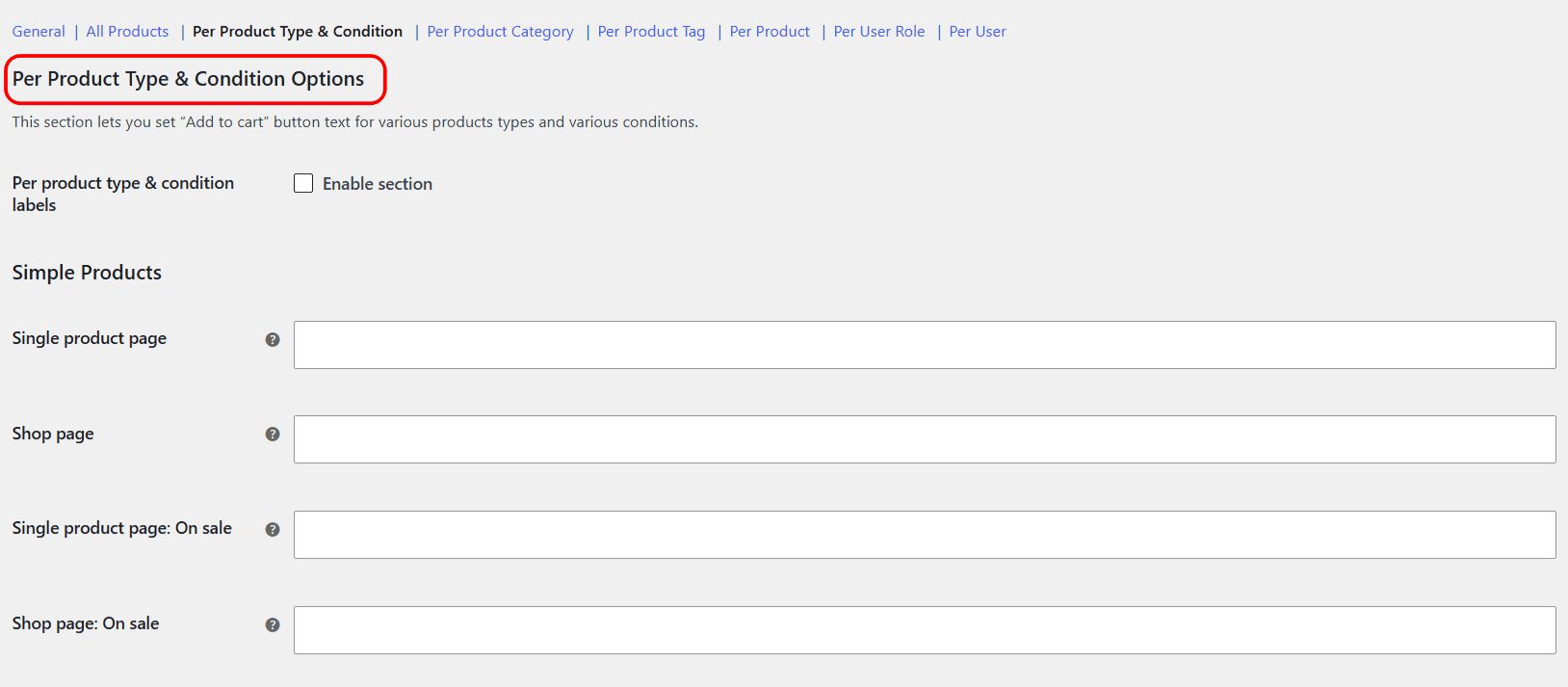
- Open Per Product Type & Condition and tick Enable section.
- Scroll to the product type you want (Simple, Variable, External, Grouped or Other) and fill in the label for the Single product page and the Shop page.
- Fill in any condition rows you need under that type.
- Click Save changes.
Product types you can target #
- Simple Products
- Variable Products
- External Products
- Grouped Products
- Other Products: any product type that is not one of the four above (for example subscriptions or bundles from other plugins fall here).
Conditions #
For most types you can also set a label for these states. Each condition has its own field and only shows where WooCommerce provides a sensible default for it:
| Condition | Fires when | Free/Pro |
|---|---|---|
| Already in cart | The product is already in the visitor’s cart. | Free |
| Empty price | The product has no price set. | Free |
| Free product | The product price is zero. | Free |
| On sale | The product is on sale. | Pro |
When several conditions could apply to the same product, they are checked in this order and the first match wins: Already in cart, Empty price, Free product, On sale, then the normal label. Option IDs follow the pattern alg_wc_add_to_cart_p_prod_type_on_{view}_{condition}_{type}, for example alg_wc_add_to_cart_p_prod_type_on_single_in_cart_simple.
Defaults are pre-filled #
Each field shows WooCommerce’s own default label underneath as a reference, such as “Add to cart” for simple products, “Select options” for a variable product on the shop page, “Buy product” for external products, and “View products” for a grouped product on the shop page. Leave a field blank to keep that default.
Free version note: the On sale fields are shown but locked (read only) until you activate Pro. On sale detection itself is a Pro feature, so on the free version those labels never apply even if the field looks editable in your build.
Get more control #
Product-type and condition labels are free, except On sale. Change Add to Cart Button Text for WooCommerce Pro unlocks the On sale labels along with the rest of the Pro toolkit. See what Pro unlocks.