Table of Contents
To let customers copy a wishlist in Wishlist for WooCommerce Pro, go to WPFactory > Wishlist, open the Wishlist Page tab, enable Duplicate Functionality in the Duplicate section, and save. Logged-in customers then see a COPY button on the wishlist page that duplicates the current list into a new one they can rename.
Before you start #
- WooCommerce, active.
- Wishlist for WooCommerce Pro.
- The copy button appears for logged-in users only.
Step-by-step setup #
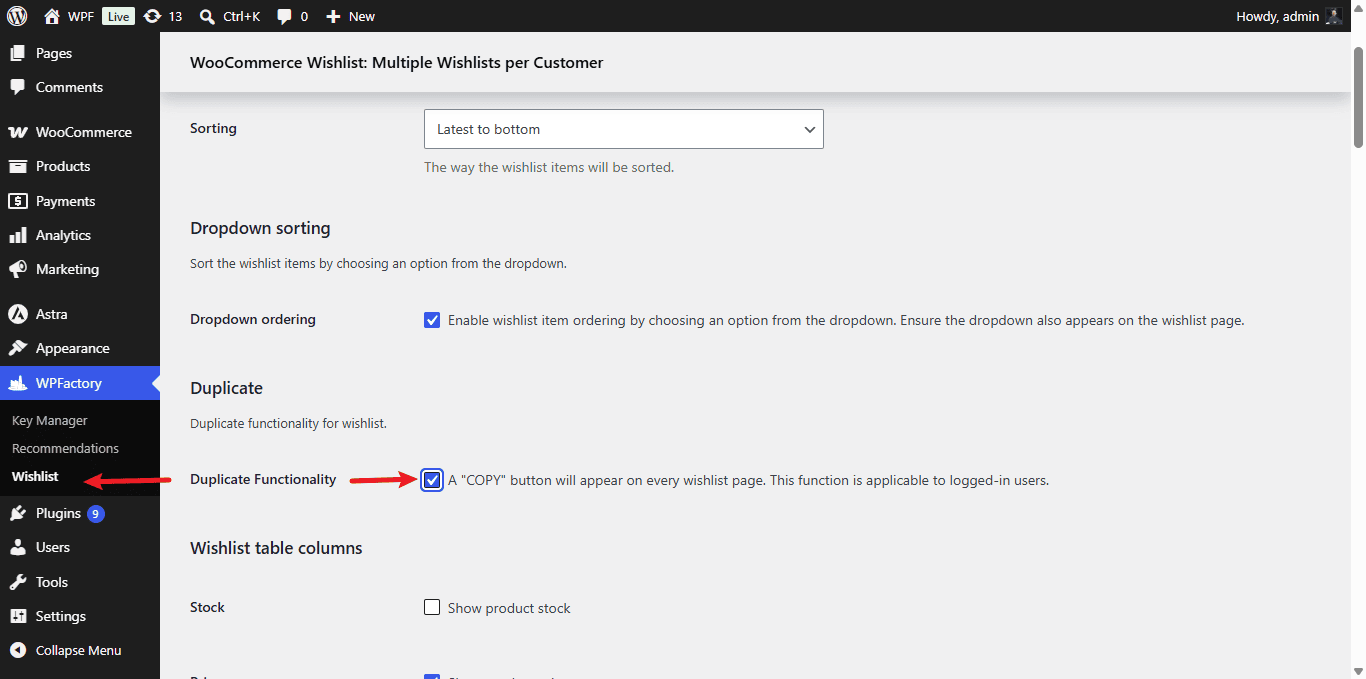
- Go to WPFactory > Wishlist (also reachable at WooCommerce > Settings > Wishlist).
- Open the Wishlist Page tab and scroll to the Duplicate section.
- Enable Duplicate Functionality (
alg_wc_wl_duplicate_option, default No). - Save changes.
A COPY button now appears on every wishlist page. When a customer clicks it, the current wishlist is duplicated into a new list they can rename.
Ready to set this up? #
This is a Pro feature of Wishlist for WooCommerce. If you are still on the free version, upgrading unlocks the copy button along with sorting and the rest of the Pro toolkit. Get Wishlist for WooCommerce Pro.