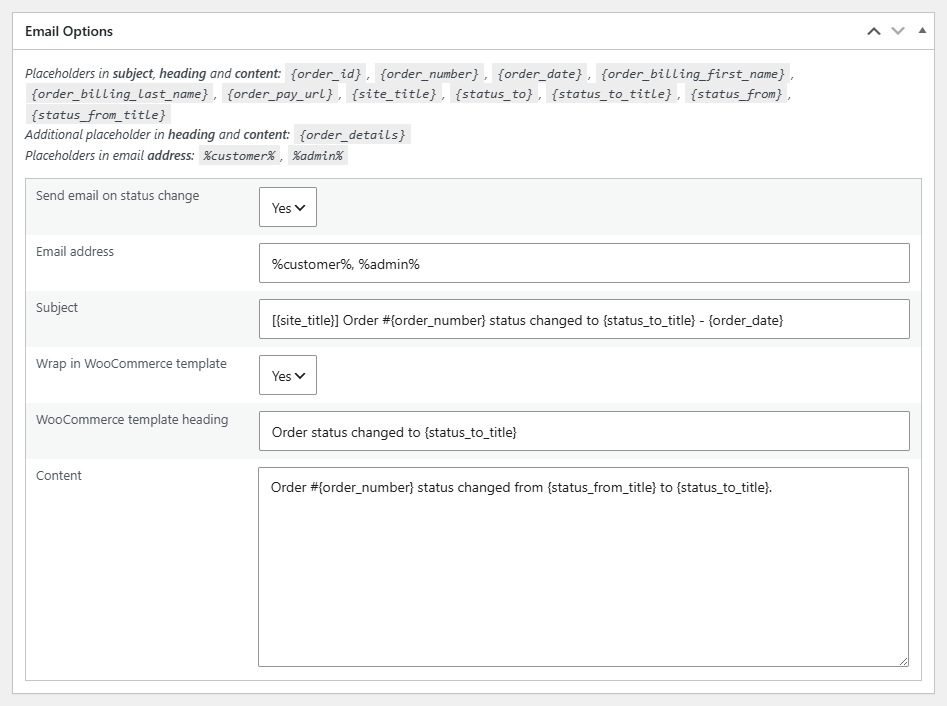
To configure a custom order status email in Additional Custom Order Status for WooCommerce Pro, go to WooCommerce > Order Status, open the status, and in the Email Options box set Send email on status change to Yes. Then set the email address, subject, heading and content, using placeholders such as {order_number}. Each status is configured separately.
Before you start #
- WooCommerce, active.
- Additional Custom Order Status for WooCommerce Pro. In the free version the email box is disabled.
Enabling the email #
Go to WooCommerce > Order Status, open a status, and in the Email Options box set Send email on status change to Yes. The email then sends whenever an order moves to that status. Each status is configured separately, so different statuses can send different messages to different people.
What you can set #
- Email address: the recipient. Use a plain address, or the placeholders
%customer%(the order’s billing email) and%admin%(your admin email). Separate multiple addresses with commas. Leave blank to use the admin email. - Subject: the subject line, with placeholders.
- Wrap in WooCommerce template: wraps the message in the standard WooCommerce email layout (default Yes).
- WooCommerce template heading: the heading shown at the top of the wrapped email.
- Content: the body of the email, with placeholders.
Placeholders #
These work in the subject, heading, and content:
| Placeholder | Replaced with |
|---|---|
{order_id} |
Internal order ID. |
{order_number} |
Order number shown to the customer. |
{order_date} |
Order creation date. |
{order_billing_first_name} |
Billing first name. |
{order_billing_last_name} |
Billing last name. |
{order_pay_url} |
Customer pay-for-order URL. |
{site_title} |
Your site title. |
{status_to} / {status_to_title} |
New status slug / title. |
{status_from} / {status_from_title} |
Previous status slug / title. |
Two more placeholders work in the heading and content only: {order_details} (the order items table) and {completed_order} (the full completed-order block).
Pulling in order meta #
To insert a value from the order’s meta, use the plugin’s shortcode inside the email content: [alg_wc_os_order_meta key="your_meta_key"]. This is the correct way to add custom fields, rather than a placeholder. See the order meta shortcode reference for its attributes.
Note: the recipient placeholders are %customer% and %admin%, written with percent signs. They are not the same as the curly-brace placeholders used in the subject and body.
Ready to set this up? #
Status emails are a Pro feature of Custom Order Status. Upgrading takes a couple of minutes and unlocks per-status emails along with the rest of the Pro toolkit. Get Custom Order Status Pro.