To import WordPress and WooCommerce content from Excel, use Content Importer for WordPress & WooCommerce with Excel: open WPFactory > Content Excel Importer Pro, choose a post type, upload an .xlsx file and drag its columns onto post fields. Other tabs delete content, import or delete categories, and hold the settings.
Content Importer imports any post type (posts, pages, WooCommerce simple and variable products, custom post types), with categories, tags and custom taxonomies, featured and gallery images, ACF and other custom fields, and Yoast SEO fields. This guide walks through every tab.

Step 1: Install the plugin #
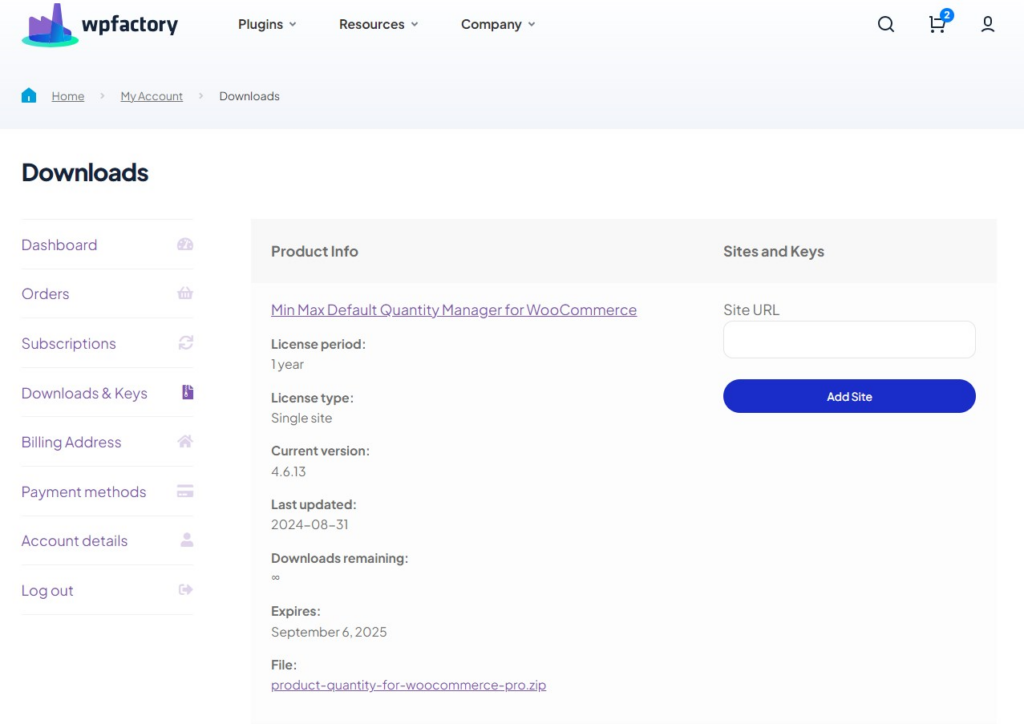
Download the plugin from your WPFactory account, upload it in Plugins > Add New Plugin > Upload Plugin and activate it. Full details are in Getting started with Content Importer.
Step 2: Open the plugin #
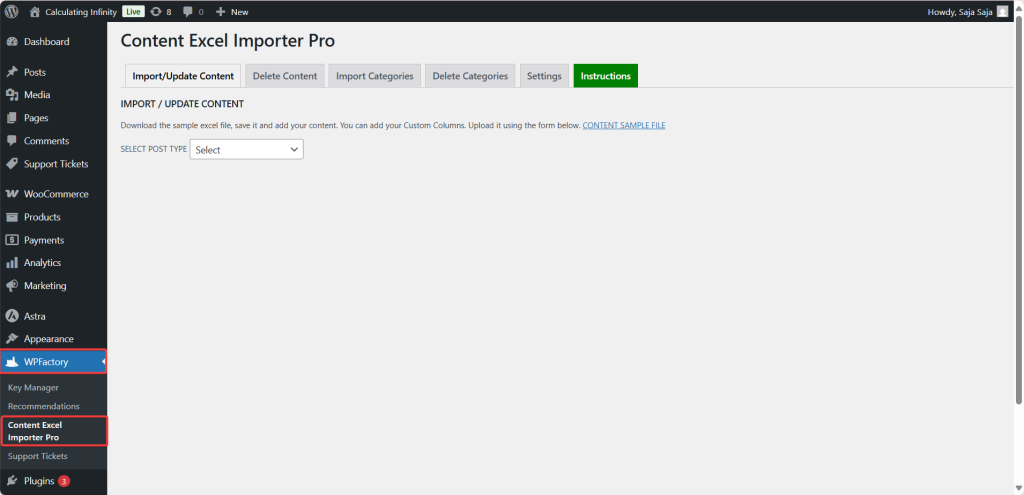
Go to WPFactory > Content Excel Importer Pro. Administrators have access by default; you can give one more role access in the Settings tab.
Step 3: Import or update content #
Prepare your data in Excel first. Each column needs a header in row 1, and each following row is one post, page or product. The Import/Update Content tab links sample files (a content sample for posts and pages, simple and variable product samples, and WPML samples when WPML is active) that show the expected layout.

- Open the Import/Update Content tab.
- In SELECT POST TYPE, choose the content type, for example
post,page,productor a custom post type.

- Choose your .xlsx file and click Upload.
- On the DATA MAPPING screen, drag each Excel column onto a field (post_title, post_content, image, taxonomies, custom fields and so on), or tick Auto Match Columns.
- Tick Always add new content even if title is the same if you do not want existing titles updated.
- Click Upload and keep the page open until JOB DONE! appears.
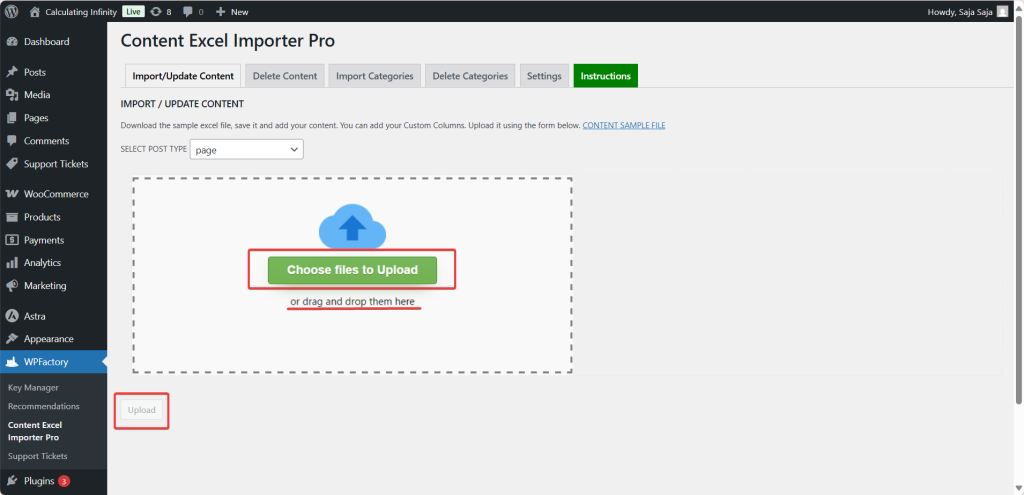
A row whose title matches an existing post is updated; a new title creates a new item. Step-by-step guides: How to import WordPress posts from Excel and How to import WooCommerce products with Excel.
Step 4: Delete content #
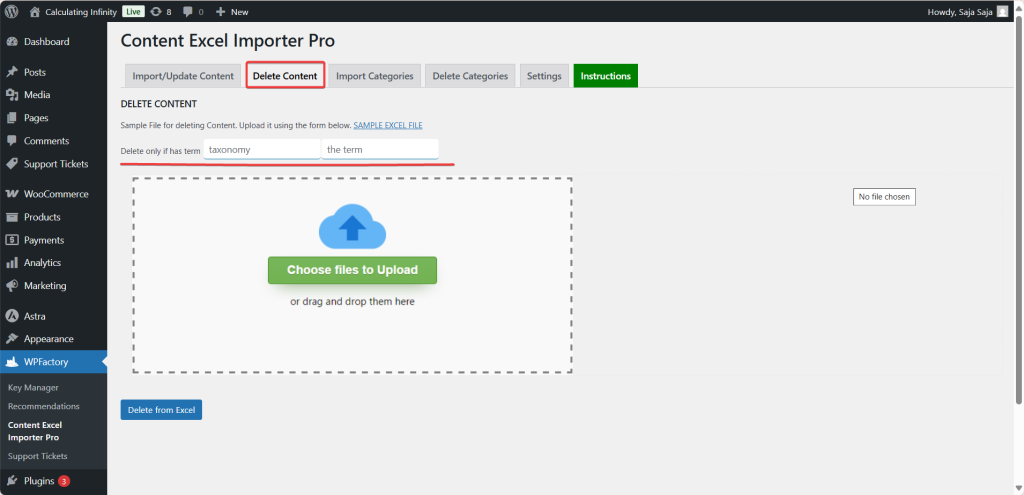
The Delete Content tab removes posts listed in an Excel file. Column A holds the title (or the ID, or the slug of a standard post); column B set to yes deletes permanently, anything else moves the item to the Trash.
Delete only if has term adds a condition with two boxes:
- Taxonomy: the classification, for example
category,post_tagor a custom taxonomy. - The term: the term inside that taxonomy, for example
news.
Taxonomy = category
Term = news
With this example, a listed item is deleted only if it is in the category news. Choose the Excel file, click Delete from Excel and confirm. More in How to bulk delete posts, products and terms with Excel.
Step 5: Import categories #
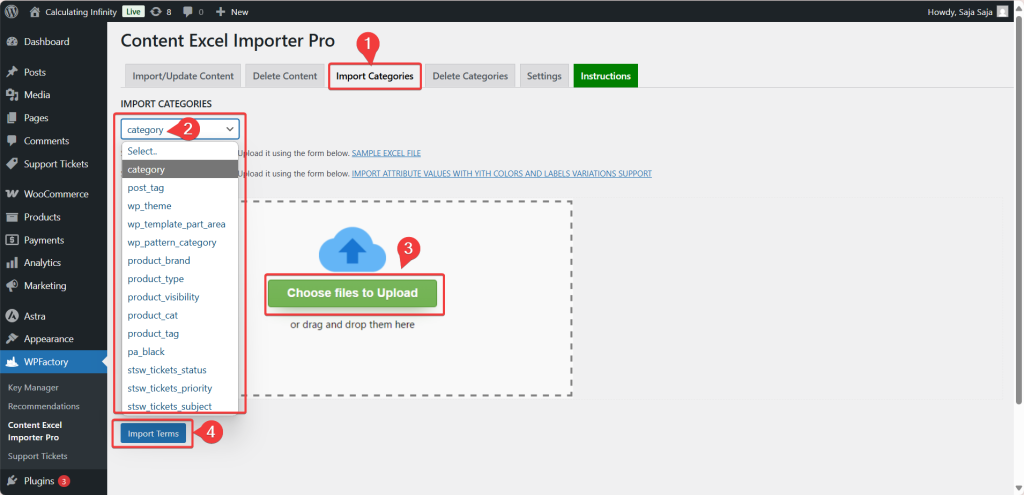
The Import Categories tab creates terms in any taxonomy you select (post categories, product categories, tags, attributes or custom taxonomies). Use fixed columns: A term name, B description (HTML allowed), C slug, D parent term. A missing parent is created first. See How to import categories and custom taxonomy terms from Excel.
Step 6: Delete categories #
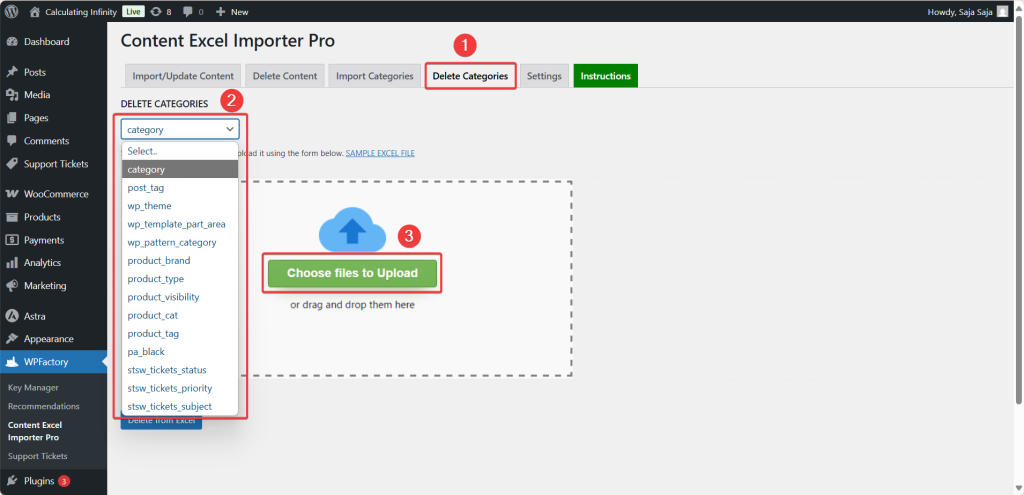
The Delete Categories tab works like Delete Content, but for terms: select the taxonomy, upload a file with term names in column A, and confirm.
Step 7: Settings #
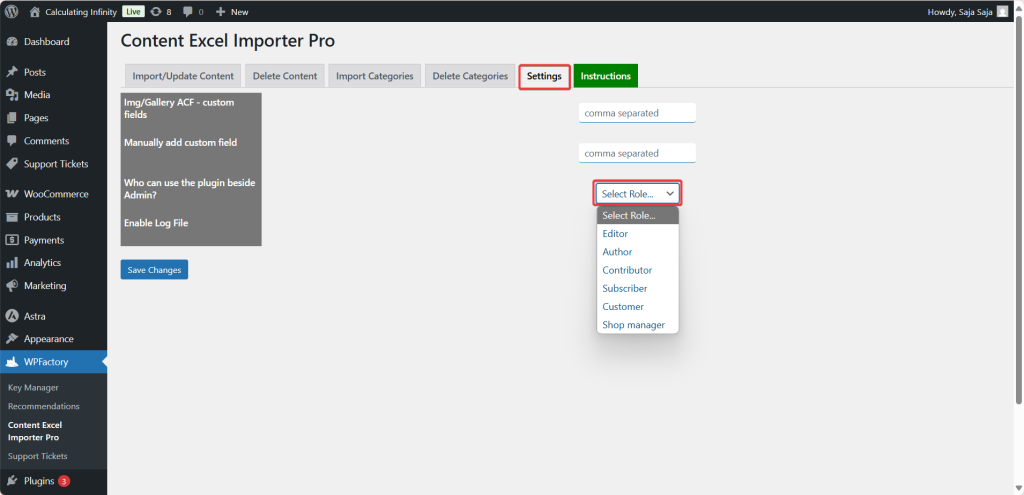
- Img/Gallery ACF – custom fields: comma separated names of ACF image or gallery fields. Values mapped to these fields are treated as image URLs or Media Library names and imported as attachments.
- Manually add custom field: comma separated meta keys to add to the mapping screen, for fields that do not exist on any post yet.
- Who can use the plugin beside Admin?: pick one role that also gets access to the plugin.
- Enable Log File: records each import or delete action in a log you can download when the job finishes.
Defaults and option IDs are in Content Importer settings and field mapping reference.
Step 8: Instructions #
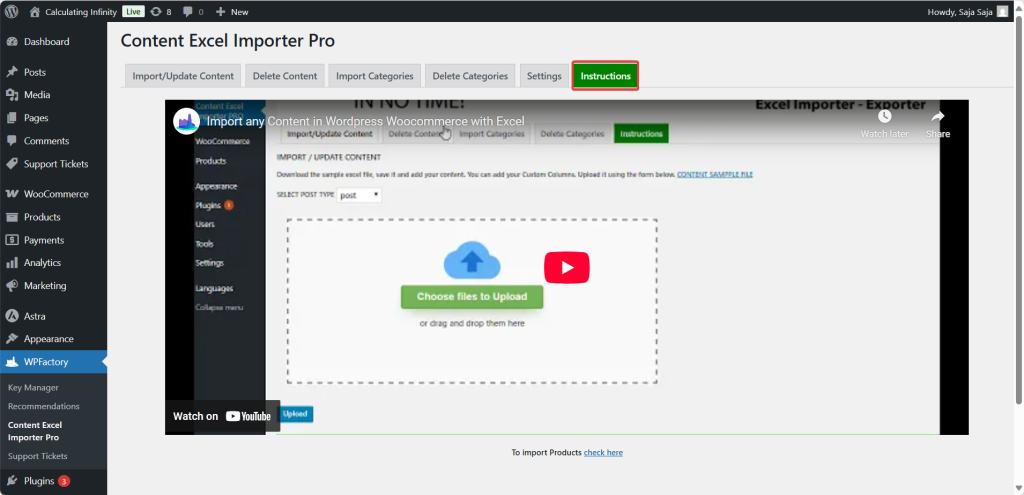
The Instructions tab shows a video walkthrough and a link to a product import video. You can also watch it on YouTube.
FAQ #
Do I need WooCommerce to use Content Importer? #
No. Posts, pages and custom post types import without WooCommerce. WooCommerce is only needed when you import the product post type.
Can I import a CSV file? #
No. Save the sheet as .xlsx: the import only processes files uploaded as Excel Workbook (.xlsx).
How does the plugin decide between create and update? #
By title. If an item with the same title exists, it is updated, unless you tick Always add new content even if title is the same.
Can I import Yoast SEO titles and descriptions? #
Yes, when Yoast SEO is active the Yoast title, meta description and focus keyword appear as fields. See How to bulk import and edit Yoast SEO meta with Excel.
Ready to set this up? #
This is part of Content Importer, a paid WPFactory plugin: every screen described here is included with your license. Get Content Importer.
Need a hand? Our team answers every ticket on the Content Importer support forum.