The Import/Update Products screen is the heart of WooCommerce Products Import & Export with Excel. This reference lists every control on that screen with its exact on-screen label and the form field name it uses, so you know precisely what each checkbox does before you run an import.
Open the screen at WPFactory > Product Import/Export > Import/Update Products. After you upload an Excel file, the controls below appear above and beside the data mapping area.
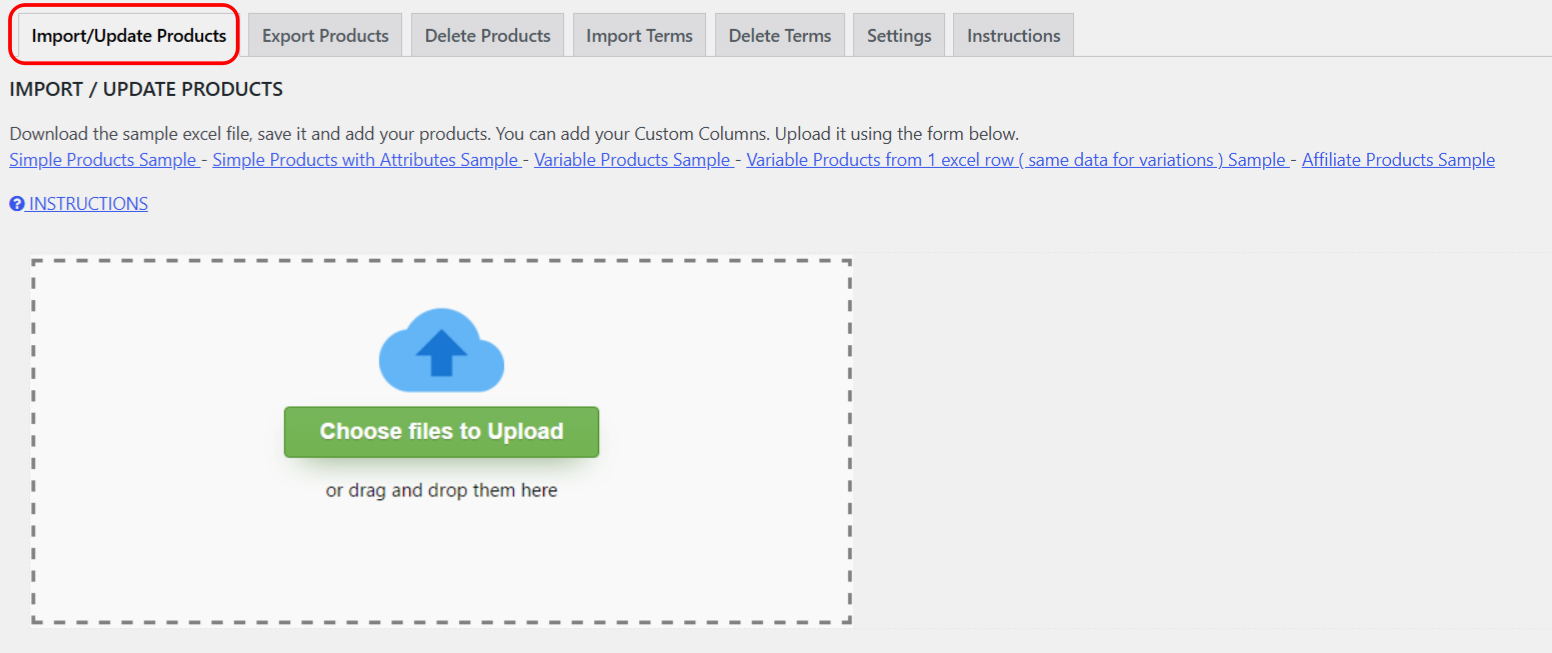
Mapping controls #
| Label | Field name | What it does |
|---|---|---|
| Auto Match Columns | automatch_columns |
Automatically maps Excel columns to product fields by matching their names, instead of dragging each one by hand. |
| Use Previously Saved Configuration | saved_configuration |
Applies the mapping you saved on an earlier run. Appears only after a mapping has been saved. |
| UPDATE ONLY | update_only |
Updates existing products only, without creating new ones. Pair it with the match field below. |
| update by (ID / SKU / TITLE) | updateby |
Chooses how existing products are matched during an update: by id, sku, or title. |
| Always add new Products even if title is the same | add_always_new |
Forces a new product per row even when a product with the same title exists. Does not apply to variable products. |
| Create only Simple Product with Attributes, if any ONLY, Not Variations | product_type |
Imports each row as a simple product that carries attributes, without generating variations. |
| WooCommerce Subscriptions | subscriptions |
Imports rows as subscription products. Appears only when WooCommerce Subscriptions is active. |
| Replace Categories on Update | replaceCategories |
Replaces a product’s existing categories with those in the file instead of adding to them. |
| Select Parent Categories as well | selectparent |
Also assigns the parent categories of any category found in the file. |
| Set Last Variation as Default (Variable Products) | default_attr |
Marks the last imported variation of a variable product as its default selection. |
| Assign Attribute to product even if value is null | assign_attr |
Adds attribute combinations without needing a duplicate row for an attribute value already imported. |
| Add Variable product from 1 row with attributes separated with separator defined in settings | var_one_row |
Builds a whole variable product from a single row, splitting attribute values by the separator set in Settings. |
| Save Mapping for later use | save_mapping |
Stores the current column mapping so you can reuse it, build a template, or schedule imports. |
Note: the one-row variable import (var_one_row) splits attribute values using the character set at WPFactory > Product Import/Export > Settings > Main > Separator for multiple values import. Set that separator before you run a one-row import, otherwise the values will not split correctly.
How product type is decided #
You rarely need to state the product type in the file. Products Import & Export with Excel infers it:
- A row with more than one attribute value or an existing variation becomes a variable product (or variable subscription when the Subscriptions option is ticked).
- A row you map a product URL to becomes an external / affiliate product.
- A single-attribute row with the Subscriptions option ticked becomes a subscription; otherwise it becomes a simple product.
- Ticking Create only Simple Product with Attributes … Not Variations forces every row to a simple product.
Related articles #
- Import simple products with attributes from one Excel row
- Import a variable product from a single Excel row
Get more from Products Import & Export with Excel #
WooCommerce Products Import & Export with Excel maps any Excel layout to WooCommerce products and updates them just as easily. See everything it can do.