The Settings tab in WooCommerce Products Import & Export with Excel holds the global options that control how imports and exports behave. This reference documents every field with its exact label and the option key it stores, so you can tune the plugin with confidence.
Open it at WPFactory > Product Import/Export > Settings. The Settings tab has four sub-tabs: Main, Products Import Template, Products Import Schedule, and Index Products.
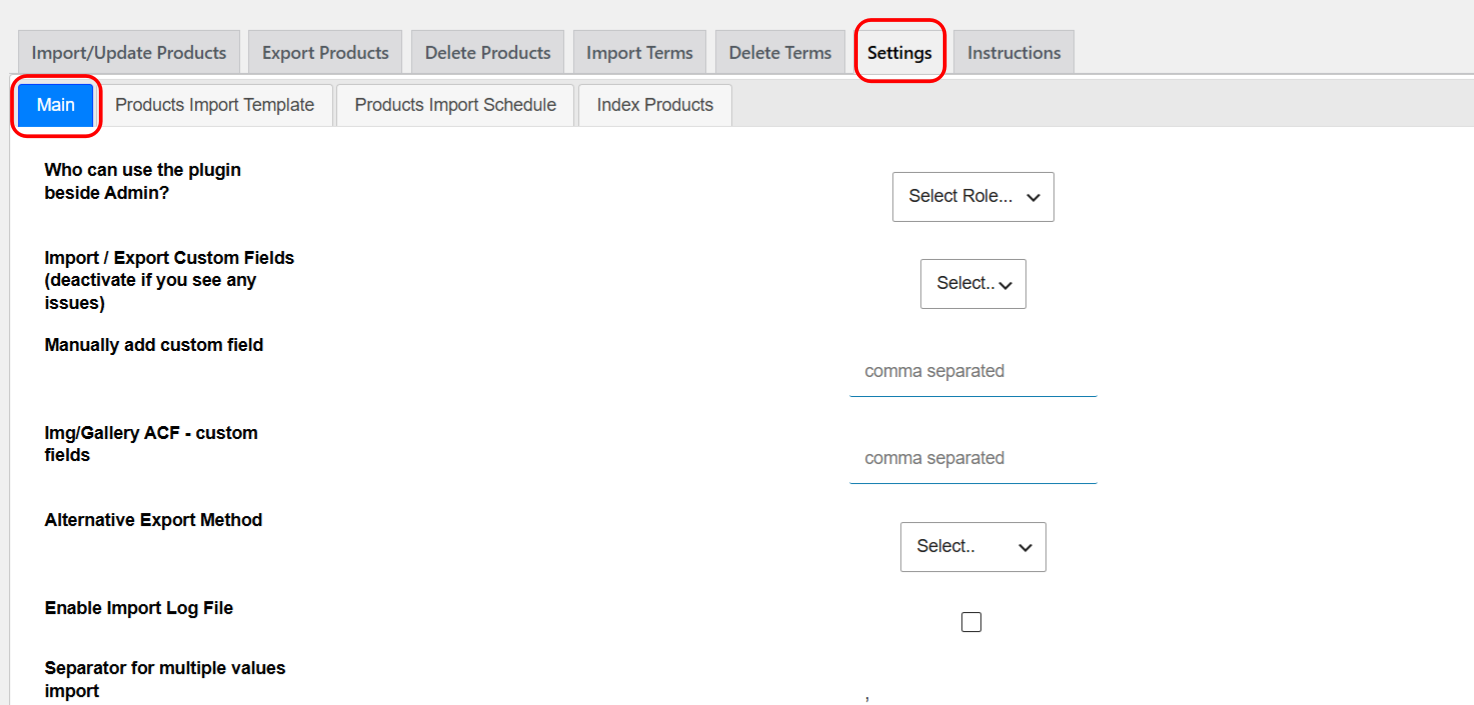
Main #
| Label | Option ID | Type | What it does |
|---|---|---|---|
| Who can use the plugin beside Admin? | wpeiePro_usr_access |
Role select | Grants one additional role access to the plugin. Administrators always have access. |
| Import / Export Custom Fields (deactivate if you see any issues) | wpeieProshowCustomFields |
Yes / No select | Detects custom field (meta) keys so they appear as mappable fields on the import and export screens. |
| Manually add custom field | wpeieProExtraFields |
Text (comma separated) | Adds custom field keys by hand when the plugin cannot detect them automatically. |
| Img/Gallery ACF – custom fields | wpeiePro_acf_gal |
Text (comma separated) | Names ACF image or gallery fields so images map correctly during import. |
| Alternative Export Method | wpeieProChooseExcelMethod |
Select (Alt Method 1 / Alt Method 2) | Switches to an alternative export routine when the default download does not trigger in a browser or server setup. |
| Enable Import Log File | wpeieProLogFile |
Checkbox | Writes a downloadable log of each import and term operation for troubleshooting. |
| Separator for multiple values import | wpeiePro_separator |
Text | The character that splits multiple values in one cell, used by attribute imports and one-row variable imports. |
Note: the Separator for multiple values import is used whenever attribute values share a cell, including the “Add Variable product from 1 row” import option. Set it before running those imports so values split correctly.
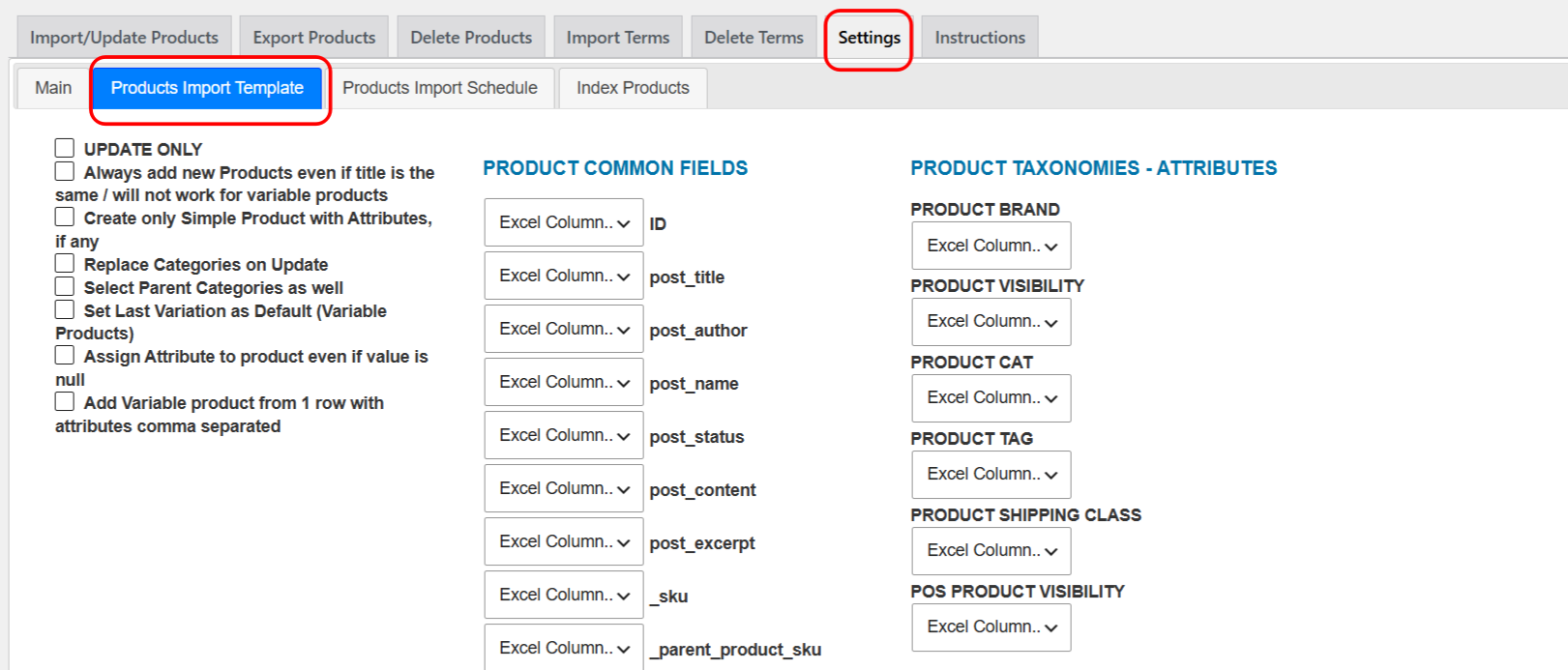
Products Import Template #
Build a reusable template that maps Excel column letters to product fields. Select the letter for each field so a later import can detect columns automatically. A saved template underpins scheduled imports.
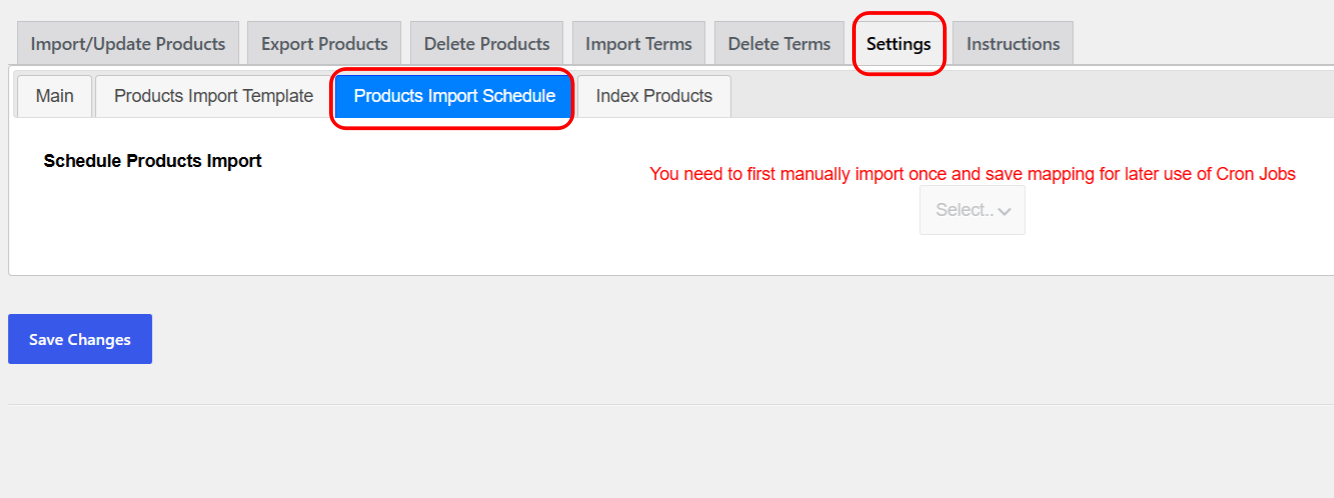
Products Import Schedule #
Configure a WP-Cron import. The schedule fields appear only after you have run at least one manual import with Save Mapping for later use ticked, because the schedule reuses that saved mapping.
| Label | Option ID | Notes |
|---|---|---|
| Schedule Products Import | wpeiePro_autoimport |
Turns scheduled importing on (Yes) or off (No). |
| Schedule Type | wpeiePro_cronType |
One Time or Recurrent. |
| Remote Products Excel URL | wpeiePro_importUrl |
Public URL of the Excel file to import (for example a published Google Sheet). |
| Products Import Schedule Frequency | wpeiePro_importFrequency |
1min, 10min, 15min, 30min, 1 hour, 6 hours, 12 hours, Daily, Weekly, or Monthly. |
| Products Import Schedule Date | wpeiePro_importDate |
Start date, used mainly for a one-time import. |
| Products Import Schedule Time | wpeiePro_importTime |
Time of day to run. |
| Email info when cron finished | wpeiePro_emailForReport |
Address that receives a report when a scheduled import completes. |
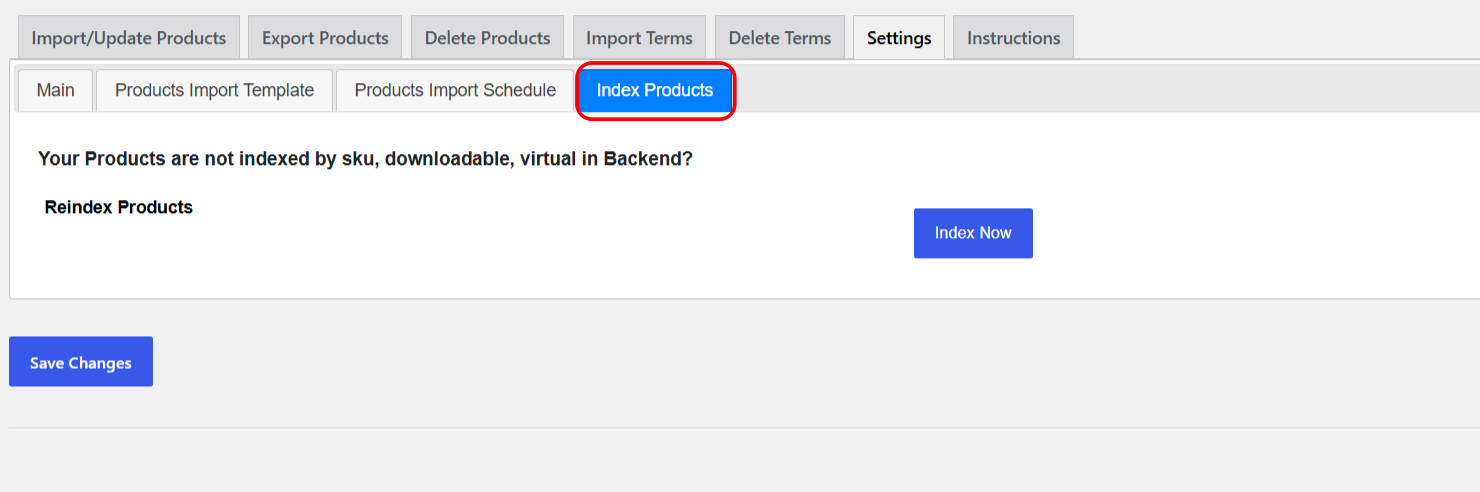
Index Products #
The Reindex Products button (wpeieProIndexProducts) indexes products by SKU, downloadable, and virtual status in the backend. Use it if products are not appearing correctly in the admin after an import.
Get more from Products Import & Export with Excel #
Dialing in these settings once makes every import and export smoother. WooCommerce Products Import & Export with Excel gives you full control over how your Excel data maps to WooCommerce. See everything it can do.