Getting started with product import and export in Excel #
To import WooCommerce products from an Excel file, install WooCommerce Products Import & Export with Excel, open its admin screen, and run your first import with one of the bundled sample files. This guide walks you through activation, where the plugin lives in the admin, and a first import from start to finish.
Before you start #
- WooCommerce, installed and active.
- Products Import & Export with Excel, installed and activated with your license key.
- PHP 8.1 or later (the plugin requires it).
Activate the plugin #
- Upload and activate the plugin from Plugins > Add New, or install it through your account download.
- After activation, enter your license key when prompted so updates and the full feature set are enabled.
Find the plugin screen #
Everything happens on a single admin screen. Go to WPFactory > Product Import/Export in the WordPress admin menu. You can also reach it from the Settings link next to the plugin on the Plugins page. Products Import & Export with Excel is a WordPress admin screen, not a tab inside WooCommerce settings.
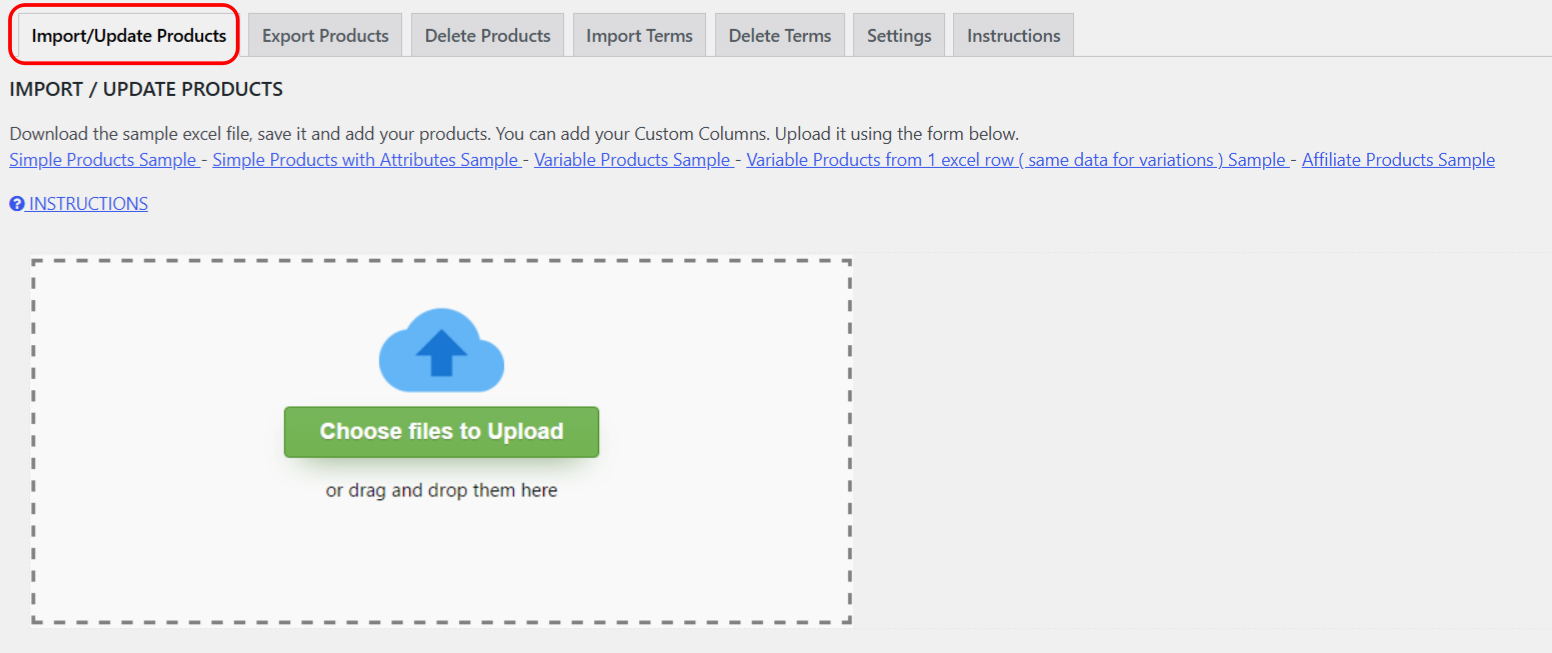
The seven tabs #
The screen is organized into tabs across the top:
| Tab | What it does |
|---|---|
| Import/Update Products | The default tab. Upload an Excel file, map columns to product fields, and create or update products. |
| Export Products | Filter your catalog, choose fields, and download products as Excel. |
| Delete Products | Remove products in bulk using an Excel file of IDs or titles. |
| Import Terms | Import category, tag, attribute, and brand terms from Excel. |
| Delete Terms | Remove taxonomy terms in bulk from Excel. |
| Settings | Global options, import template, import schedule, and product indexing. |
| Instructions | Built-in help, the documentation download, and a walkthrough video. |
Run your first import #
- On Import/Update Products, download one of the sample Excel files linked at the top of the screen so your columns match what the plugin expects.
- Click the upload control and choose your Excel file. The plugin reads the columns and shows them as draggable buttons.
- Drag each Excel column onto the matching product field on the left, or tick Auto Match Columns to let the plugin line them up by name.
- If you plan to reuse this layout later (for templates or scheduled imports), tick Save Mapping for later use.
- Click Upload. The import runs in batches over AJAX and reports progress on screen.
Note: imports and updates match on the field you choose. For a first run, importing by product title is simplest; for repeatable updates, match by ID or SKU to avoid duplicates.
Who can use the plugin #
By default only administrators can run imports and exports. You can grant access to one additional role under WPFactory > Product Import/Export > Settings > Main > Who can use the plugin beside Admin?.
Where to go next #
Once your first import works, explore the full mapping options in the Products Import & Export with Excel import screen, set up an export template, or schedule recurring imports. See everything the plugin can do.