To export WooCommerce products to an Excel file, use the Export Products screen in WooCommerce Products Import & Export with Excel. You can filter which products are included, choose exactly which fields and taxonomies to output, and optionally schedule the export to run on its own.
Open the export screen #
Go to WPFactory > Product Import/Export > Export Products.
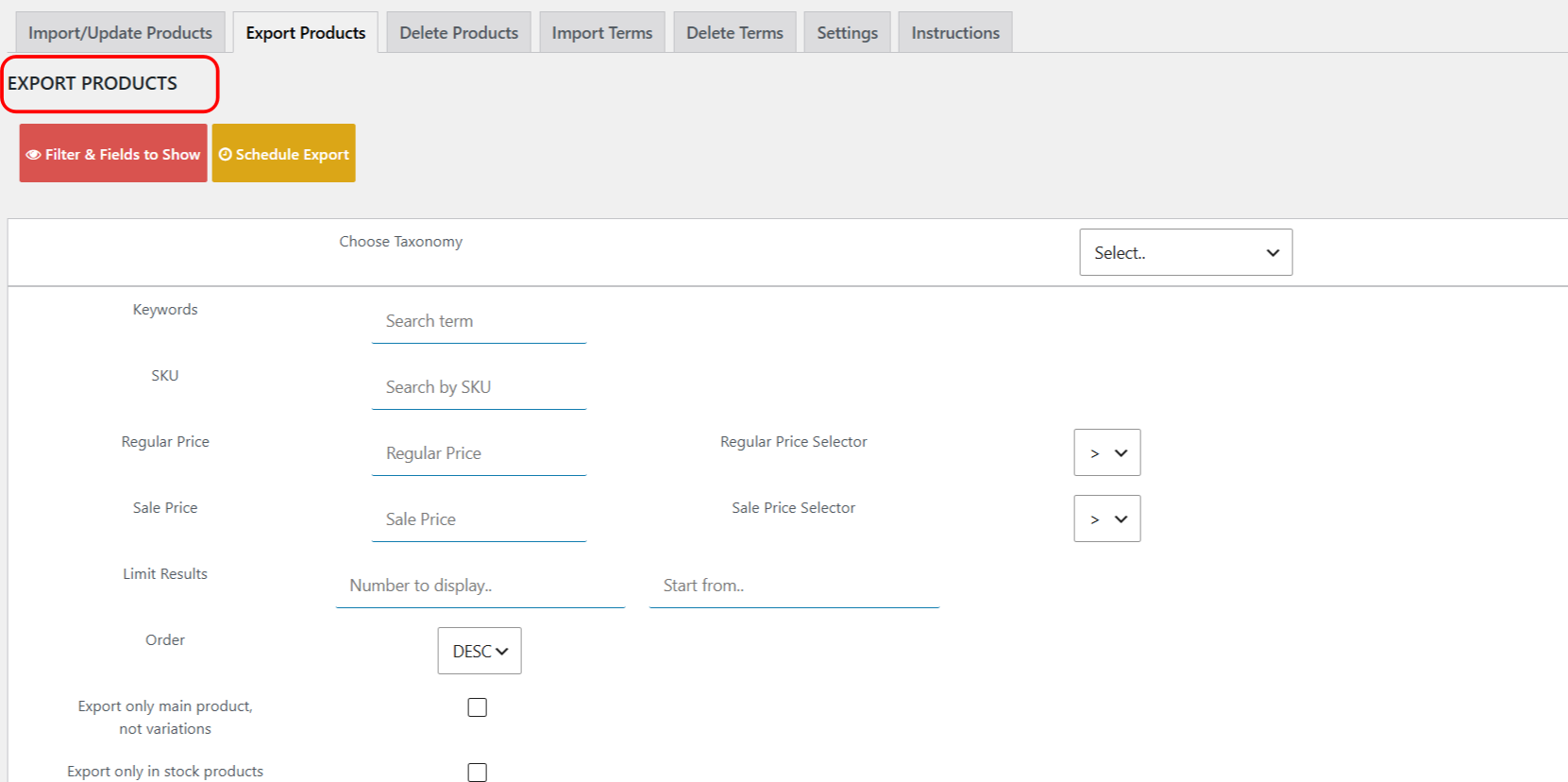
Filter which products to export #
Use the filter table to narrow the export. All filters are optional; leave them blank to export everything.
| Filter | What it does |
|---|---|
| Choose Taxonomy / Tax Terms | Limit the export to products in a taxonomy term, such as a specific product category or attribute value. |
| Keywords | Match products by a search term. |
| SKU | Match products by SKU. |
| Regular Price + Regular Price Selector | Compare the regular price against a value using an operator (>, >=, <=, <, ==, !=). |
| Sale Price + Sale Price Selector | Compare the sale price against a value using the same operators. |
| Limit Results / Start from | Set how many products to export (number to display) and an offset to start from. |
| Order | Sort the results DESC or ASC. |
| Export only main product, not variations | Output parent products only, skipping their individual variations. |
| Export only in stock products | Limit the export to products that are in stock. |
Choose taxonomies and fields #
- Under TAXONOMIES TO SHOW, tick the taxonomies you want as columns (categories, tags, attributes, and any custom product taxonomy). Use Check All to include them all.
- Under FIELDS TO SHOW, tick the product fields to export, such as
post_title,_sku,_regular_price,_sale_price,_stock, and image fields. Use Check All to include everything. When WooCommerce Subscriptions is active, the subscription fields appear here too. - Click Search to generate the export and download the Excel file.
Schedule an export #
Click Schedule Export to set an Export date, Export time, and an email address for a notification when the export finishes. Combine this with your filters and selected fields to produce a recurring, ready-to-use export file. The most recent scheduled export is available at the top of the screen as Last Scheduled Export.
Reuse a saved configuration #
If you have exported before and saved the setup, tick Use Previously Saved Configuration to reapply your last filters and field selection.
Tip: if the export does not download in your browser, open Settings > Main and try an Alternative Export Method. Two alternative methods are available for stores where the default download does not trigger.
Get more from Products Import & Export with Excel #
An export from WooCommerce Products Import & Export with Excel doubles as a perfectly shaped import template: edit it and import it back to bulk-update prices, stock, or any field. See everything it can do.