To run a WooCommerce product export to Excel automatically at a set date and time, open the Export Products tab at WPFactory > Product Import/Export in WooCommerce Products Import & Export with Excel, choose your fields and filters, then click Schedule Export. WordPress cron creates the file in the background and can email you when it is ready.
Before you start #
- WooCommerce, active.
- WooCommerce Products Import & Export with Excel, active.
- WordPress cron working on your site. Scheduled events run when the site receives visits or a server cron calls it.
Step by step #
- Open WPFactory > Product Import/Export and click the Export Products tab.
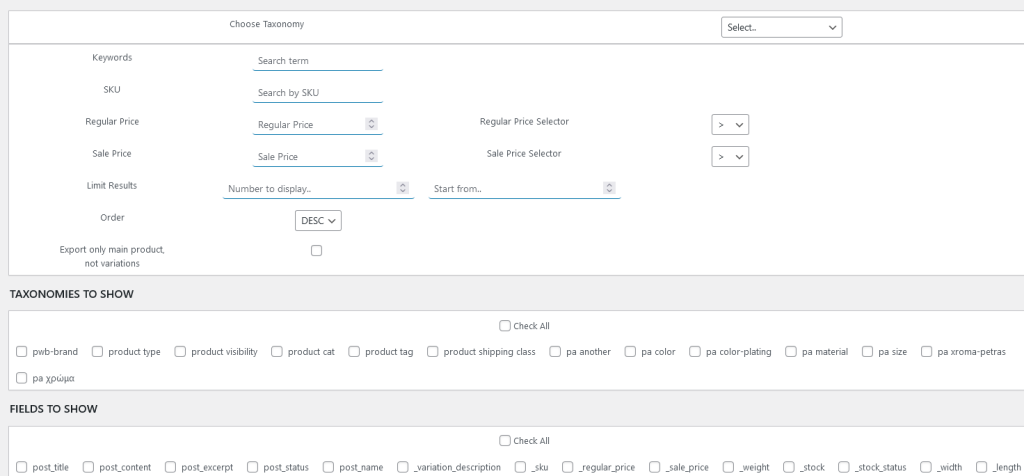
- Click Filter & Fields to Show and select the fields and taxonomy terms you want to export.
- Apply filters to limit the export to the exact products you want, by taxonomy term, search keyword, SKU, or price.
- Click Schedule Export.
- Set Export date and Export time. Optionally enter an address in Email notification when Export Done.
- Click Click to Schedule to save the schedule. A message confirms the date and time.
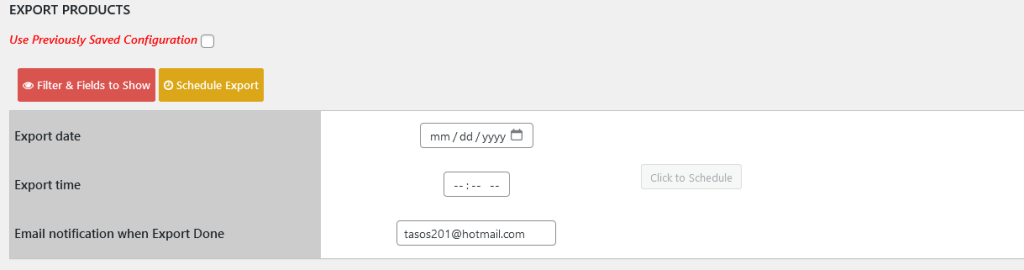
The export runs once at the date and time you chose. The most recent scheduled file is available from the Export Products tab as Last Scheduled Export, with an option to delete it.
What happens when it runs #
- The file is saved as
export.xlsx, replacing the previous scheduled export. - The fields and filters you saved are used, along with your multi-value separator from Settings > Main.
- The date and time are cleared after the run. To export again, schedule a new run.
- If you entered an email, a “Your export is ready!” message is sent.
Recurring automation #
Recurring schedules are available for imports: Settings > Products Import Schedule offers Schedule Type One Time or Recurrent from a remote Excel URL. See How to Schedule a WooCommerce Product Import from Excel with a Cron Job and Google Sheets Scheduled Product Sync.
To export on demand instead of on a schedule, see How to Export WooCommerce Products to Excel with Filters.
If it does not work #
- The export never runs: WordPress cron did not fire. Visit the site after the scheduled time, or set up a server cron for
wp-cron.php. - Nothing was scheduled: the schedule is only saved when Export date is filled in. Set both the date and the time.
- No email arrives: check the address and your site’s mail setup.
FAQ #
Can the export repeat every day? #
Not on its own. Each scheduled export runs once; schedule the next one after it completes.
Where is the scheduled file stored? #
As export.xlsx in the plugin folder, downloadable from Last Scheduled Export.
Can I schedule imports too? #
Yes, including recurring ones, from Settings > Products Import Schedule.
Get the most from Products Import & Export with Excel #
WooCommerce Products Import & Export with Excel can also schedule automatic imports from a remote Excel or Google Sheets URL. See everything it can do.
Need a hand? Our team answers every ticket on the Products Import & Export with Excel support forum.