You can automate WooCommerce product imports by scheduling a cron job with WooCommerce Products Import & Export with Excel. Instead of uploading and mapping a file by hand each time, Products Import & Export with Excel reads an Excel file from a remote URL and imports or updates products in the background, once or on a repeating interval.
Scheduled imports are used mainly to create a large batch of new products in the background, or to keep stock and prices up to date by pointing the schedule at an Excel file that you refresh from a remote location.
Before you start #
- WooCommerce, active.
- WooCommerce Products Import & Export with Excel, active.
- You must run one manual import first and save the mapping (see step 2). The schedule fields stay hidden until a saved mapping exists.
Step 1: Host your Excel file at a public URL #
Place the .xlsx file somewhere publicly reachable, for example https://yourwebsite.com/products.xlsx. You can also use a Google Sheets URL that is published and output as xlsx. You will paste this URL into the schedule settings later.
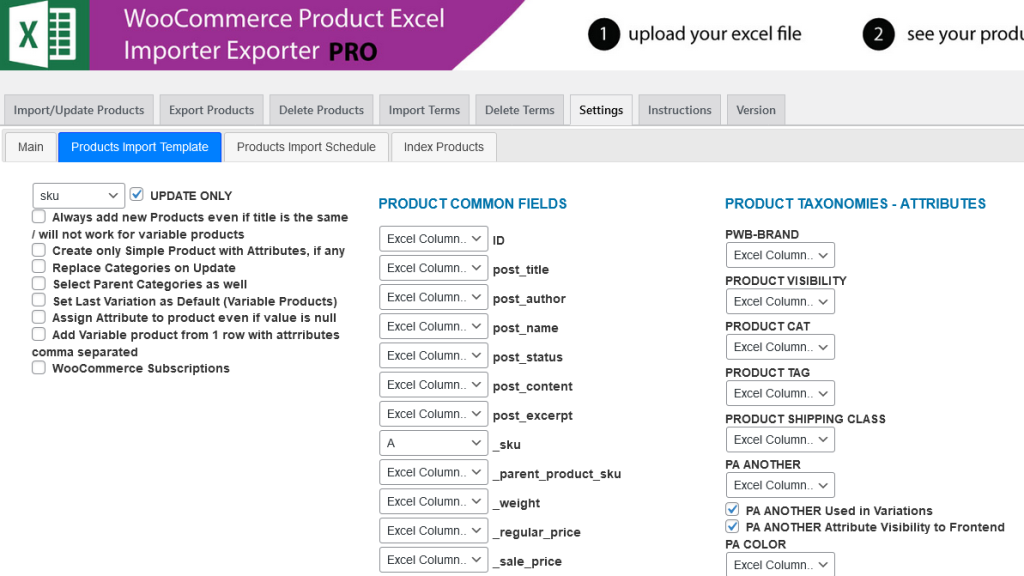
Step 2: Save an import mapping template #
The scheduled import needs to know how your Excel columns map to product fields. Save that mapping in either of two ways:
- Open WPFactory > Product Import/Export > Settings and use the Products Import Template sub-tab. This screen detects your WooCommerce product fields, taxonomies, and custom fields; set the Excel column letter for each field and save.
- Or, during a normal manual import on the Import/Update Products tab, map your columns and tick Save Mapping for later use before you start.
Step 3: Configure the schedule #
Open WPFactory > Product Import/Export > Settings and click the Products Import Schedule sub-tab.
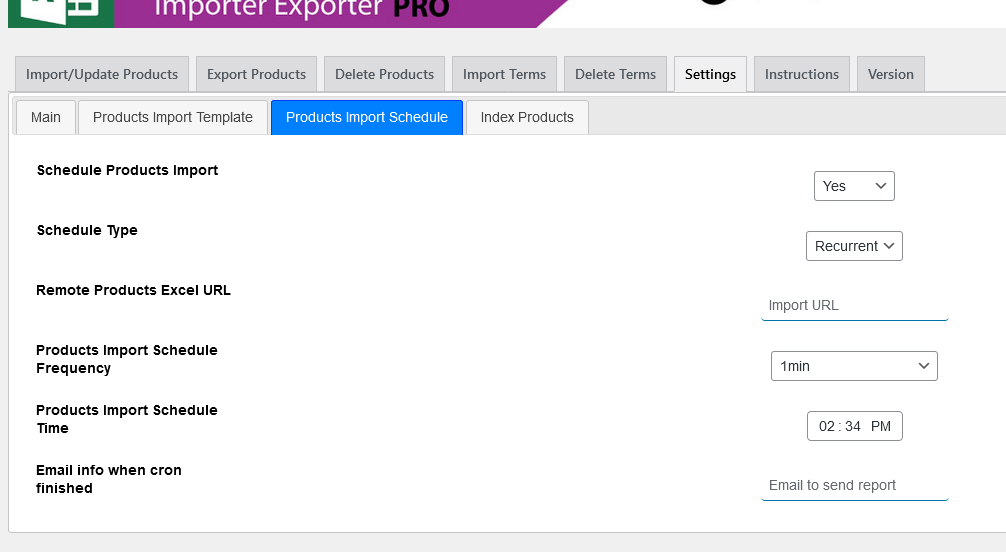
- Set Schedule Products Import to Yes.
- Choose the Schedule Type: One Time or Recurrent.
- Enter the Remote Products Excel URL from step 1.
- Set the import date and time.
- For a recurrent import, choose the Products Import Schedule Frequency: 1min, 10min, 15min, 30min, 1 hour, 6 hours, 12 hours, Daily, Weekly, or Monthly.
- Optionally enter an email address under Email info when cron finished to receive a confirmation when each run completes.
- Save changes.
The import now runs in the background on the schedule you set, saving you from importing products one file at a time.
Get the most from Products Import & Export with Excel #
WooCommerce Products Import & Export with Excel can also schedule exports and sync products directly from Google Sheets. See everything it can do.