To assign WooCommerce product categories while importing from Excel with WooCommerce Products Import & Export with Excel, map your category column to the product category field on the Import/Update Products tab at WPFactory > Product Import/Export. One cell can hold one term, several terms, or the last child term of a hierarchy with Select Parent Categories as well ticked.
Assign multiple category terms to a product #
To assign several terms, enter them comma separated in one Excel cell, in that product’s row. The comma is the default; if you changed Settings > Main > Separator for multiple values import, use that symbol instead.
Assign a single category term #
To assign one term, put that single term value in the product’s category cell.
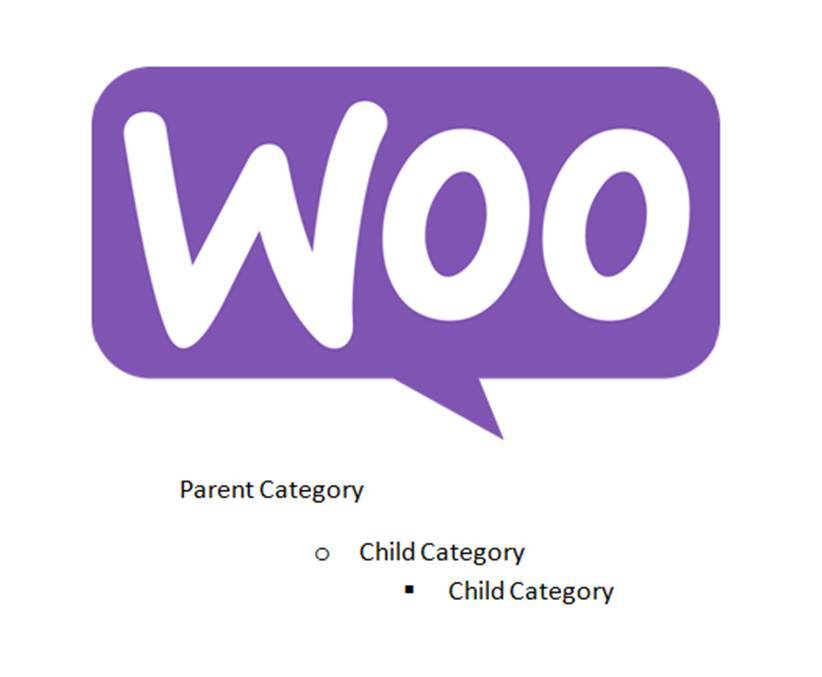
Assign a hierarchical term with all of its parents #
To place a product under a child term and include every parent term above it, enter only the last child term value in the Excel cell, then on the mapping screen tick the checkbox Select Parent Categories as well. The product is assigned to the child term and all of its parents.
Step by step #
- Create the category tree first, in Products > Categories or in bulk with the Import Terms tab. See How to Import Category Terms, Attributes, and Brands with Excel.
- Add a category column to your product file and fill it using one of the patterns above.
- Go to WPFactory > Product Import/Export, open Import/Update Products and upload the file.
- Drag the category column onto the product category field in PRODUCT TAXONOMIES – ATTRIBUTES.
- Tick Select Parent Categories as well and, when updating, Replace Categories on Update if needed.
- Click Upload.
Category options on the mapping screen #
| Checkbox | Effect |
|---|---|
| Select Parent Categories as well | Also assigns every parent of each assigned term. |
| Replace Categories on Update | Removes the product’s current terms before assigning the ones in the file. Without it, new terms are added to the existing ones. |
Handling duplicate term names #
If you use category terms that share the same name, for example Shirts under both Women Clothing and Men Clothing, enter the term’s slug (for example shirts-men) instead of the name. WordPress looks a term up by slug first, then by name, so a unique slug tells it exactly which term to assign.
If it does not work #
- A new, unwanted category appears: the cell value did not match an existing term’s slug or name, so WordPress created a new term. Check spelling and spacing.
- Old categories remain after an update: tick Replace Categories on Update.
- Parents are missing: tick Select Parent Categories as well, and make sure the tree already exists.
FAQ #
Can I import the category tree itself? #
Yes, with the Import Terms tab, which creates terms and their parents in bulk.
Can I use a different separator than a comma? #
Yes. Set it in Settings > Main > Separator for multiple values import. It applies to every multi-value column.
Does this work for tags and brands too? #
Yes. Every product taxonomy appears in the same section and follows the same rules.
Related: Import Mapping Options Reference.
Get the most from Products Import & Export with Excel #
WooCommerce Products Import & Export with Excel can also create category terms, attributes, and brands in bulk from the Import Terms screen. See everything it can do.
Need a hand? Our team answers every ticket on the Products Import & Export with Excel support forum.