To choose which attributes create variations when you import variable products, tick Used in Variations next to each attribute on the mapping screen of WooCommerce Products Import & Export with Excel at WPFactory > Product Import/Export > Import/Update Products. Attributes left unticked are still saved on the product but do not generate variations.
Before you start #
- WooCommerce, active, and Products Import & Export with Excel with a valid license.
- Each attribute created as a global attribute in Products > Attributes. Only global attributes get a mapping field and a Used in Variations checkbox.
- An
.xlsxfile with one column per attribute. For one row per variation, repeat the same product title on each row.
Step by step #
- Open WPFactory > Product Import/Export and stay on the Import/Update Products tab.
- Upload your Excel file. The mapping screen opens.
- Map the columns that hold your attribute values. Each global attribute is listed by name, for example PA COLOR, with a Used in Variations checkbox and an Attribute Visibility to Frontend checkbox below it.
- Tick Used in Variations for every attribute the shopper should choose from, such as size and color.
- Leave it unticked for attributes that only describe the product, such as material. They are assigned to the product and listed in its attributes, but no variations are built from them.
- Map the rest of your fields and click Upload.
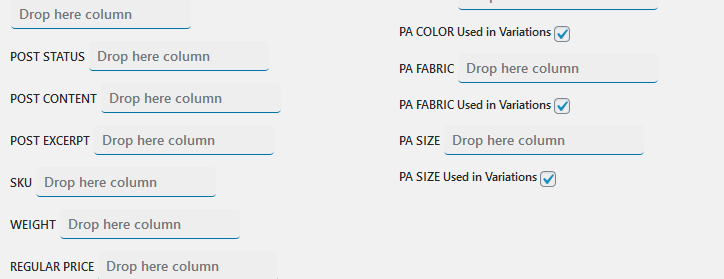
Only the attributes you check are used when building the product’s variations, which gives you precise control over how each variable product is generated.
Mapping options for each attribute #
| Field | Default | What it does |
|---|---|---|
| Drop here column (attribute name, for example PA SIZE) | Empty | The Excel column that holds the attribute values. |
| Used in Variations | Unticked | Ticked: the attribute is set as “used for variations” and its value becomes part of each variation. Unticked: attribute only. |
| Attribute Visibility to Frontend | Ticked | Shows the attribute in the product’s Additional information tab. |
Example #
A t-shirt file has columns for size, color and material, with one row per size and color combination. Tick Used in Variations for size and color, leave material unticked. The result is one variable product whose variations are “Small, Red”, “Small, Blue” and so on, while material appears only as product information.
Related import modes #
- All variations share the same data: use Import a variable product from one Excel row. Used in Variations still decides which attributes are combined.
- Only one attribute changes the price: see Import variable products when only some attributes change the data.
- No variations at all: tick Create only Simple Product with Attributes, if any ONLY, Not Variations.
If it does not work #
- A simple product is created with no variations: no attribute has Used in Variations ticked.
- An attribute has no checkbox: it is a custom (product level) attribute. Create it under Products > Attributes first.
- Every row becomes a separate product: the rows have different titles, or Always add new Products even if title is the same is ticked, which does not work for variable products.
- You have to tick the boxes on every import: save the mapping with Save Mapping for later use and reuse it, or ask a developer to use the
wpfactory_wc_peie_pro_import_products_used_in_variations_checked_defaultfilter to tick them by default.
FAQ #
How do I import product variations in WooCommerce from Excel? #
Put each variation on its own row with the same product title, map the attribute columns, tick Used in Variations for the attributes that define the variations, and upload. Add a PARENT Product SKU column if the parent product needs its own SKU.
Can an attribute be visible but not used for variations? #
Yes. Leave Used in Variations unticked and keep Attribute Visibility to Frontend ticked.
Can I export variable products and their variations? #
Yes. See How to export WooCommerce products to Excel. Exported variation rows can be edited and imported back to update them.
Get the most from Products Import & Export with Excel #
WooCommerce Products Import & Export with Excel imports variable products from one row per variation, or from a single row when the variations share the same data. See everything it can do.
Need a hand? Our team answers every ticket on the Products Import & Export with Excel support forum.