- Sync WooCommerce products from Google Sheets on a schedule
Sync WooCommerce products from Google Sheets on a schedule #
You can keep WooCommerce products in sync with a Google Sheet by publishing the sheet as a public Excel file and importing it on a schedule with WooCommerce Products Import & Export with Excel. Products Import & Export with Excel downloads the published sheet at the times you set, applies your saved column mapping, and creates or updates products automatically.
Before you start #
- WooCommerce, installed and active.
- Products Import & Export with Excel updated to version 12.1.1 or later.
- A Google Sheet with product data whose columns match the import fields (for example ID or SKU, title, prices, stock).
1. Update the plugin #
- Go to Plugins > Installed Plugins in WordPress.
- Find Products Import & Export with Excel and confirm the version is 12.1.1 or higher.
- If an update is available, click Update now, then check that the site still works after updating.
2. Prepare the Google Sheet #
You can start from an export of your current catalog (recommended) or from an empty sheet.
2.1 Export your existing products first #
Use the Export Products screen to decide which products and fields become your template.
- Go to WPFactory > Product Import/Export > Export Products.
- Optionally set filters, for example by SKU, regular price, or sale price, and limit the number of results or set the order (ASC or DESC).
- Under TAXONOMIES TO SHOW, tick any taxonomies you want included, such as product categories, tags, or attributes.
- Under FIELDS TO SHOW, select the exact fields you want, such as
_sku,_regular_price,_sale_price, and_stock, or use Check All. - Click Search to generate and download the Excel file.
- Open the downloaded file, use it as your template, then paste its contents into Google Sheets for the steps below.
2.2 Create or edit the Google Sheet #
- Make sure the first row holds the column headers you plan to map, for example
ID,SKU,POST TITLE,regular_price, andsale_price. - Add or edit product rows under those headers. Match existing products by ID or SKU, whichever you will use when mapping.
3. Publish the Google Sheet as a public XLSX URL #
The scheduled import needs a public, direct XLSX link. Use the “Publish to the web” option in Google Sheets.
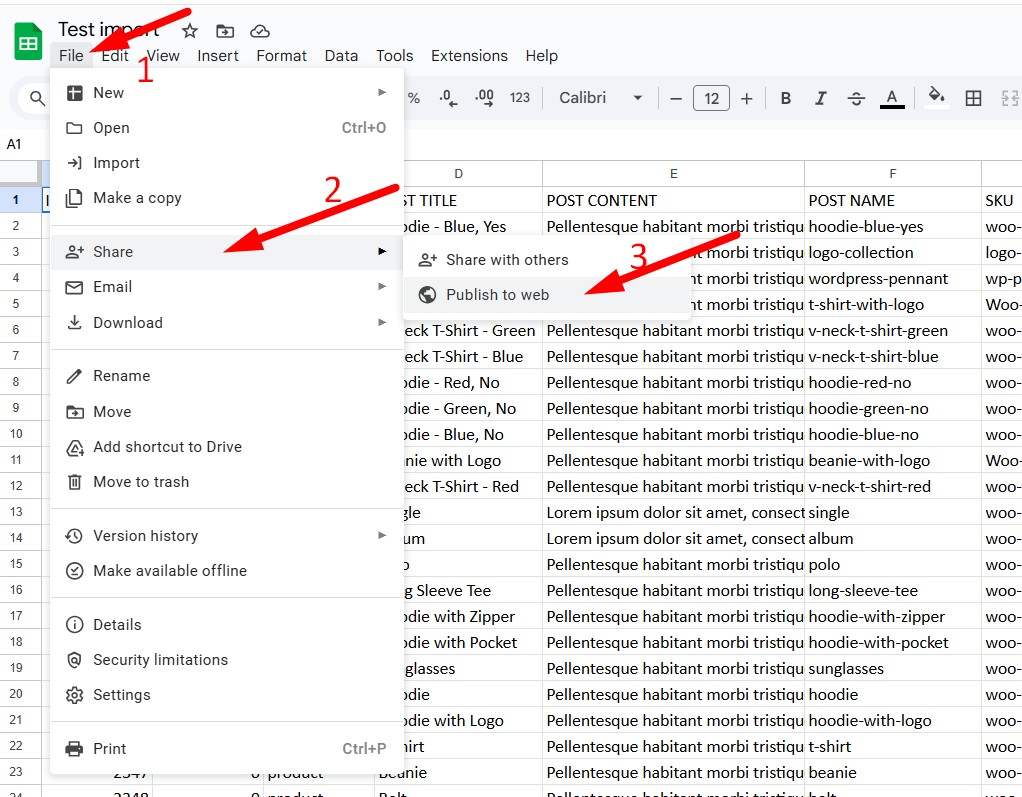
- In Google Sheets, click File > Share > Publish to web.
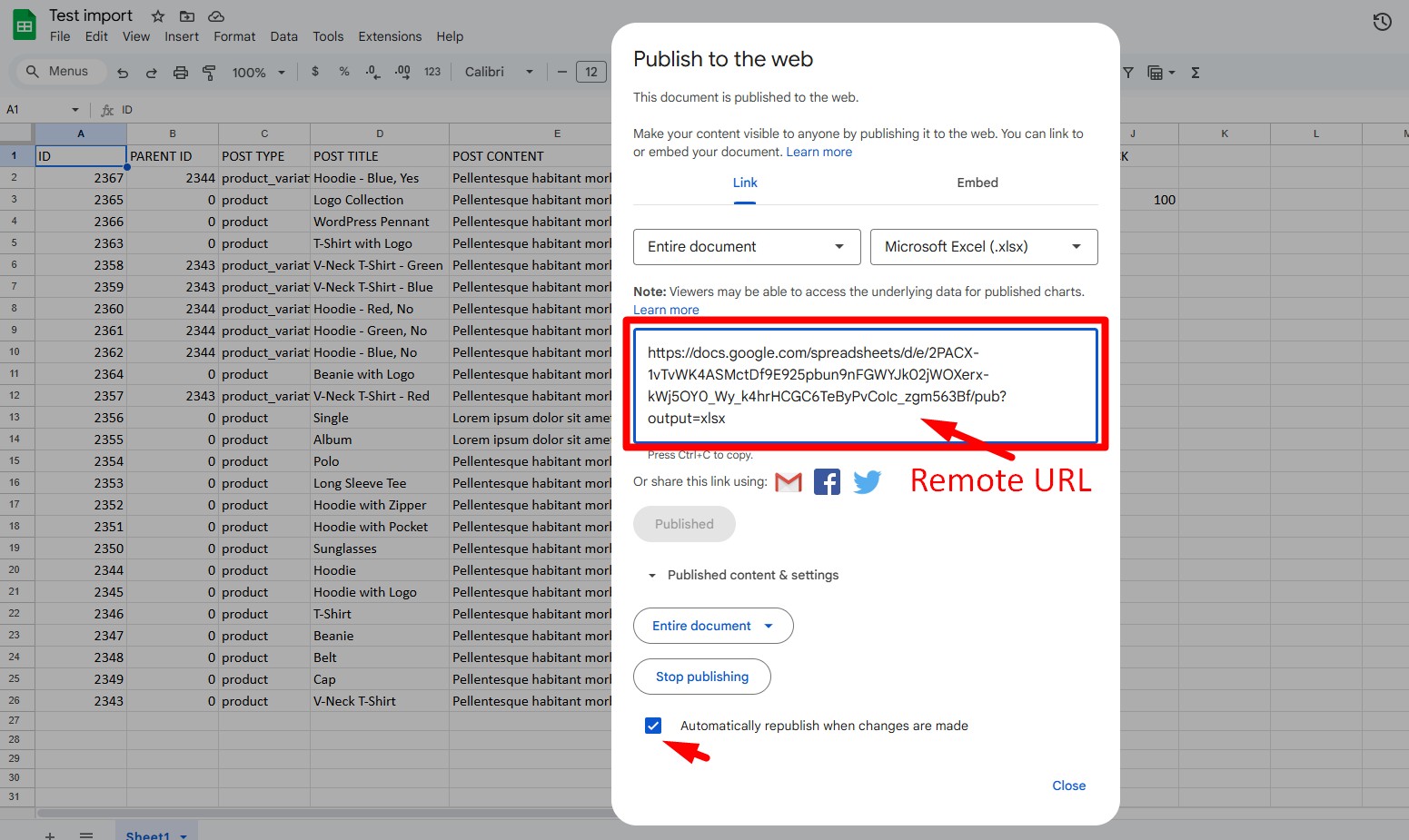
- In the dialog, under Link, choose Entire document, then in the format dropdown select Microsoft Excel (.xlsx).
- Click Publish and confirm.
- Copy the generated link, which ends with
output=xlsx, and keep it for the schedule step. - Make sure Automatically republish when changes are made is enabled so edits reach the next scheduled run.
4. Run one manual import first #
A successful manual import must be completed before the schedule can run, because the schedule reuses the mapping you save here.
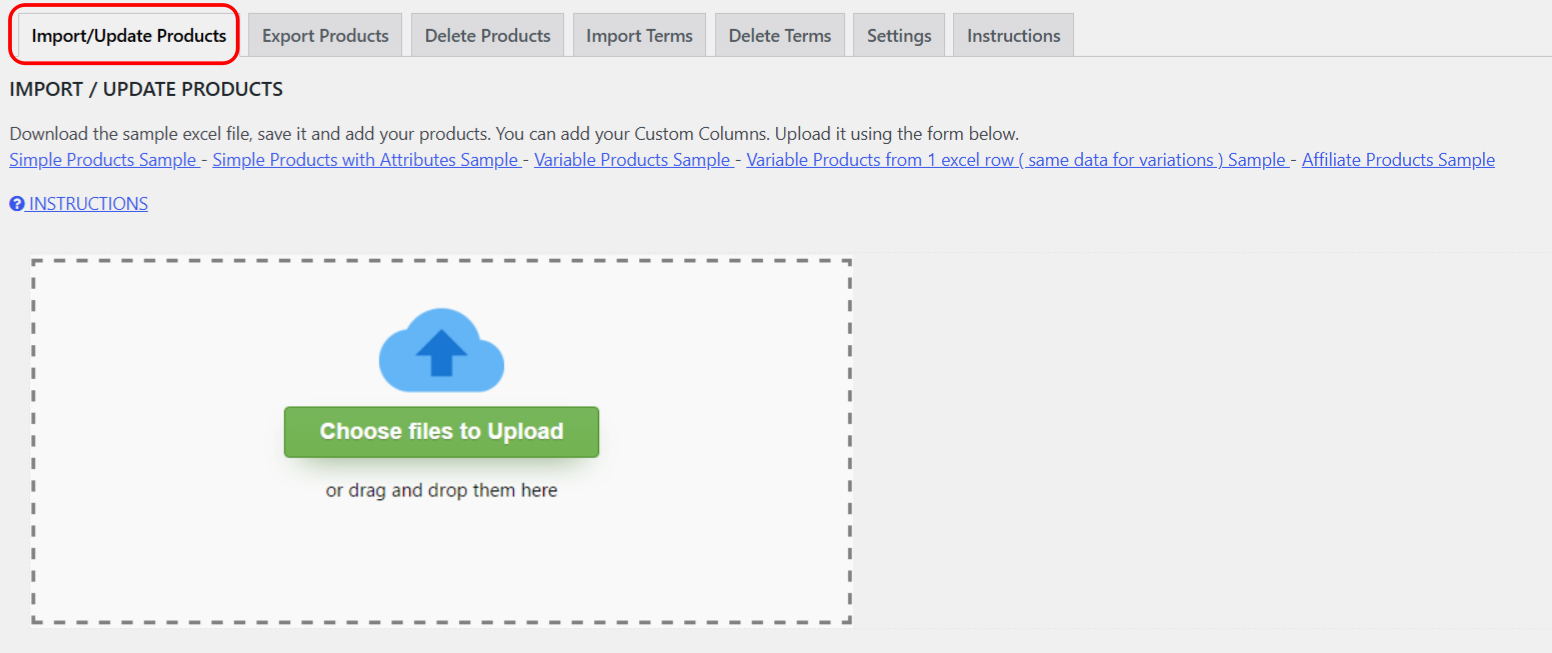
- Go to WPFactory > Product Import/Export > Import/Update Products.
- Upload your Excel file, map the columns to the product fields, and tick Save Mapping for later use before you run the import.
5. Configure the scheduled import #
Once the manual import and saved mapping are in place, set up the schedule.
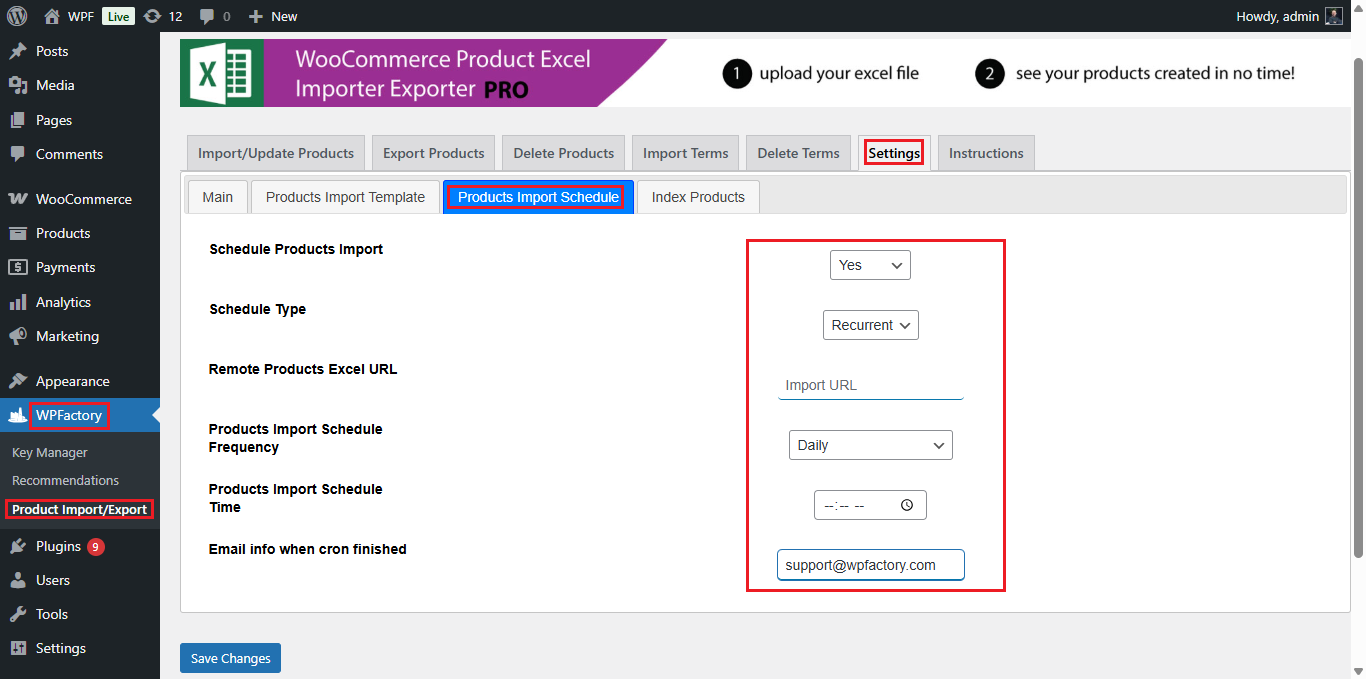
- Go to WPFactory > Product Import/Export > Settings > Products Import Schedule.
- Set Schedule Products Import to Yes.
- Choose the Schedule Type: One Time for a single run, or Recurrent for regular updates.
- Enter the Remote Products Excel URL using the published Google Sheets XLSX link from step 3.
- Set the date and time and, for recurrent imports, the frequency (for example once every 1 hour, once every 12 hours, or daily).
- Optionally set an email address so the plugin emails a report when the run finishes.
- Save changes.
Products Import & Export with Excel now downloads the XLSX version of your Google Sheet at the times you set, applies the saved mapping, and creates or updates products.
6. Update data later #
- Edit product data directly in the Google Sheet: prices, stock, titles, and so on.
- Keep the column names and order the same so the saved mapping stays valid.
- On the next scheduled run, the changes are imported and a report email is sent when the process completes.
Notes and best practices #
- Test on a staging site before enabling a recurrent import on a live store.
- Keep a recent database backup before large imports.
- Match products by ID or SKU to avoid creating duplicates.
Get more from Products Import & Export with Excel #
Scheduled Google Sheets sync is one of many ways WooCommerce Products Import & Export with Excel keeps your catalog current. It also imports simple, variable, external, and subscription products, product images and galleries, custom fields, and taxonomy terms. See everything it can do.