This reference lists every setting in Products Stock Manager with Excel for WooCommerce, with its option ID, default and edition. All settings are on one form at WPFactory > Stock Manager > Settings, which you can also reach from the Settings link under the plugin on the Plugins screen. Only administrators can save them.
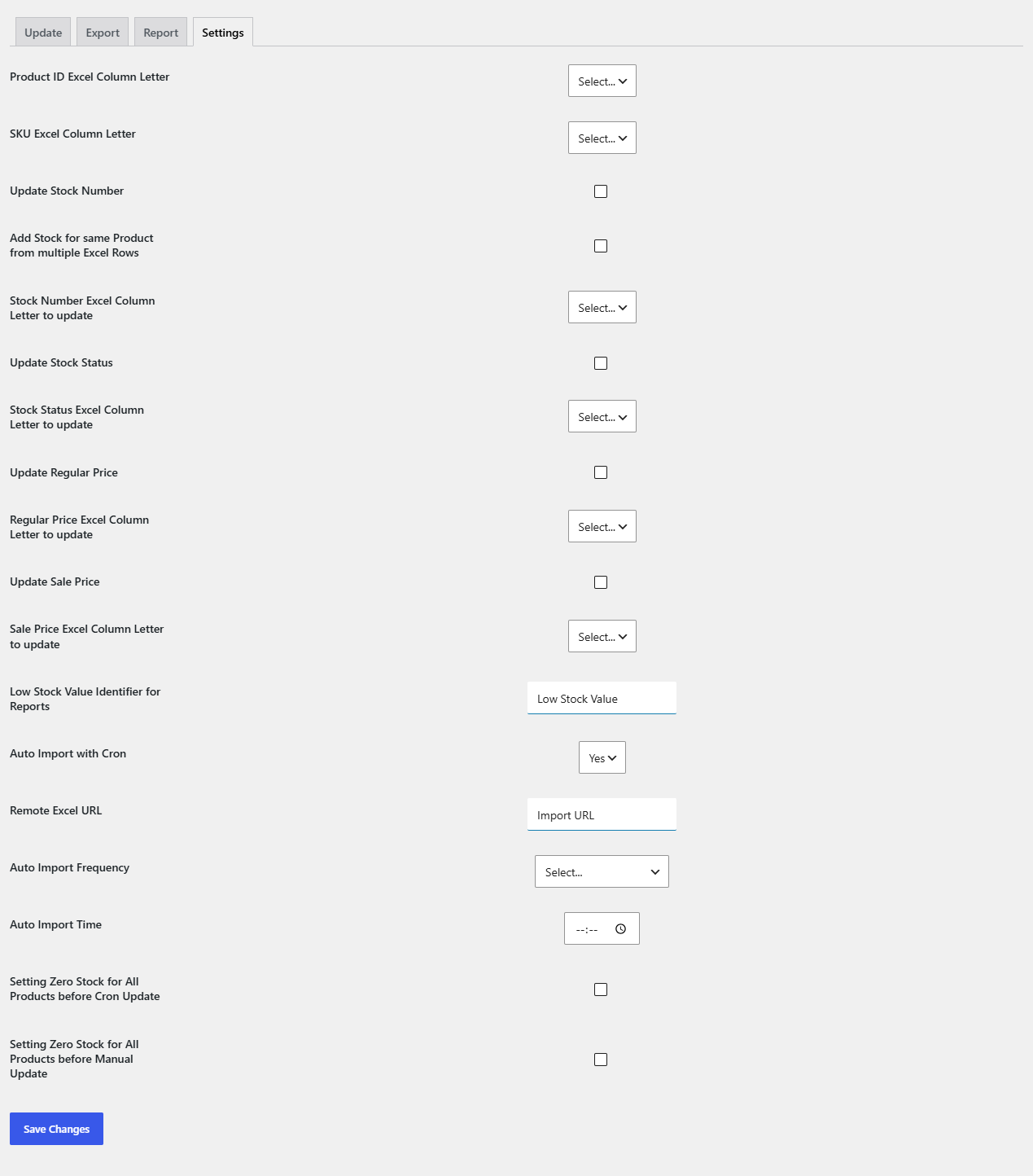
How to change Stock Manager settings #
- Go to WPFactory > Stock Manager.
- Click the Settings tab.
- Change the options you need.
- Click Save Changes.
Every option ID starts with the prefix stockManagerWooCommercePro. Defaults were verified against Stock Manager Pro 4.0.3. The Free/Pro column follows the plugin’s readme, because the free edition’s code was not available for this review.
Column mapping #
Leave a column field on Select… to use the default letter from the sample file.
| Label | Option ID | Default | Free/Pro |
|---|---|---|---|
| Product ID Excel Column Letter | stockManagerWooCommerceProidColumn |
Select… (column A) | Pro |
| SKU Excel Column Letter | stockManagerWooCommerceProskuColumn |
Select… (column B) | Pro |
| Stock Number Excel Column Letter to update | stockManagerWooCommerceProstockNumberColumn |
Select… (column E) | Pro |
| Stock Status Excel Column Letter to update | stockManagerWooCommerceProstockStatusColumn |
Select… (column F) | Pro |
| Regular Price Excel Column Letter to update | stockManagerWooCommerceProregularPriceColumn |
Select… (column C) | Pro |
| Sale Price Excel Column Letter to update | stockManagerWooCommerceProsalePriceColumn |
Select… (column D) | Pro |
Column letters from A to BZ are available. If you set the SKU column to A, product IDs are ignored and every row is matched by SKU.
What to update #
| Label | Option ID | Default | Free/Pro |
|---|---|---|---|
| Update Stock Number | stockManagerWooCommerceProupdateStockNumber |
Off | Free and Pro |
| Add Stock for same Product from multiple Excel Rows | stockManagerWooCommerceProaddStockNumber |
Off | Free and Pro |
| Update Stock Status | stockManagerWooCommerceProupdateStockStatus |
Off | Free and Pro |
| Update Regular Price | stockManagerWooCommerceProupdateRegularPrice |
Off | Free and Pro |
| Update Sale Price | stockManagerWooCommerceProupdateSalePrice |
Off | Free and Pro |
A checked box is saved as yes. With all four update boxes off, an upload changes nothing, even though each row reports “updated successfully”.
Report #
| Label | Option ID | Default | Free/Pro |
|---|---|---|---|
| Low Stock Value Identifier for Reports | stockManagerWooCommerceProlowStockValue |
Empty (5 is used) | Free and Pro |
Scheduled import (cron) #
| Label | Option ID | Default | Free/Pro |
|---|---|---|---|
| Auto Import with Cron | stockManagerWooCommerceProautoimport |
Not saved (the dropdown shows Yes first) | Pro |
| Remote Excel URL | stockManagerWooCommerceProimportUrl |
Empty | Pro |
| Auto Import Frequency | stockManagerWooCommerceProimportFrequency |
Select… (no schedule) | Pro |
| Auto Import Time | stockManagerWooCommerceProimportTime |
Empty (first run at save time) | Pro |
| Setting Zero Stock for All Products before Cron Update | stockManagerWooCommerceProsetZeroStock |
Off | Pro |
Frequency values: 1min, 5min, 10min, 30min, 1hour, 6hours, 12hours, daily, weekly, monthly. Auto Import Time is read in UTC. See how to schedule automatic stock updates.
Manual update #
| Label | Option ID | Default | Free/Pro |
|---|---|---|---|
| Setting Zero Stock for All Products before Manual Update | stockManagerWooCommerceProsetZeroStockManual |
Off | Pro |
Both zero stock options set _stock to 0 and the stock status to Out of stock on every product (any status) before the file is read. Variations are not reset individually.
Get more control #
Column mapping, scheduled imports and zero stock resets are part of Products Stock Manager with Excel for WooCommerce Pro. Compare editions in Stock Manager Free vs Pro.
Need a hand? Our team answers every ticket on the Stock Manager support forum.