- Before you start
- Step 1: Open the tool
- Step 2: Choose how to change the price (General Options)
- Step 3: Choose which products to change (Products)
- Step 4: Fine-tune the result (Final Price Correction, Pro)
- Step 5: Preview, then change
- After you change prices, check your costs
- Troubleshooting
- Get more control
Editing WooCommerce prices in bulk means changing many product prices at once from one screen, instead of opening each product. The Price Update: Bulk Pricing Editor for WooCommerce does this with a preview-first tool: you set a rule, preview the result, then apply it. This guide walks through a full run from start to finish.
Before you start #
- Back up your product prices, or run a preview first. There is no undo once you apply.
- WooCommerce and Bulk Price Editor active. Divide, subtract, tag/attribute filtering, and rounding are Pro; fixed price, percentage, multiply, add, and category filtering are free.
Step 1: Open the tool #
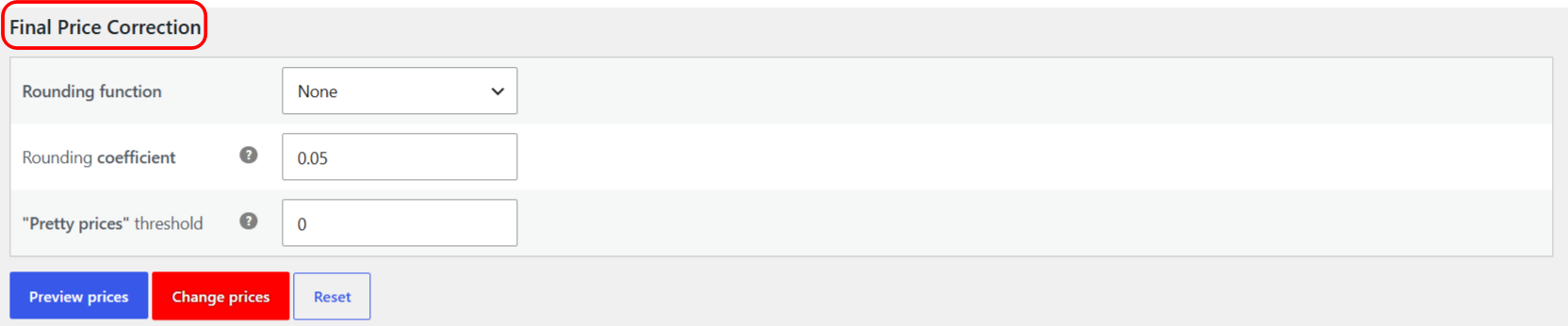
Go to WooCommerce > Bulk Price Converter, or open WPFactory > Bulk Price Converter and click the green Bulk price converter tool button. The tool is titled “Bulk Price Converter Tool”.
Step 2: Choose how to change the price (General Options) #
Fill in one field, or combine several. Leave a field at its default to skip it.
- Direct price: set every price to this exact amount (for example a flat $10 sale). Free.
- Percentage all product prices by: add a percentage. Enter -20 for 20% off, or 10 to add 10%. Free.
- Multiply all product prices by: 1.1 adds 10%, 0.8 takes 20% off. Keep it above 0, or the run is skipped. Free.
- Divide all product prices by: 2 halves prices. Note that dividing by a number below 1 raises prices, so dividing by 0.5 doubles them. Pro.
- Add / Subtract: add or remove a fixed amount. Add is free; Subtract is Pro.
- Price type to modify: Both, Regular prices only, or Sale prices only.
Order matters. If you fill several fields, the plugin applies them in this order: Direct, then Percentage, Multiply, Divide, Add, Subtract, then rounding. For most tasks, use a single field.
Step 3: Choose which products to change (Products) #

- Products category: leave on Any for the whole store, pick a category to target it, or pick None for products with no category. Free.
- Products tag and Products in {attribute}: narrow further by tag or by an attribute term such as a color. Pro.
Step 4: Fine-tune the result (Final Price Correction, Pro) #
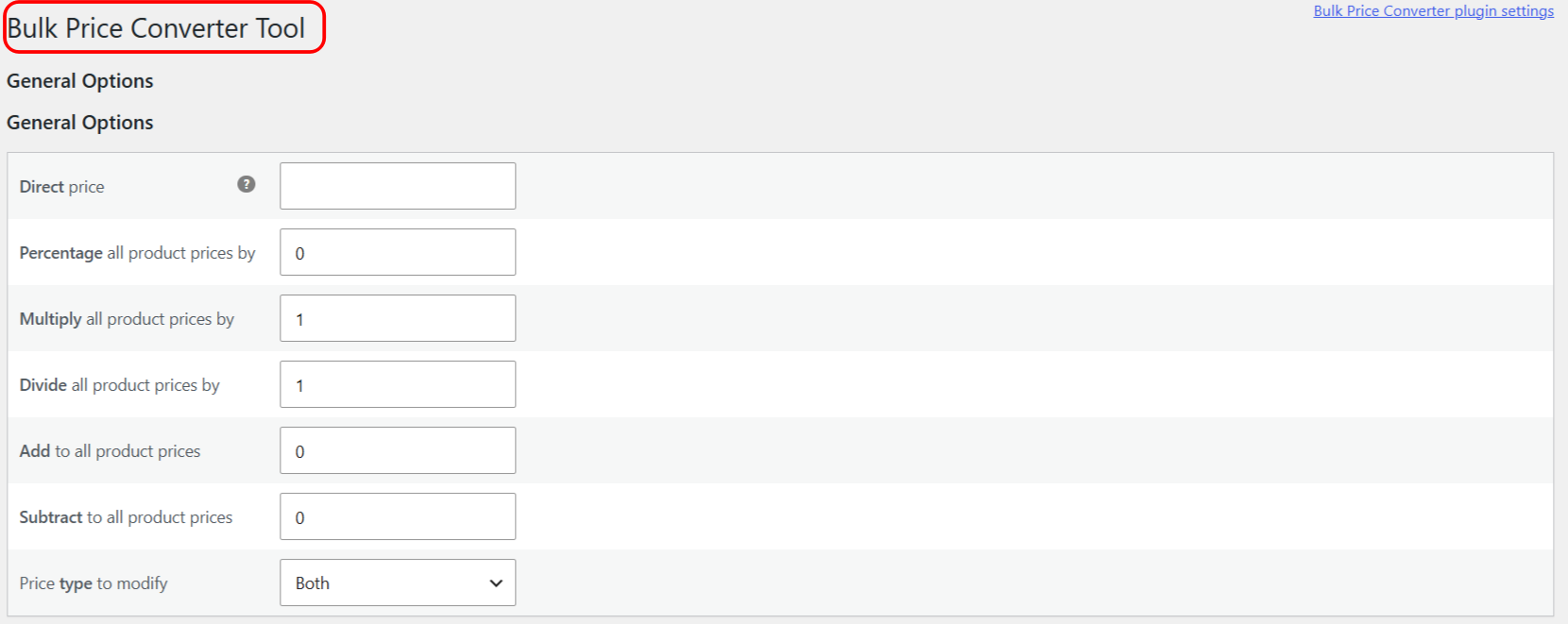
- Rounding function with a Rounding coefficient rounds results to a step, for example the nearest 0.05.
- “Pretty prices” threshold nudges prices to charm endings such as 9.99. Leave it at 0 to skip.
Step 5: Preview, then change #
- Click Preview prices. A Results table lists each product with its original and modified price. Nothing is saved yet. Preview works in the free version too.
- Check the numbers. If they look right, click Change prices (the red button) and confirm the “There is no undo for this action” prompt.
- A “Prices updated successfully!” notice confirms the run. Product transients are cleared automatically.
The Reset button simply reloads the tool with empty fields. It does not roll back a change you already applied.
After you change prices, check your costs #
When you move prices in bulk, make sure your margins still hold. Cost of Goods for WooCommerce tracks product cost and profit so a store-wide discount does not quietly push items below cost.
Troubleshooting #
- Nothing changed. Check that Multiply is not set to 0, and that your category, tag, or attribute filter is not excluding everything.
- The page times out on a large catalog. Lower Block size or raise Time limit on the settings page.
- Prices doubled instead of halving. You divided by a value below 1. Divide by 2 to halve, not by 0.5.
Get more control #
The core workflow is free. Price Update: Bulk Pricing Editor for WooCommerce Pro adds divide and subtract, tag and attribute targeting, and the rounding and pretty-price tools. See what Pro unlocks.