Table of Contents
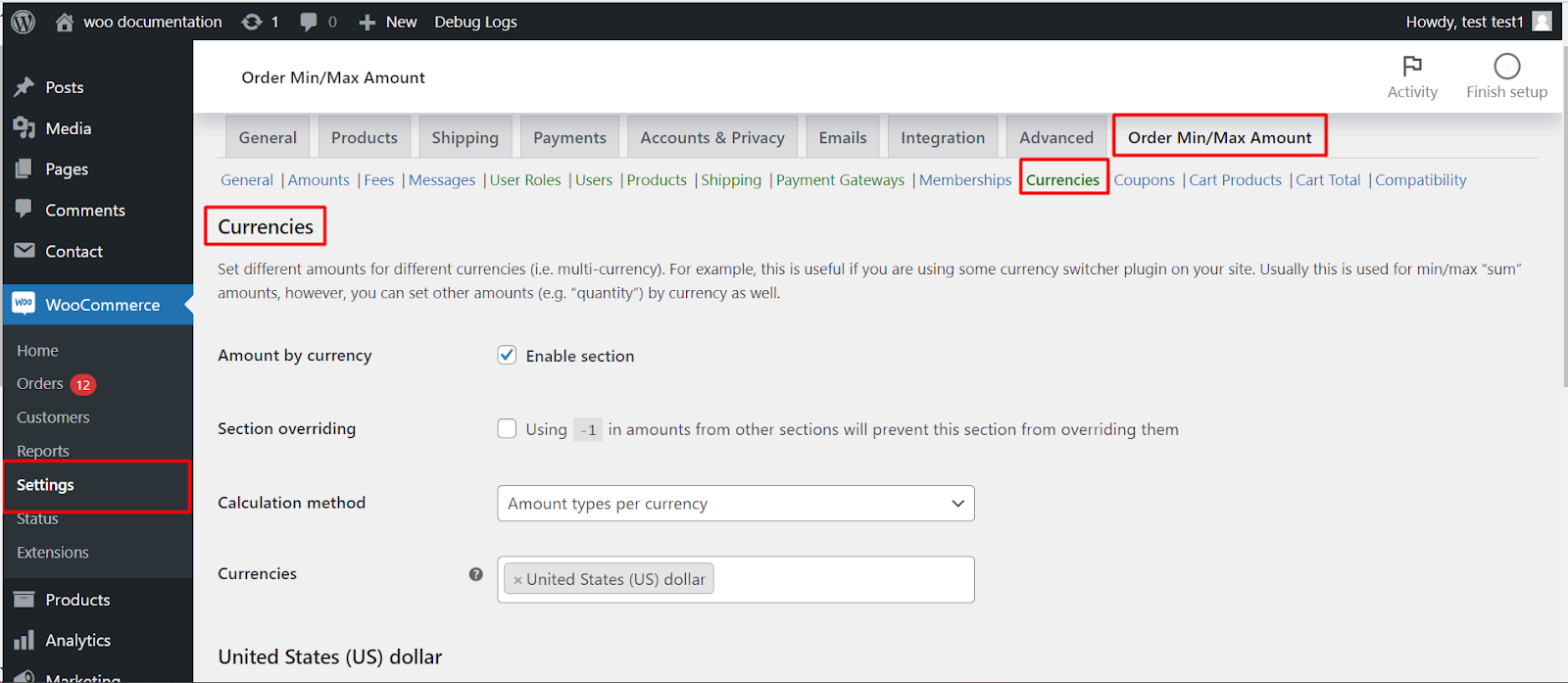
To set minimum and maximum amounts by currency in Order Minimum/Maximum Amount Limits for WooCommerce Pro, go to WPFactory > Order Min/Max > Currencies and tick Amount by currency. Pick a Calculation method, either amounts per currency or exchange rates, add your currencies, save, then fill in the amounts or rates and save again.
Before you start #
- WooCommerce, active, with a multi-currency setup if you want live switching.
- Order Minimum/Maximum Amount Limits for WooCommerce Pro: the Currencies section is a Pro feature.
Step-by-step #
- Go to WPFactory > Order Min/Max (also reachable at WooCommerce > Settings > Order Min/Max Amount) and open the Currencies sub-tab.
- Tick Amount by currency (
alg_wc_oma_by_currency_enabled). - Pick a Calculation method (
alg_wc_oma_currencies_calculation_method): Amount types per currency to enter each currency’s amounts by hand, or Exchange rates to convert your base limits automatically. - Add the currencies you support in the Currencies field, then click Save changes so the extra fields appear.
- Fill in the amounts (or exchange rates) and save again.
Options in this section #
| Label | Option ID | Default |
|---|---|---|
| Amount by currency (enable section) | alg_wc_oma_by_currency_enabled |
No |
| Calculation method | alg_wc_oma_currencies_calculation_method |
Amount types per currency |
| Section overriding | alg_wc_oma_currencies_prevent_overriding_minusone_values_sections |
No |
Ready to set this up? #
Per-currency limits are part of Order Min/Max Amount Pro. Get Order Min/Max Amount Pro.