To set a WooCommerce minimum or maximum order amount per payment method, use Order Minimum/Maximum Amount Limits for WooCommerce Pro. Go to WPFactory > Order Min/Max > Payment Gateways, tick Amount per gateway, save, then enter the limits for each gateway, such as a maximum for cash on delivery.
Before you start #
- WooCommerce, active, with your payment gateways configured.
- Order Minimum/Maximum Amount Limits for WooCommerce Pro: the Payment Gateways section is a Pro feature.
Step-by-step #
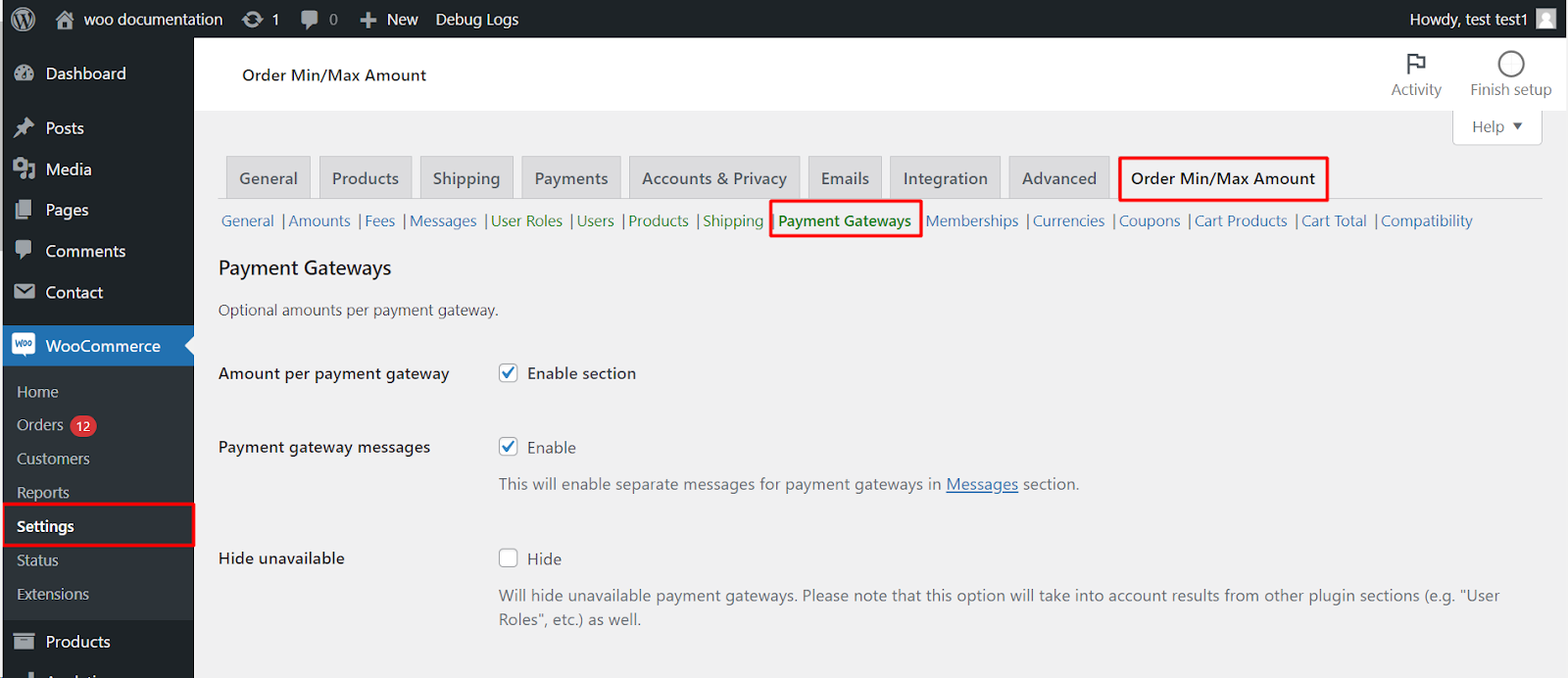
- Go to WPFactory > Order Min/Max (also reachable at WooCommerce > Settings > Order Min/Max Amount) and open the Payment Gateways sub-tab.
- Tick Amount per gateway (
alg_wc_oma_by_gateway_enabled) and click Save changes. - A block of fields appears for each payment gateway, one per enabled limit and amount type (for example Min sum and Max quantity). Fill in the ones you need and save.
- Optionally tick Messages and Hide, then save again.
Options in this section #
| Label | Option ID | Default |
|---|---|---|
| Amount per gateway (enable section) | alg_wc_oma_by_gateway_enabled |
No |
| Messages (separate gateway messages) | alg_wc_oma_by_gateway_messages_enabled |
No |
| Hide (hide payment gateways on exceeded amounts) | alg_wc_oma_by_gateway_hide |
No |
| Min / Max amount per gateway | alg_wc_oma_{min|max}_{type}_by_gateway[gateway_id] |
0 (ignored) |
| Priority | alg_wc_oma_by_gateway_priority |
40 |
Good to know #
- An amount of 0 is ignored; a negative value such as -1 removes the limit for that gateway.
- Turn on Hide to remove a gateway from checkout when the order breaks its limits, instead of showing an error.
- Turn on Messages to unlock the
%payment_gateway%placeholder in the Messages sub-tab.
What the customer sees #
At checkout, the limit follows the payment method the customer selects. Changing the method refreshes the checkout, so the min/max message updates straight away. The default gateway message reads: You must have an order with a minimum of %amount% for “%payment_gateway%” to place your order, your current order total is %total%. With Hide on, a gateway that would trigger a message is removed from the list instead, so the customer simply picks another method.
Which limit wins #
A gateway amount is only used when no earlier section already set a limit. Sections run by Priority, lowest number first: Users 20, Shipping 30, Payment Gateways 40, Memberships 50, User Roles 100, and finally the General amounts. Change the gateway Priority (at the bottom of the section) to move it ahead of or behind the others. Per-product, category and tag limits in the Products section can also carry gateway amounts.
Common uses #
- Cash on delivery only for small orders: set a Max sum on Cash on delivery and tick Hide.
- Bank transfer for large orders only: set a Min sum on Direct bank transfer.
- No limit for one gateway: enter -1 so the General minimum does not apply when that gateway is used.
If it does not work #
- The section checkbox is off, or you are on the free version, where Payment Gateways is disabled.
- Only some limit fields appear. The fields follow the Amount limits and Amount types chosen in the General section.
- A Users or Shipping amount (lower priority number) applies first, so the gateway amount is never reached.
- With Hide on, every gateway disappears. Hide removes a gateway whenever any min/max message would show with it selected, including your General limits. Fix the general limit or turn Hide off.
- Checkout notices do not update without a reload. As the section’s tip suggests, turn off Checkout notices in Messages, or add a position such as Order review: Payment: Before submit button.
FAQ #
Can I show a different message for each gateway? #
Tick Messages. Separate payment gateway messages then appear in the Messages section, and %payment_gateway% prints the selected method’s title.
Does this work with any payment plugin? #
Yes. The section lists every payment gateway registered in WooCommerce, including third-party gateways.
Can I set a gateway limit for one product only? #
Yes, with the Products section in Pro, where each product, category and tag can hold its own gateway amounts. See amounts by product, category, or tag.
Related: amounts by shipping method and min/max messages and their placement.
Ready to set this up? #
Per-gateway limits are part of Order Min/Max Amount Pro. Get Order Min/Max Amount Pro.
Need a hand? Our team answers every ticket on the Order Min/Max Amount support forum.