To set WooCommerce order limits by user role, open WPFactory > Order Min/Max > User Roles in Order Minimum/Maximum Amount Limits for WooCommerce, tick Amount by user role, save, then enter a minimum or maximum sum, quantity or other amount for each role. Role limits are free, including a Guest row.
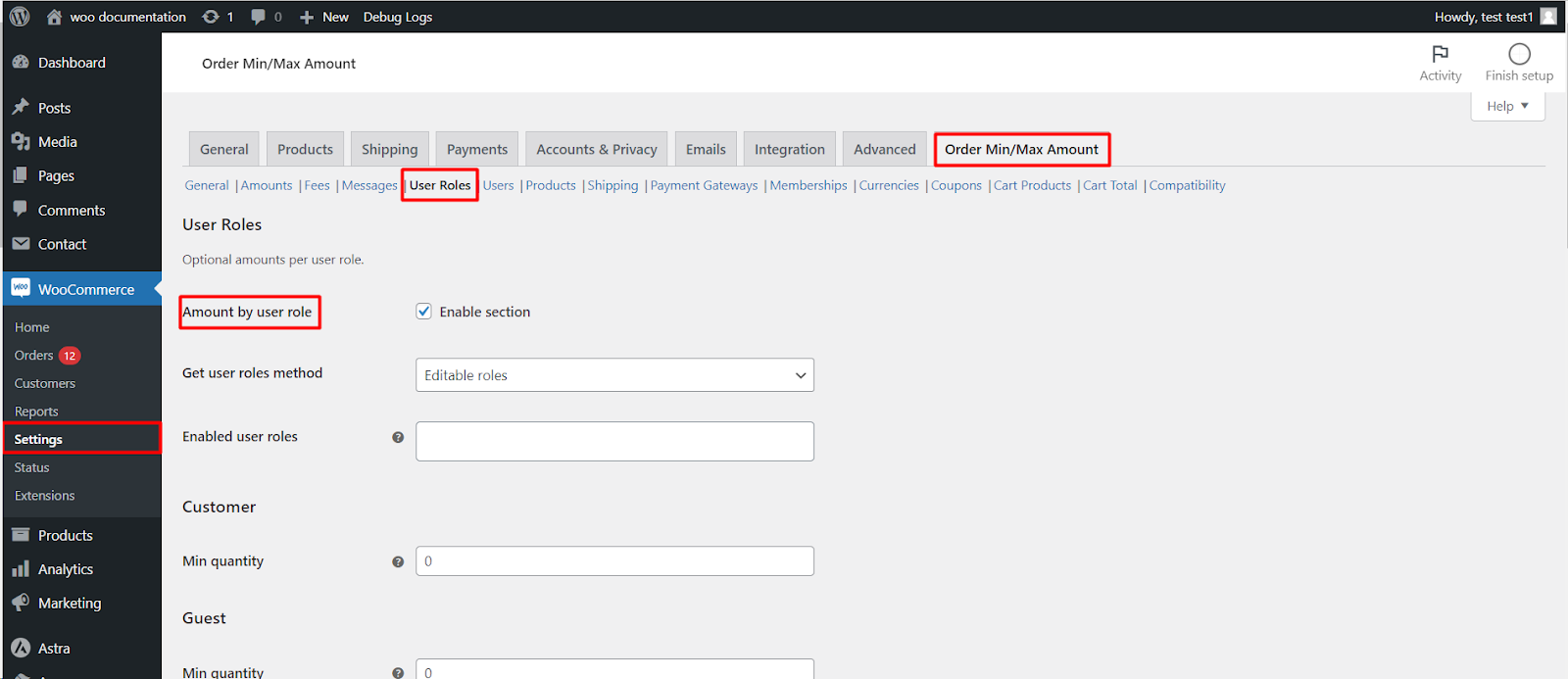
Step-by-step #
- In the General section, check that Amount types includes what you want to limit (the default is sum and quantity) and Amount limits includes Minimum and/or Maximum.
- Go to WPFactory > Order Min/Max (also reachable at WooCommerce > Settings > Order Min/Max Amount) and open the User Roles sub-tab.
- Tick Amount by user role (
alg_wc_oma_by_user_role_enabled). - Optionally narrow the list with Enabled user roles (
alg_wc_oma_enabled_user_roles); leave it empty to show fields for every role. Click Save changes. - Fill in the minimum and maximum amounts for each role and amount type, then save again. Each role gets one field per enabled limit and amount type, such as Min sum or Max quantity.
Options in this section #
| Label | Option ID | Default | Free/Pro |
|---|---|---|---|
| Amount by user role (enable section) | alg_wc_oma_by_user_role_enabled |
No | Free |
| Get user roles method | alg_wc_oma_get_user_roles_method |
Editable roles | Free |
| Enabled user roles | alg_wc_oma_enabled_user_roles |
(all) | Free |
| Priority | alg_wc_oma_by_user_role_priority |
100 | Free |
Good to know #
- An amount of 0 is ignored; a negative value such as -1 removes the limit for that role.
- Guests are covered by a built-in Guest role in the list.
- Custom roles from other plugins are supported. Switch Get user roles method to All roles if a role is missing from the list.
How the role limit is chosen #
- Logged-out visitors use the Guest row. Logged-in customers are matched by their WordPress roles, in the order the roles are stored on the account; the first role with a non-zero amount is used.
- If the role has no amount (0), the General amount applies.
- Role amounts have Priority 100, so Users (20), Shipping (30), Payment Gateways (40) and Memberships (50) amounts are checked first when those Pro sections are on. Lower the role priority to put roles ahead of them.
Example: wholesale minimum #
Set the General Min sum to 0 and your wholesale role’s Min sum to 500. Retail customers and guests can order any amount, while wholesale buyers see the minimum message in the cart and cannot check out below 500 (with Block checkout process on, its default).
If it does not work #
- The role is not in the list. Switch Get user roles method to All roles, or add the role to Enabled user roles.
- The quantity or weight fields are missing. Add that type to Amount types in the General section.
- You are testing while logged in as an administrator. Test with an account that has only the target role, or log out to test Guest.
- A higher-priority section (for example a Users amount) already set a limit for that customer.
FAQ #
Can I set a minimum quantity by user role? #
Yes. Add Quantity to Amount types in the General section (it is enabled by default), then fill in Min quantity for the role. This is free.
Can I combine user roles with product or category limits? #
Yes, in Pro. The Products section’s per-product, category and tag limits include a field for each enabled role. See amounts by product, category, or tag.
Can one customer get their own limit? #
Yes, with the Pro Users section. See amounts per user.
If role limits are not applied, see role, product or category rules not honored.
Get more control #
User-role limits are free. Order Minimum/Maximum Amount Limits for WooCommerce Pro adds limits for individual users, products, categories, shipping methods, gateways, currencies, and more. See what Pro unlocks.
Need a hand? Our team answers every ticket on the Order Min/Max Amount support forum.