To show a min/max order message in WooCommerce, open WPFactory > Order Min/Max > Messages in Order Minimum/Maximum Amount Limits for WooCommerce, enable the cart, mini-cart, checkout or product page notices, choose where each appears, edit the text and save. Messages are free and off by default for every area.
Step-by-step #
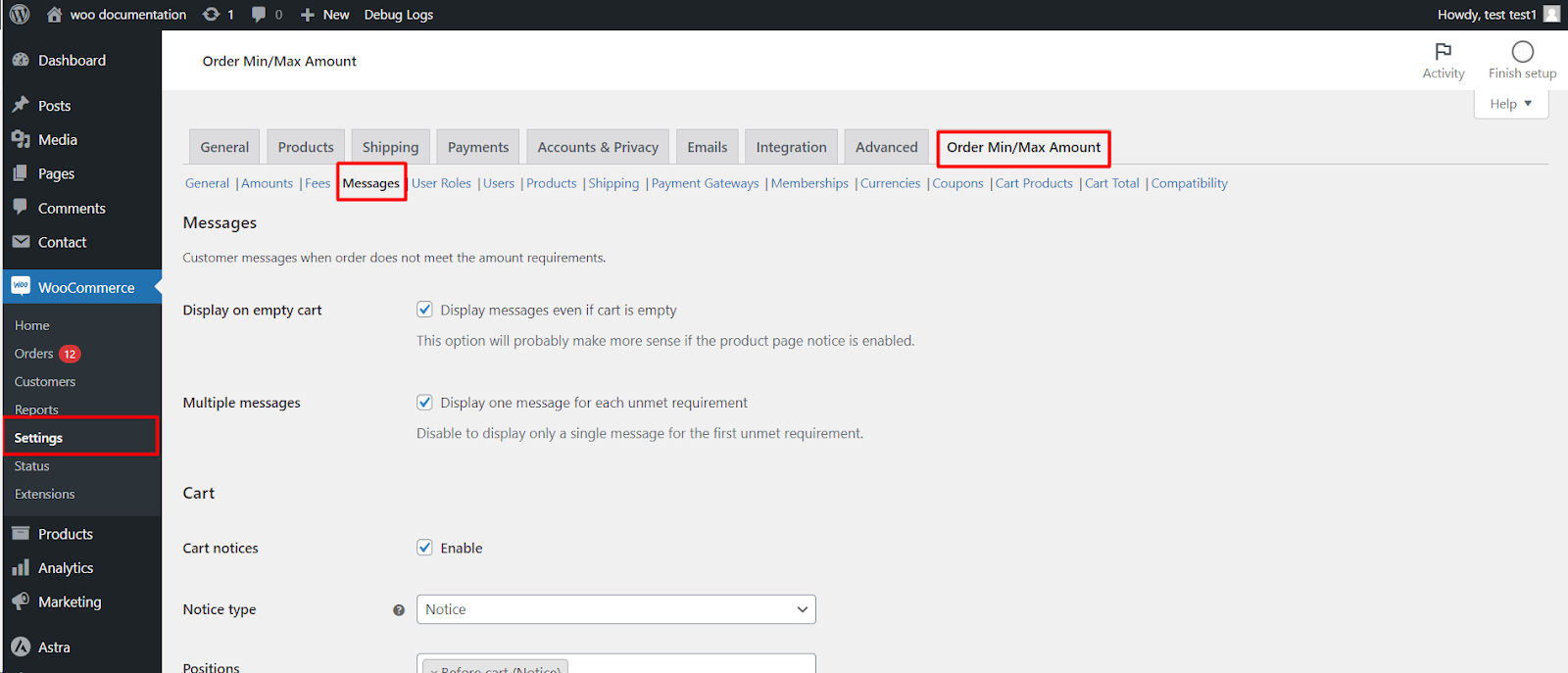
- Go to WPFactory > Order Min/Max (also reachable at WooCommerce > Settings > Order Min/Max Amount) and open the Messages sub-tab.
- For each area (Cart, Mini-cart, Checkout, Product page), tick Enable next to Cart notices, Mini-cart notices, Checkout notices or Product page notices. All four are off by default. Then choose a Notice type (Error or Notice, which sets the styling) and pick one or more Positions.
- Edit the message text for each limit and amount type. You can use HTML and placeholders such as
%amount%and%total%. - Click Save changes.
Header and advanced options #
| Label | Option ID | Default |
|---|---|---|
| Display on empty cart | alg_wc_oma_display_messages_on_empty_cart |
No |
| Multiple messages | alg_wc_oma_display_multiple_msg |
Yes |
| Force display | alg_wc_oma_msg_force_display |
No |
| Format amounts | alg_wc_oma_message_format_types_enabled |
Yes |
| Remove old notices (AJAX) | alg_wc_oma_remove_notices_on_added_to_cart |
No |
Good to know #
- Multiple messages on shows one message for every unmet requirement; off shows only the first.
- Turn on Format amounts to add units and currency to placeholder values (for example “5 pcs” or a formatted price).
- For the full list of placeholders and shortcodes, see the shortcodes and placeholders reference.
Areas, defaults and positions #
| Area | Default notice type | Default positions | Extra options |
|---|---|---|---|
| Cart | Notice | Before cart (Notice), Blocks cart enqueue data (Notice) | None |
| Mini-cart | No type setting | After mini cart | None |
| Checkout | Error | Before checkout form (Notice), Blocks checkout enqueue data (Notice) | Force refresh (free) |
| Product page | Notice | Before single product summary (Notice) | Smart product scope (Pro) |
Positions marked “(Notice)” print through the WooCommerce notices area; the others print inline at that spot in the template, such as Cart totals: Before order total or Order review: Payment: Before submit button. The two “Blocks … enqueue data” positions are for the block-based Cart and Checkout.
What the customer sees #
The default text is: You must have an order with a minimum of %amount% to place your order, your current order total is %total%. (or “maximum”). Useful placeholders:
%amount%: the limit;%total%: the current cart value;%diff%: how much is missing or over.%amount_raw%,%total_raw%,%diff_raw%: the same values without formatting.%product_title%,%term_title%,%term_title_with_link%: for per-product, category and tag limits (Pro).
For example: Add %diff% more to reach our %amount% minimum.
Even with all notice areas off, a customer whose order breaks a limit still gets an error when placing the order, as long as Block checkout process (General section) is on, which is its default.
If messages do not show #
- The area’s notices checkbox is off. Each area defaults to off.
- The cart is empty. Messages are hidden on an empty cart unless Display on empty cart is on.
- Your theme or page builder does not run the chosen hook. Pick a “(Notice)” position, or one of the Blocks positions if you use the block Cart or Checkout.
- The checkout message does not update after changing shipping or payment. Tick Force refresh in the Checkout area.
- Only one message appears. Turn on Multiple messages to list every unmet limit.
FAQ #
Can I show the message only as a warning, without blocking checkout? #
Yes. Set the Notice type to Notice and turn off Block checkout process in the General section. See blocking checkout when order limits are not met.
Can I translate the messages? #
Yes. Messages accept shortcodes, so you can use [alg_wc_oma_translate] for different languages. See the shortcodes reference linked above.
Why do I see the message while testing even when my cart is fine? #
Force display is probably on. It shows messages regardless of the requirements and is meant for styling tests.
Get more control #
Messages are free. Order Minimum/Maximum Amount Limits for WooCommerce Pro adds separate messages for shipping methods and payment gateways, plus per-product, category, and tag messages. See what Pro unlocks.
Need a hand? Our team answers every ticket on the Order Min/Max Amount support forum.